A children's coach joined the bot on 12 September 2026. Over the next 17 days they ran nine tournaments in the app at four venues - a youth centre and three schools. The time control was the same everywhere, rapid 10 minutes plus 5 seconds a move; seven tournaments were Swiss, two were round robins.
The largest tournament had 32 players: seven rounds, 111 games. Almost none of the children has an account of their own - only three of all the participants did, and the coach added the rest as guests. Of the 349 results, 346 were entered by the coach.
Most of the players are 8-10 years old: 56 children born in 2016-2018, another 18 born in 2012-2015 and 10 born in 2009-2011. And the children come back: 21 of them played in two tournaments or more. They are not typed in again but picked from the list.
Once the coach ran two separate tournaments at one school on the same day: a Swiss for boys in years 1-4 and a round robin for girls in years 1-4, with nine players. Then they asked whether one tournament could be set up so that girls only played girls. That is how groups inside a tournament appeared in the app on 28 September - more on them below.
In two tournaments the coach turned on No photos on the screen: the projector in the hall shows only names, without the children's faces. And the screens they opened most often were the live round, the tournament card and the standings - the app became their organiser's remote control during play.
Each line below is a real problem of a kids' tournament and how the app takes care of it.
A child is added as a guest - just by name. They play on equal terms with everyone else: in the pairings, in the standings and in the results.
A guest is created once and goes into the My guests list. At the next tournament you don't type them in again - you pick them from the list.
A Swiss is paired by an engine under FIDE rules (the Dutch system, bbpPairings), a round robin by Berger tables. Colours, repeat pairings and the bye for an odd number of players are all handled automatically.
You set the number of boards - the extra pairs wait in a queue and sit down as soon as a table is free.
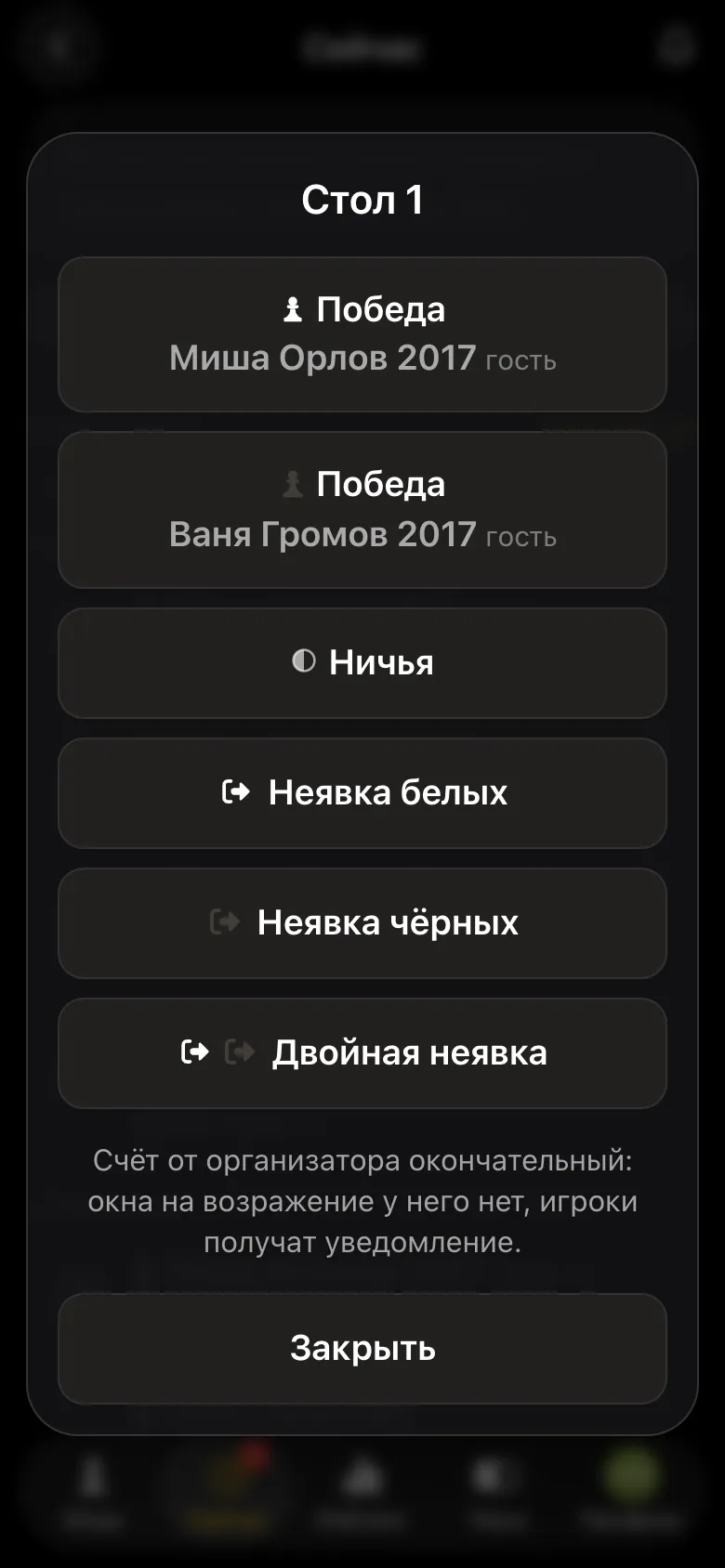
Tap the table and choose the result. The organiser's word is final, and the next round starts by itself.
In a Swiss that is already running, they are added on the roster screen and play from the next round.
Groups A, B, C inside the tournament: pairs only within a group, and each group has its own standings and its own winner.
The pairings and standings go up on a projector or TV, and the page updates by itself. The children's faces can be hidden.
The Export PDF report button sends an A4 sheet: places, points, tie-breaks and the pairings round by round.
A TRF file in one tap - the standard format for rating tournaments.
Everything works inside Telegram through @vibechessbot, and on a computer through the web version of the app with a Telegram login. Free of charge.
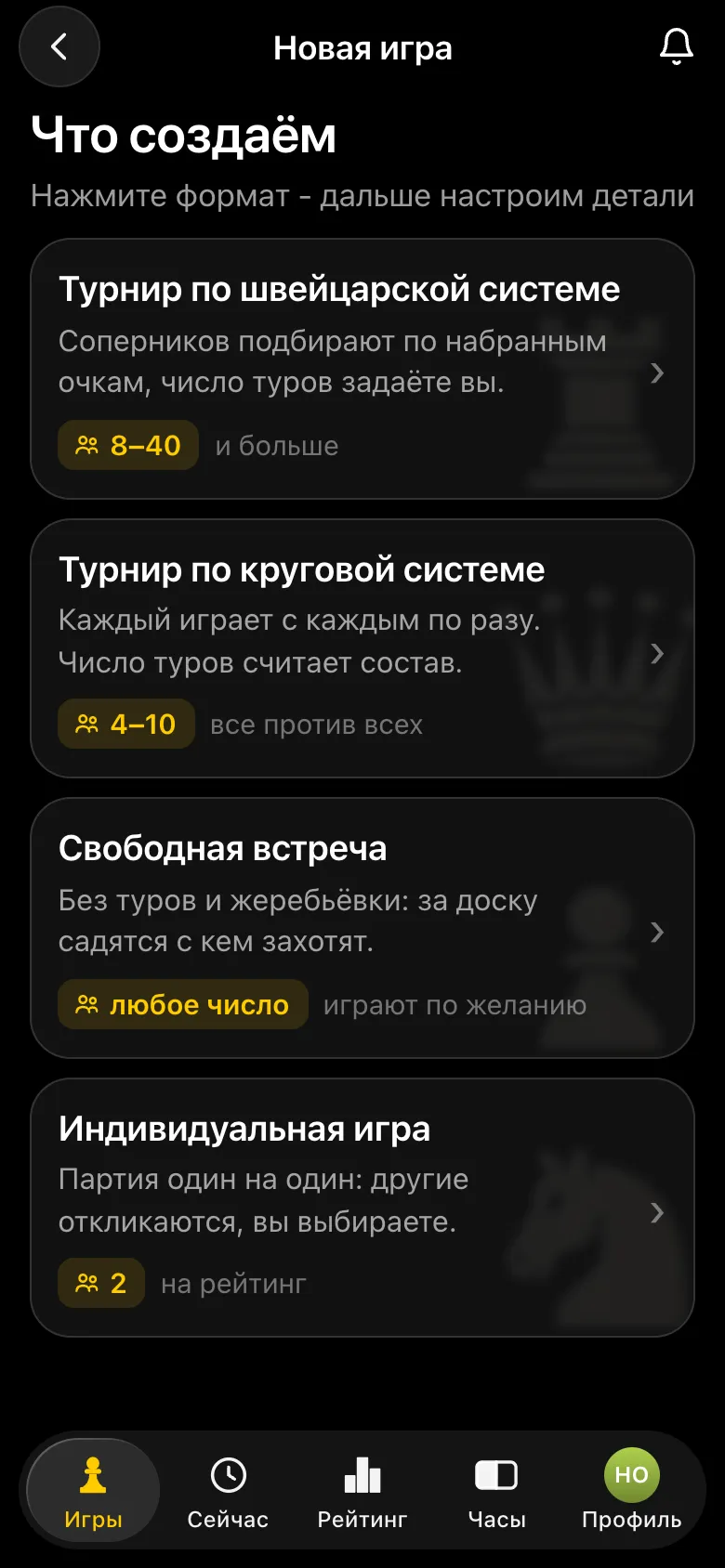
Open the Vibe Chess bot in Telegram and tap the app button - or go to the web version on a computer. On the Games tab tap Create your own game and choose the format.
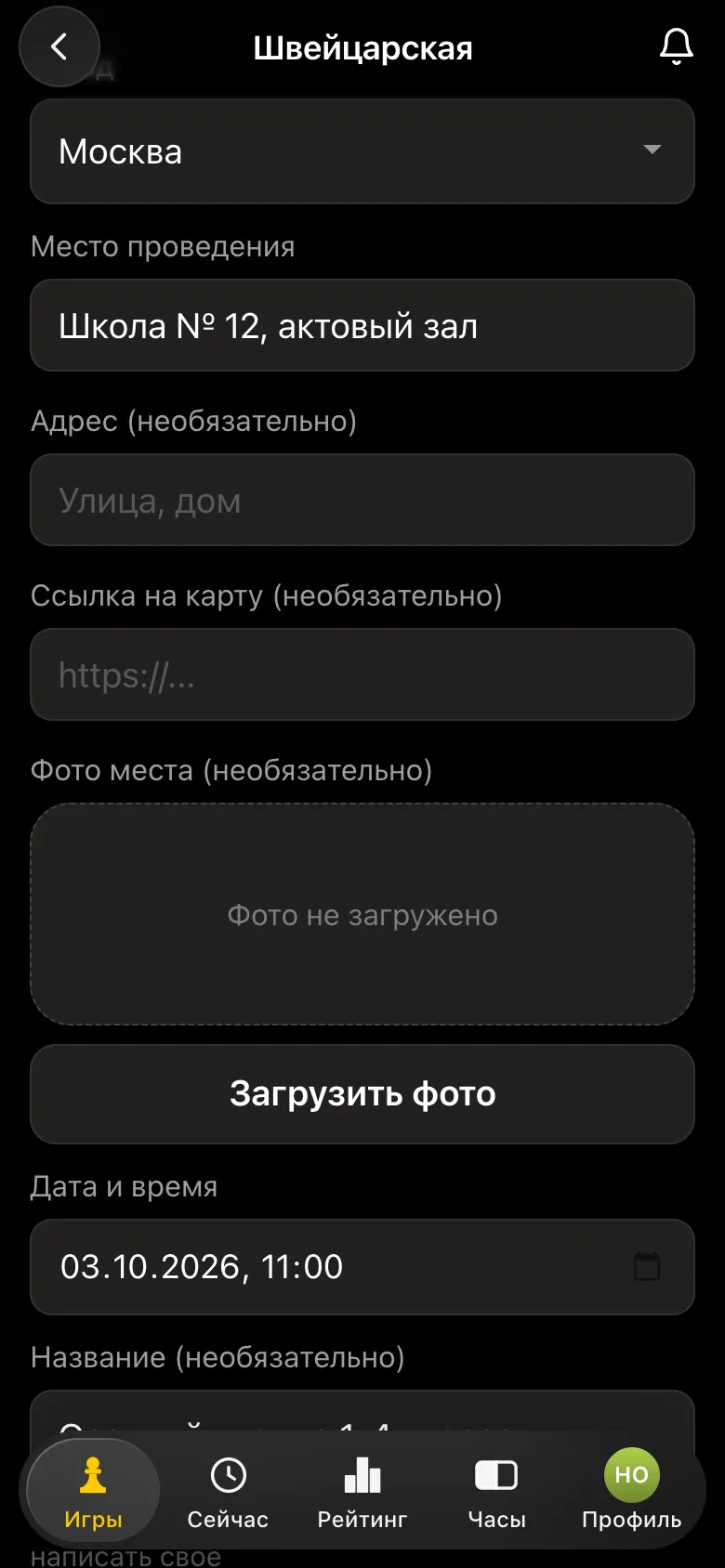
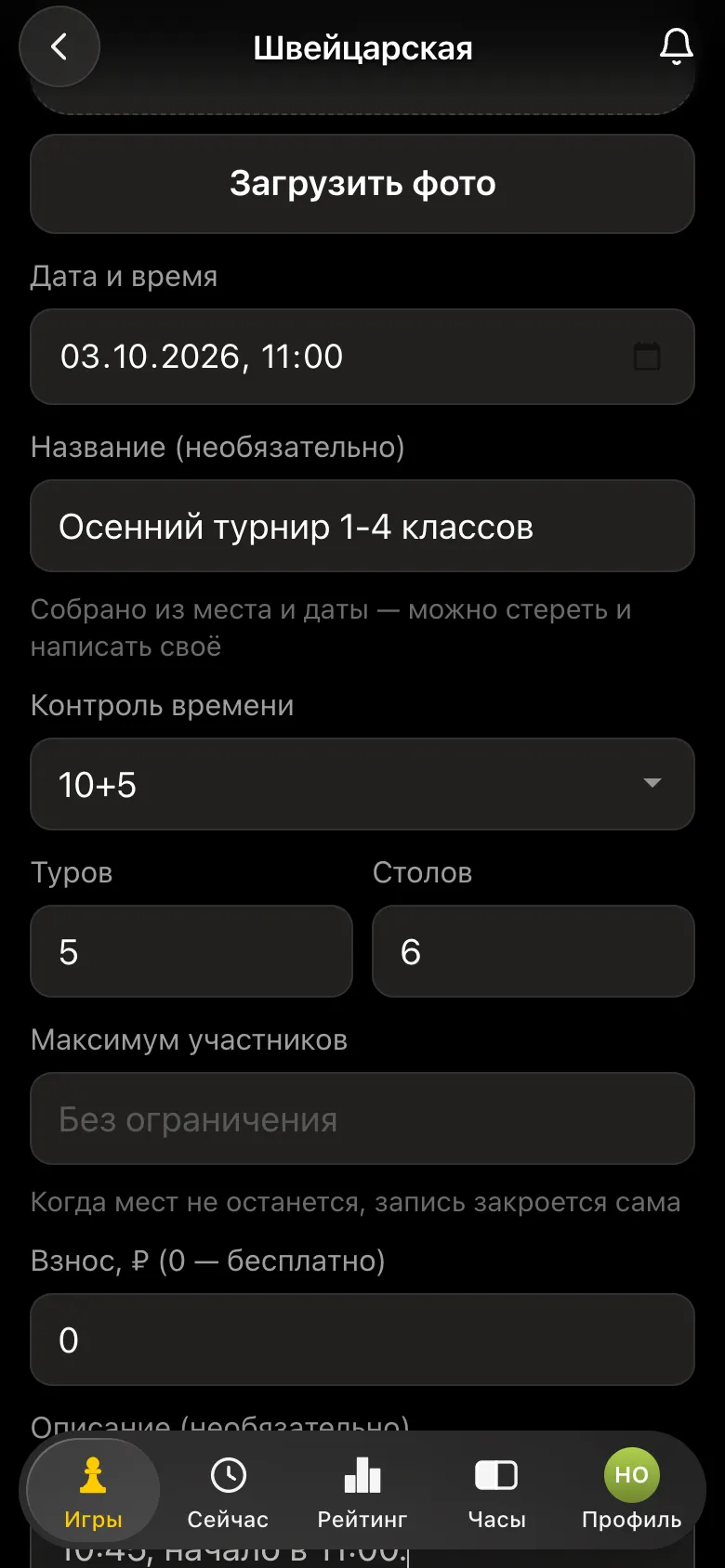
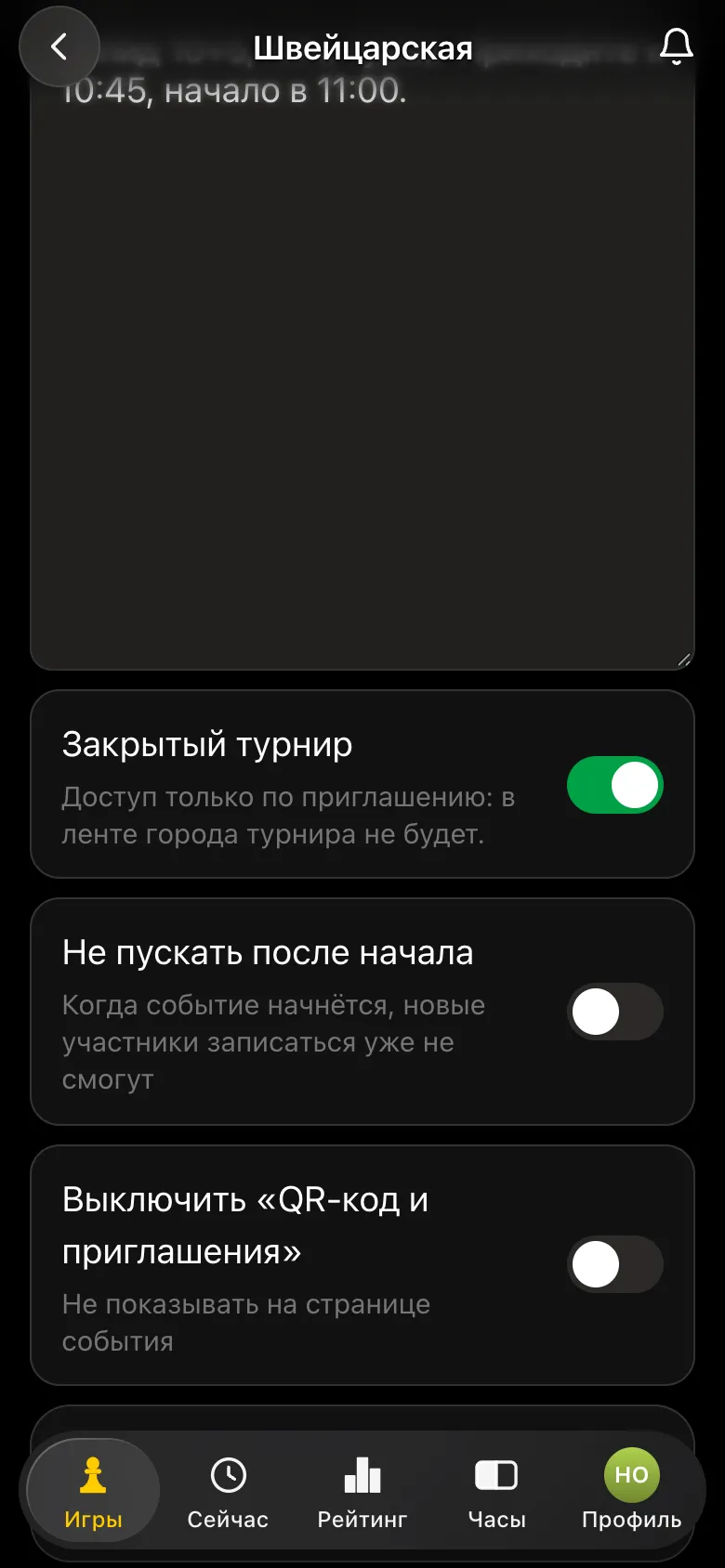
At the bottom of the form is Private tournament. Turn it on if the tournament is only for your own club or class: it won't appear in the city feed, and the only way in is your link.
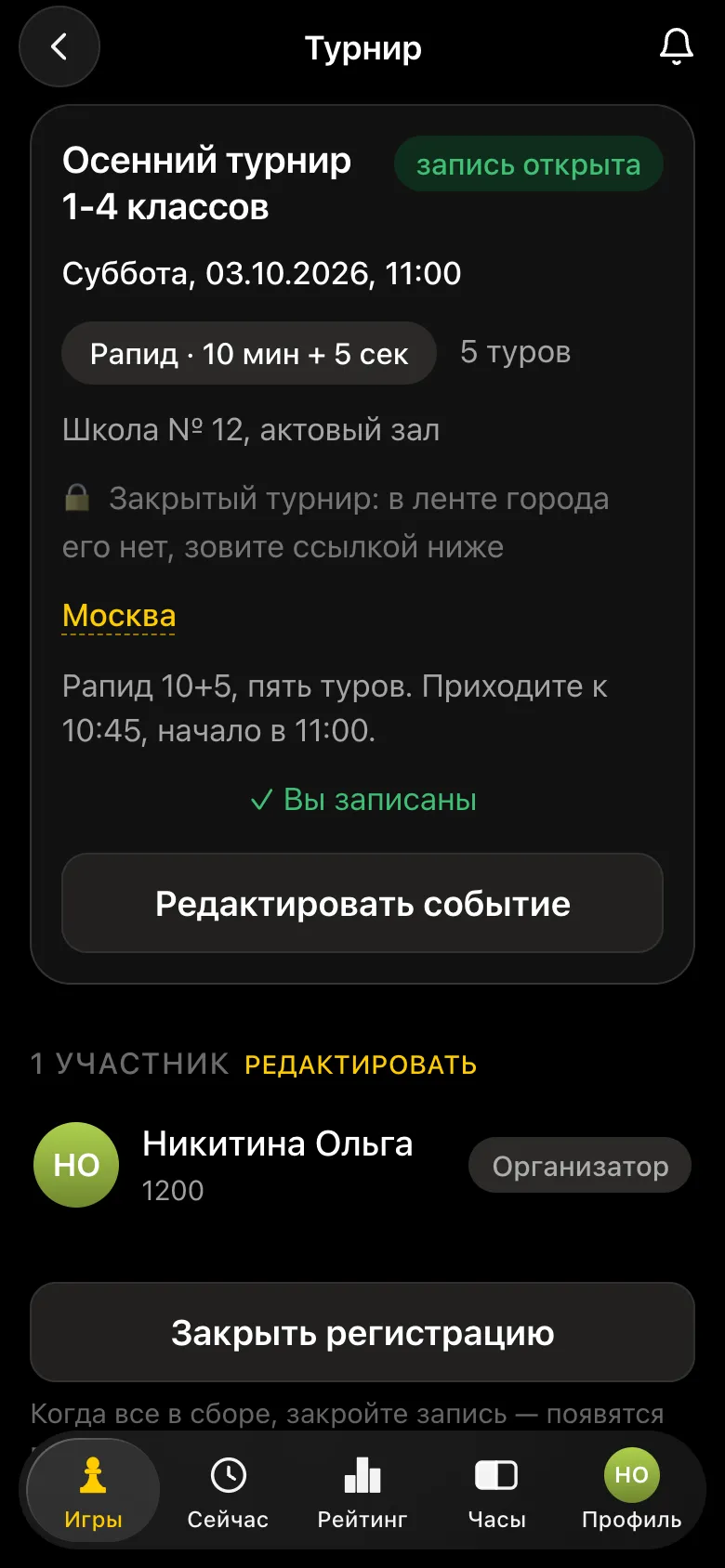
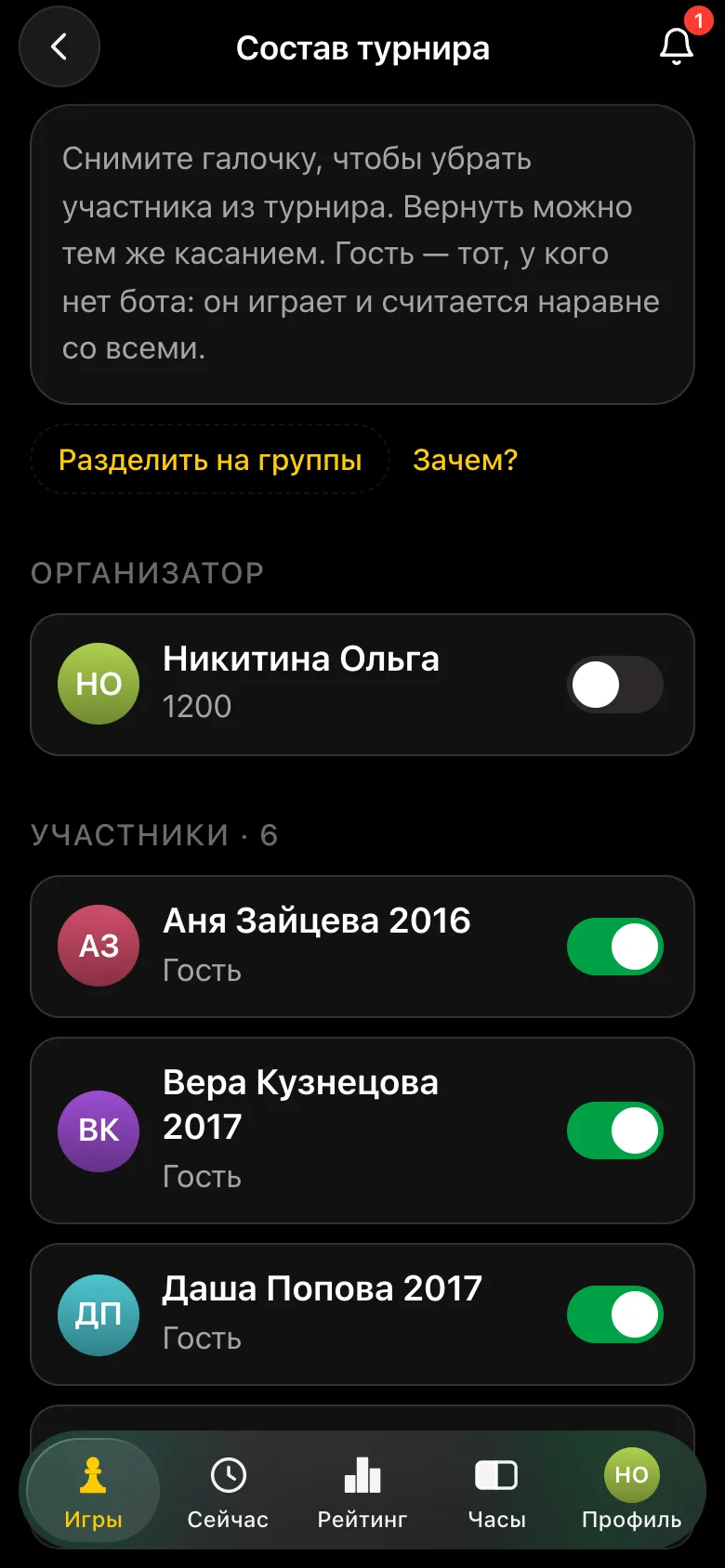
Tap Edit next to the list of players - the roster screen opens. At the bottom is the Guest name field: type the children in one by one and tap Add. A guest is a player without an account of their own: they play and are counted on equal terms with everyone.
Everything about guests - for any tournament, not just a kids' one: a player without a phone at a tournament.
It helps to write the name together with the year of birth: "Misha Orlov 2017". That way children with the same name don't get mixed up, and later it is easy to split them into age groups by year.
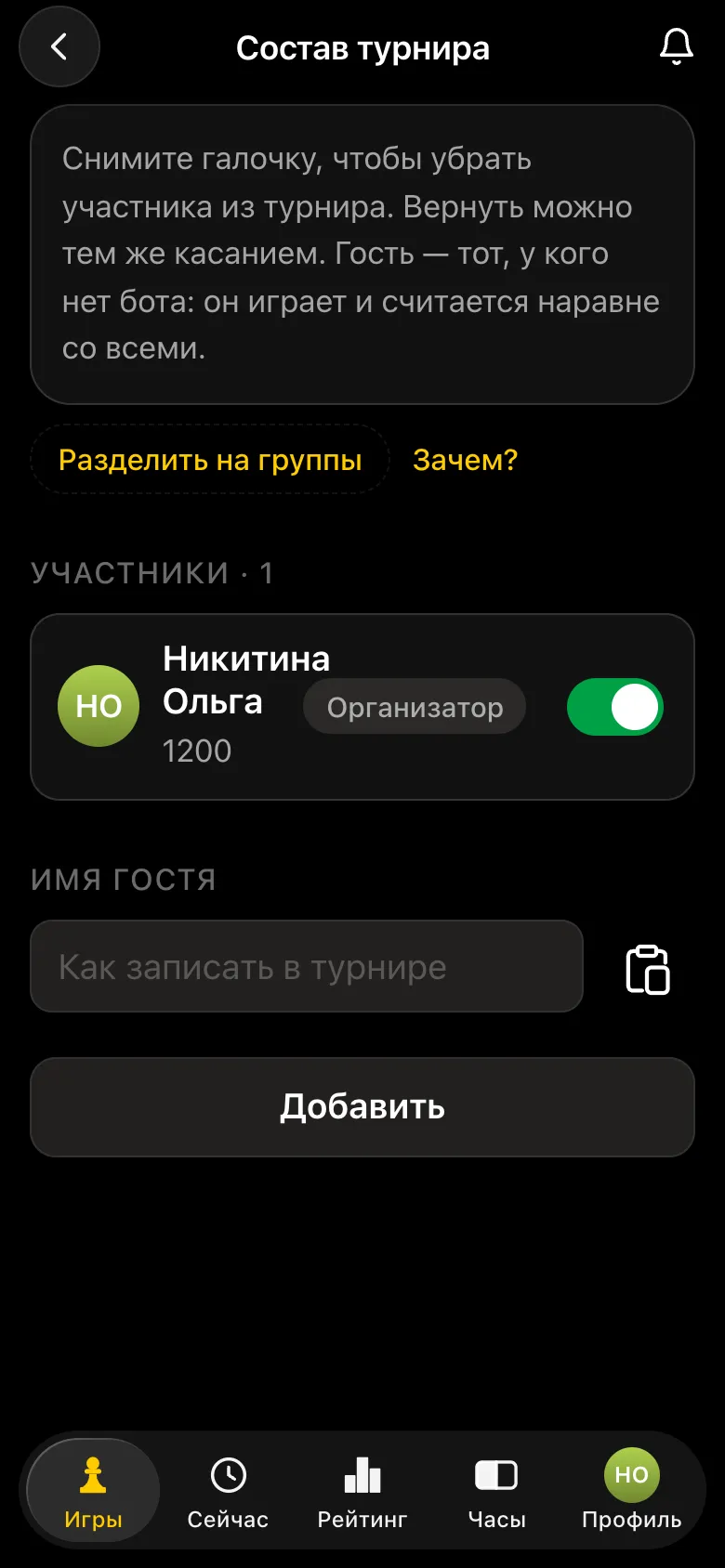
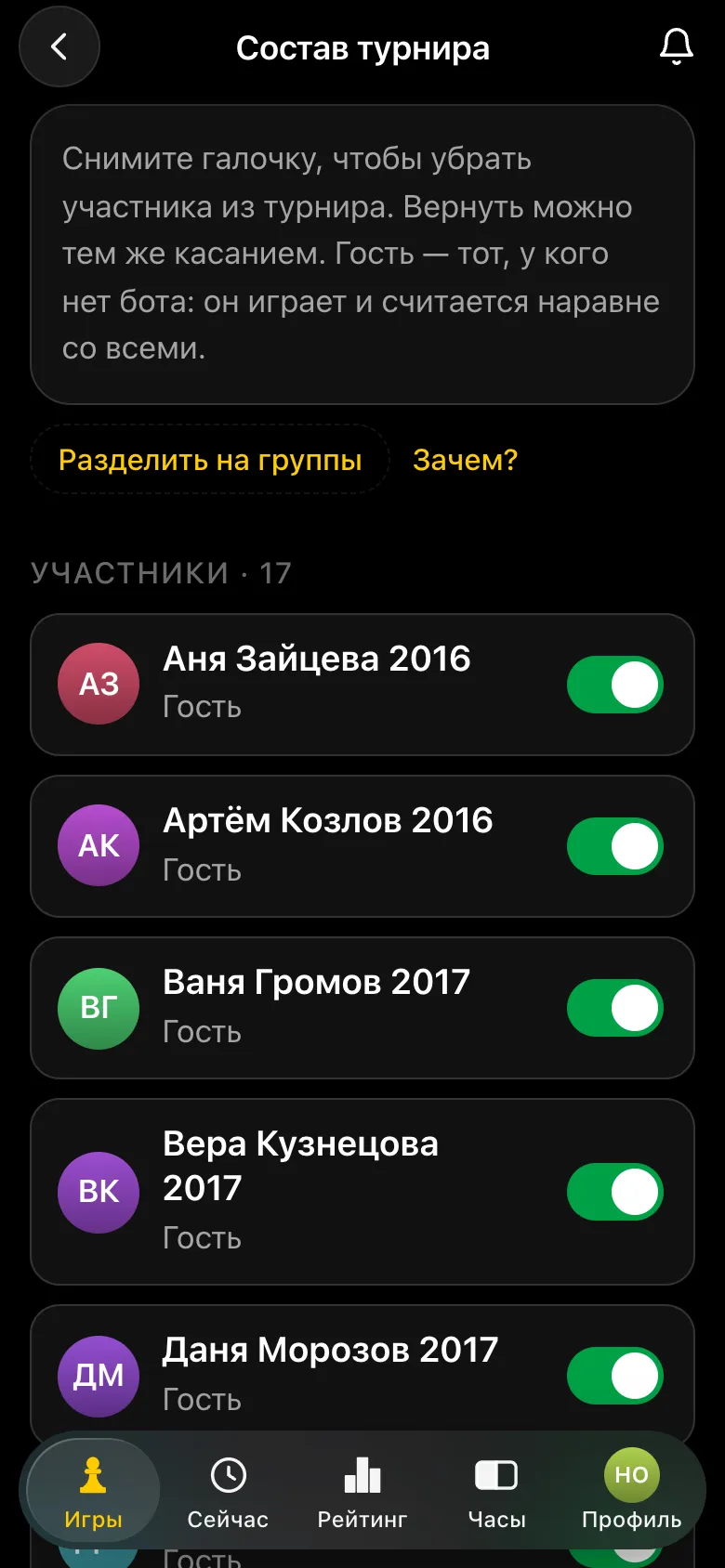
Anyone who has played with you before doesn't need typing in: they are in the My guests list - the button next to the name field. And if you start typing a name yourself, the app tells you that you already have such a guest and offers to take them from the list. That way a child's games add up, and the list doesn't fill with duplicates.
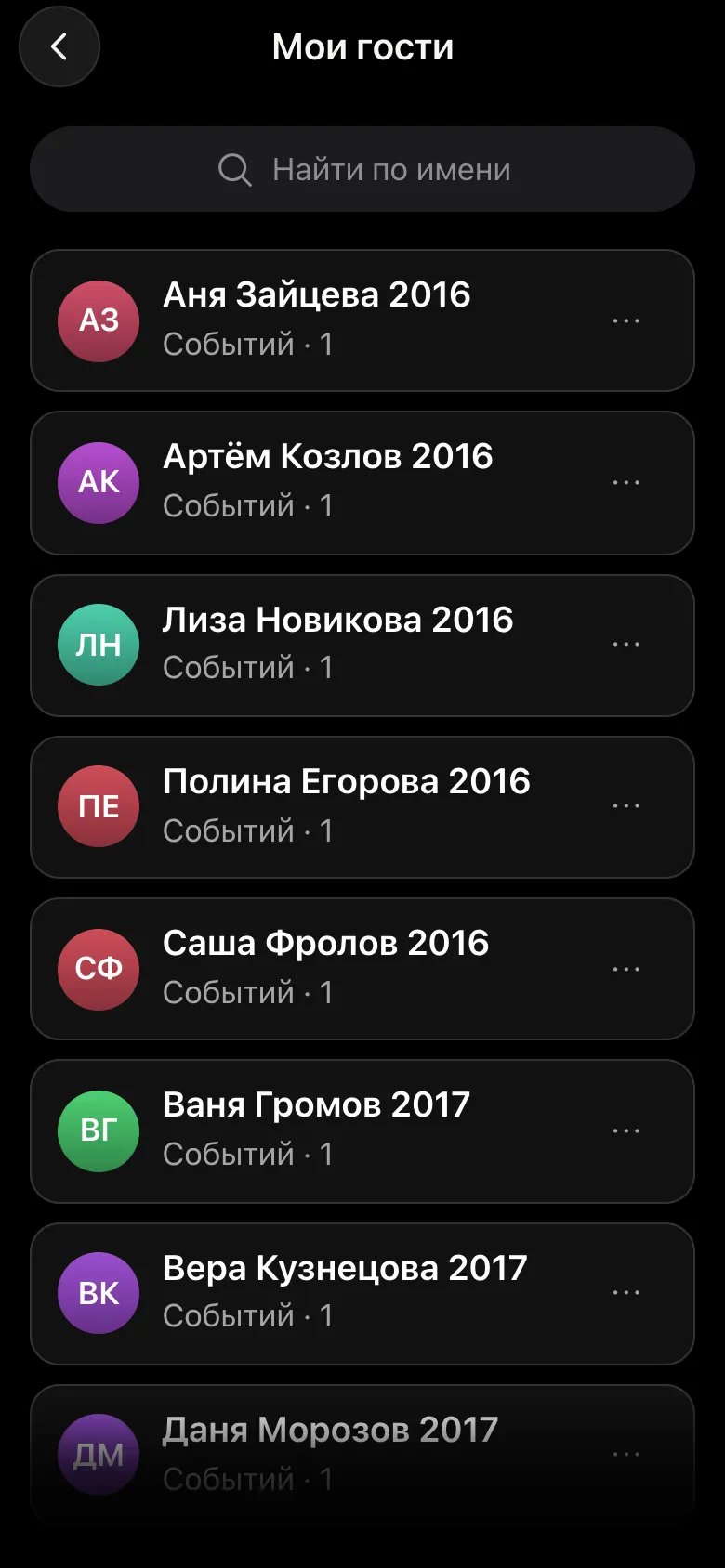
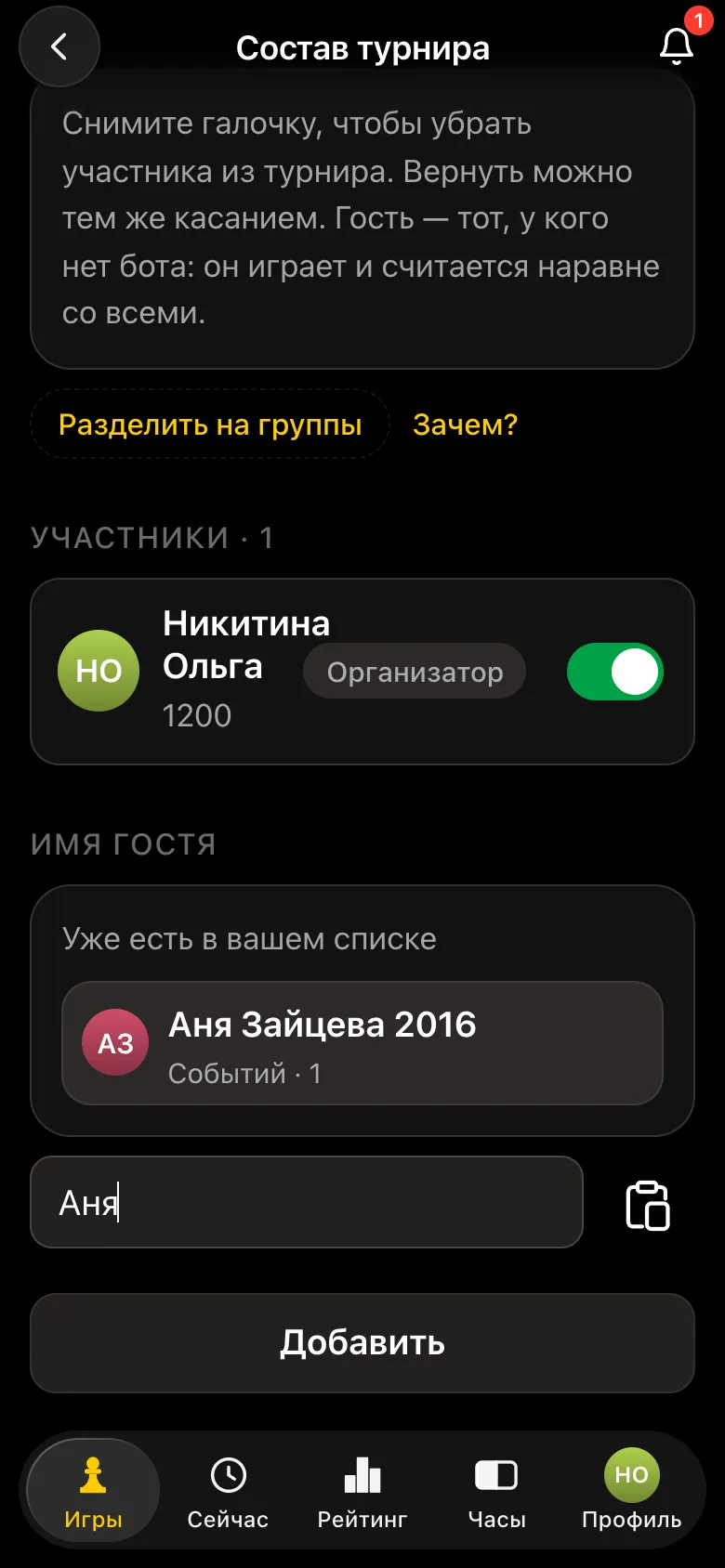
Adults and older children with their own Telegram sign up themselves - through the tournament link or QR code. Untick anyone who didn't come. If you are refereeing and not playing, untick yourself too: the organiser stays the organiser but isn't included in the pairings.
Groups are several separate tournaments inside one event. Boys play in group A, girls in group B, and they never meet at the board. You can split by strength the same way - beginners apart from experienced players - or by age, with the younger ones apart from the older ones.
Pairs are made only within a group, and each group has its own standings, its own places and its own winner. Yet it all stays one tournament: rounds run at the same time, there is one button, one screen, and table numbers run on - first the tables of group A, then those of group B.
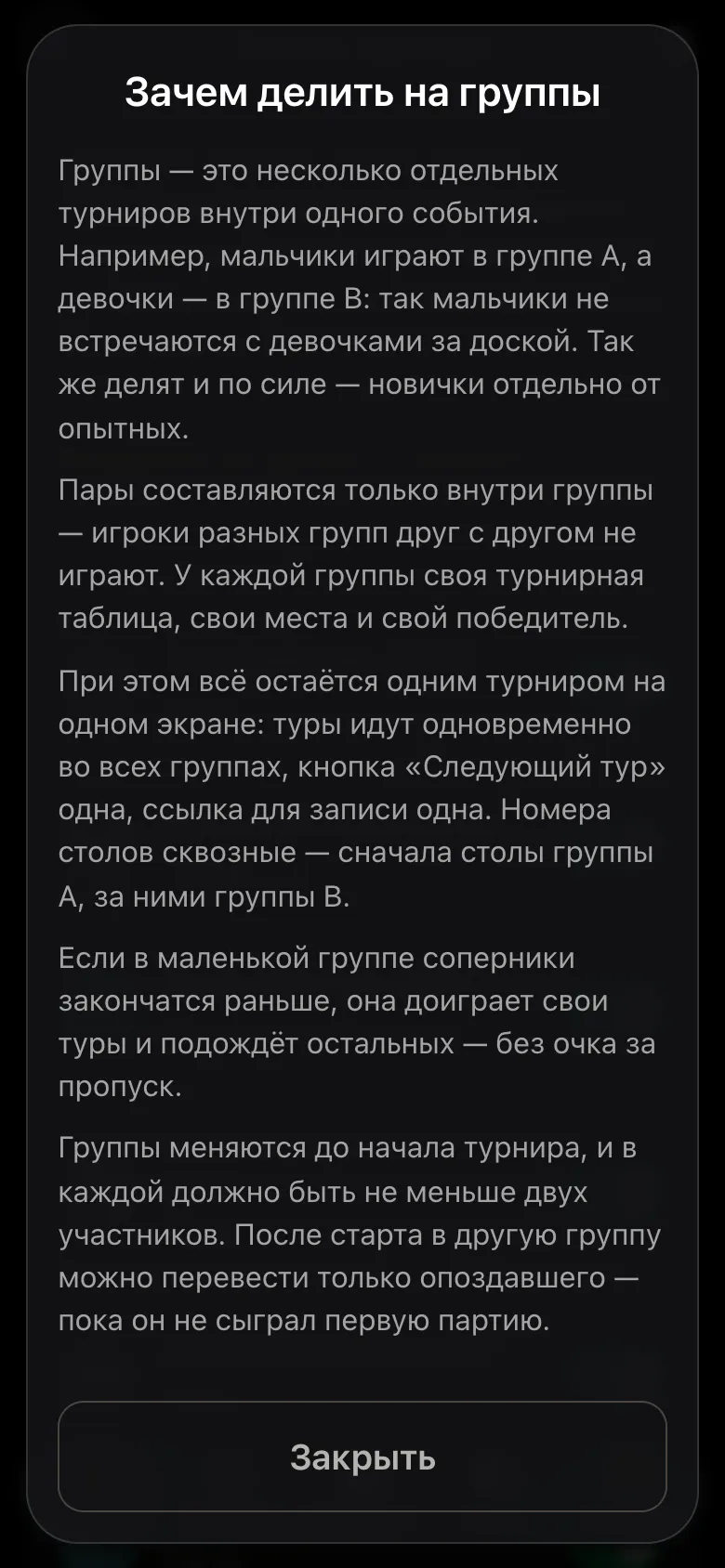
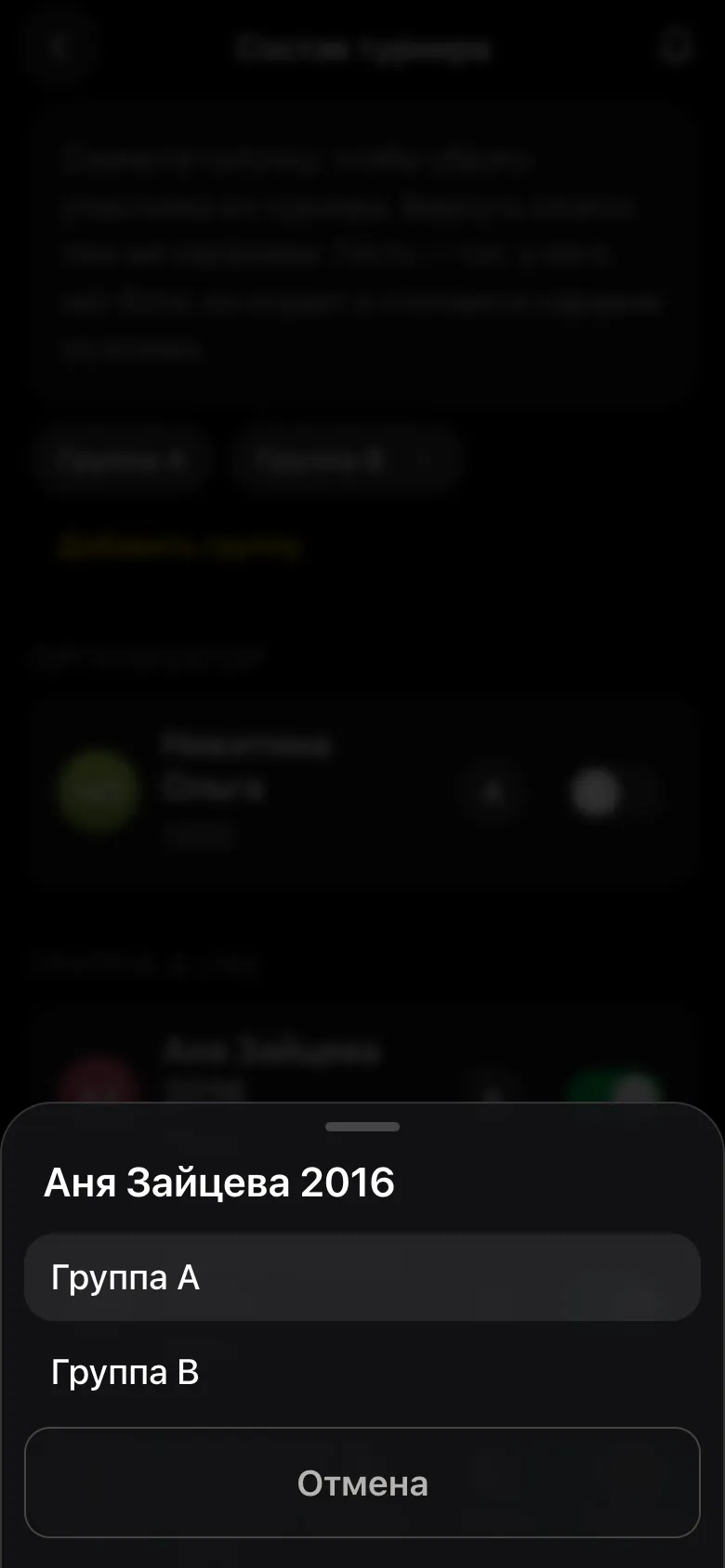
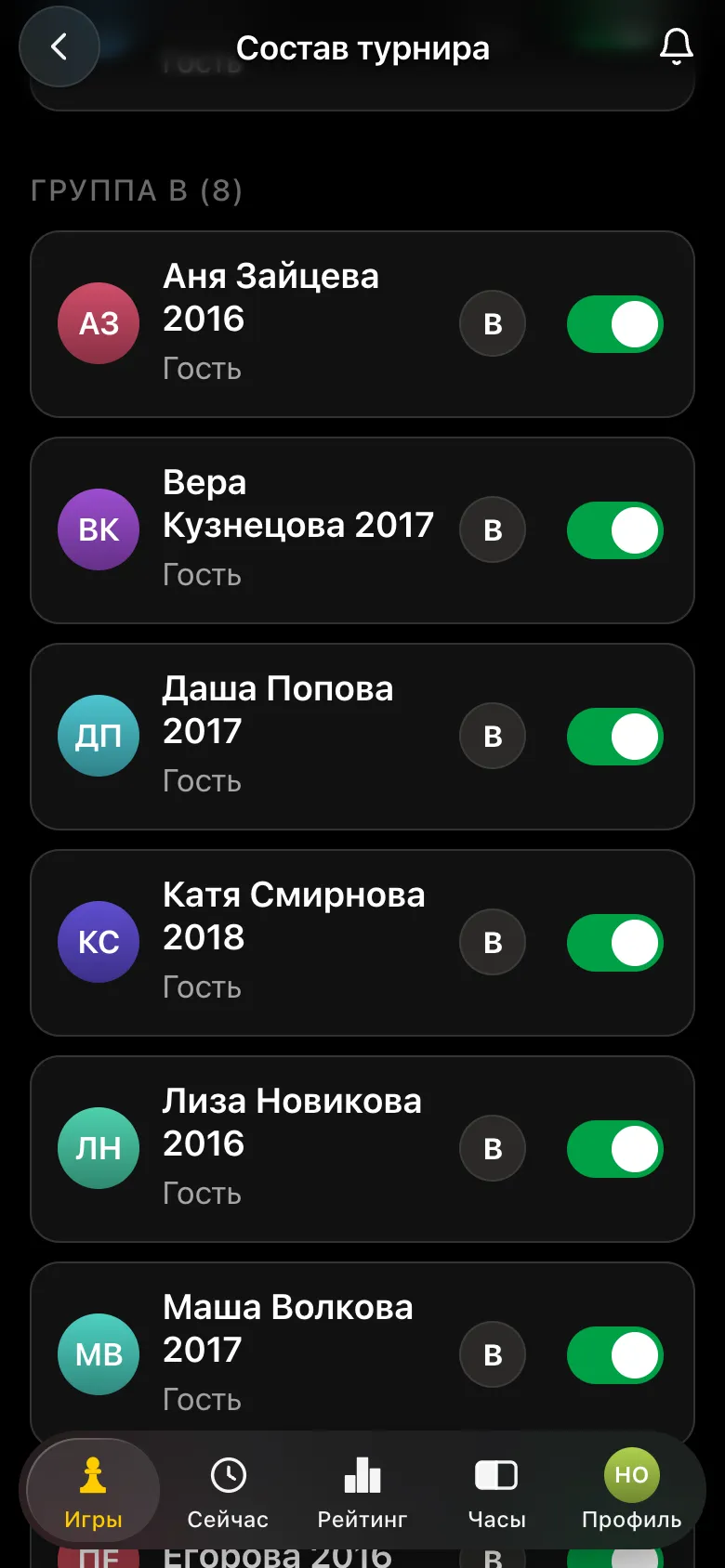
Tap Split into groups - Group A and Group B appear, and every child gets a letter. Need a third one - Add group. A group must have at least two players. Groups can be changed before the start; after the start only a latecomer can be moved, and only until they have played their first game.
If there are few children, there is no need to split: twenty children in four groups of five is four dull mini-tournaments instead of one lively one. Groups are for when the split matters in itself and the hall and the time are shared.
Detailed walkthroughs with examples - a separate tournament for boys and girls and a tournament for different age groups at once.
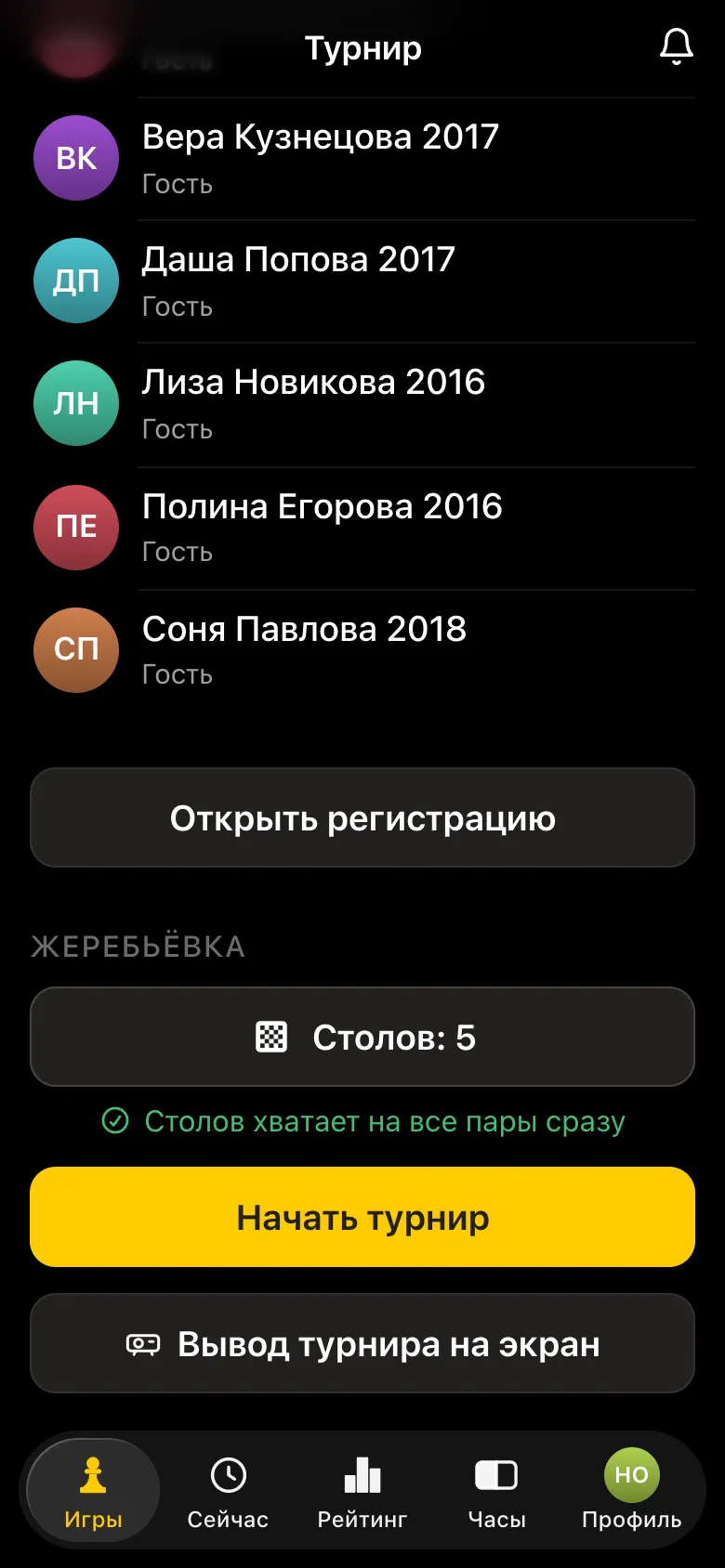
When everyone is there, close registration on the tournament card. The Pairing block appears: check the number of tables and tap Start the tournament. If there are fewer boards than pairs, the app warns you that some pairs will wait - that is fine, it runs the queue by itself.
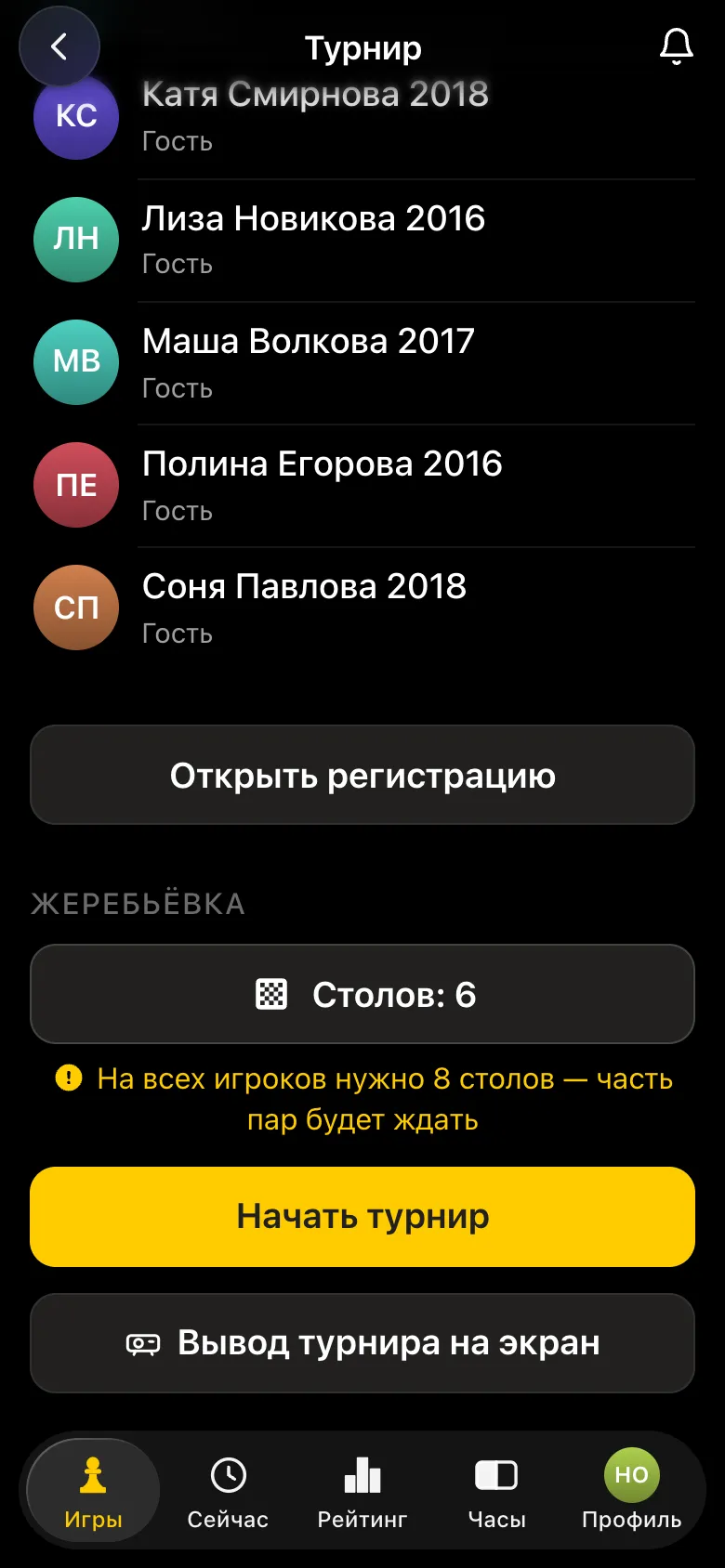
If too many rounds are set for a Swiss with a small field, the app warns you about it before the start.
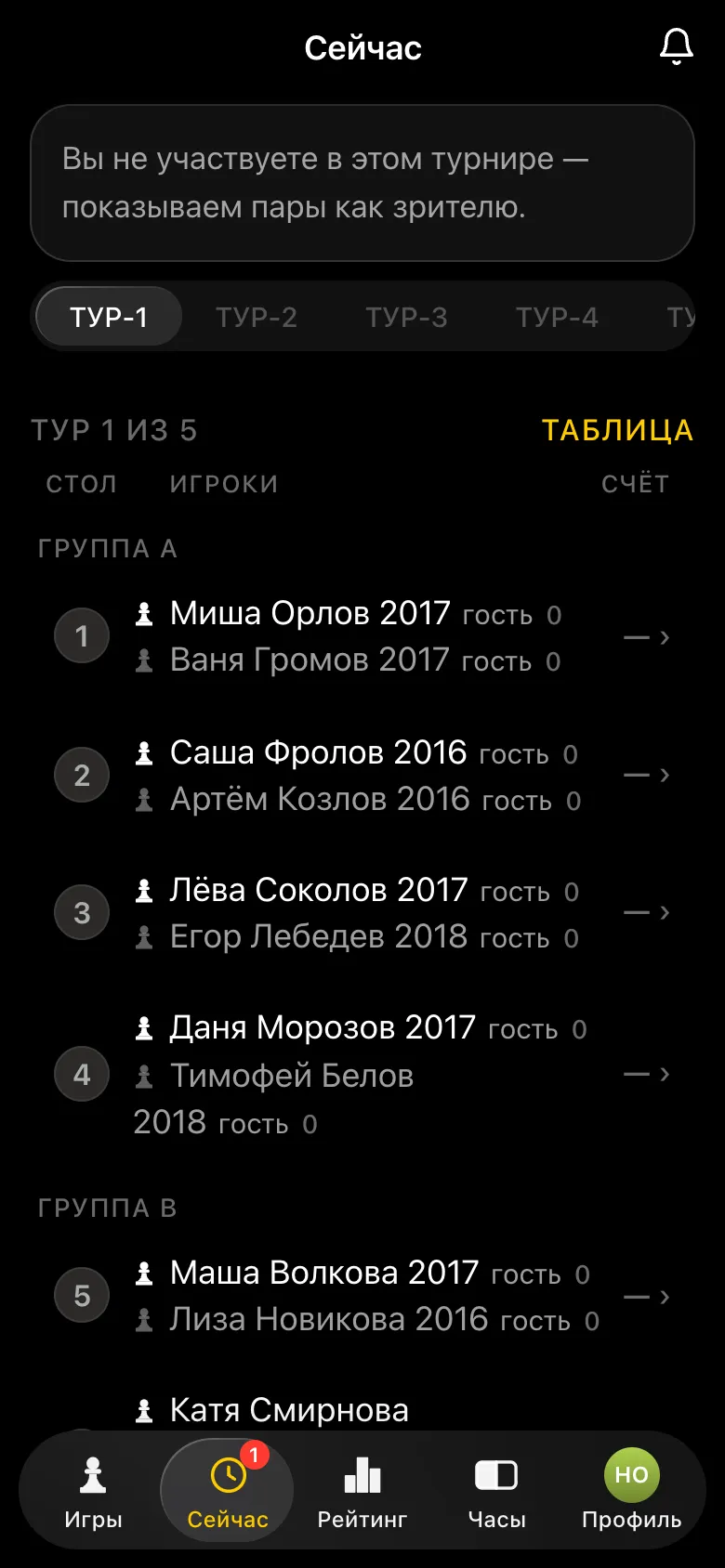
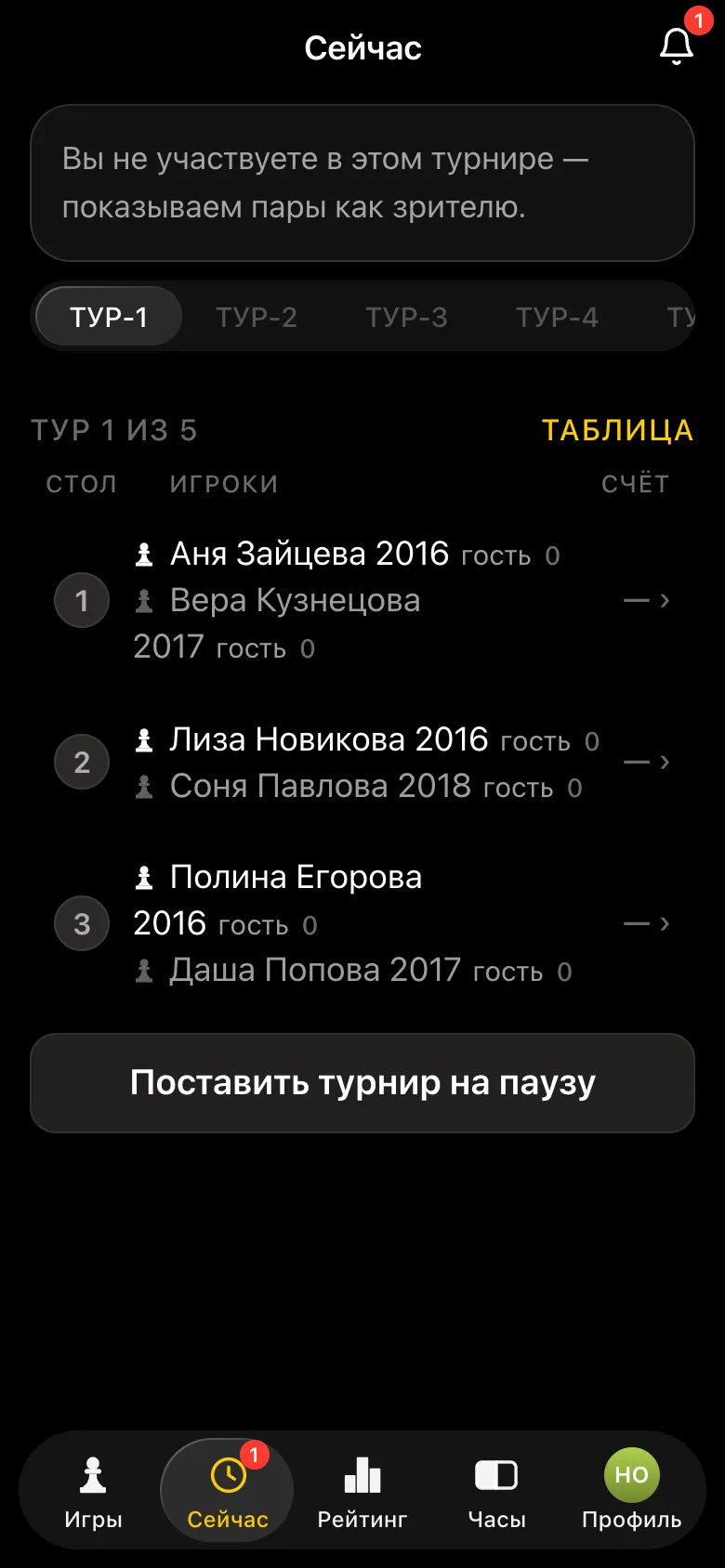
The live round screen is the organiser's main screen. It shows the pairs with their tables and points. When a game ends, tap the table and choose the result: white wins, black wins, draw, a forfeit by one player or by both. The organiser's word is final, and once the last result is in, the next round starts by itself.
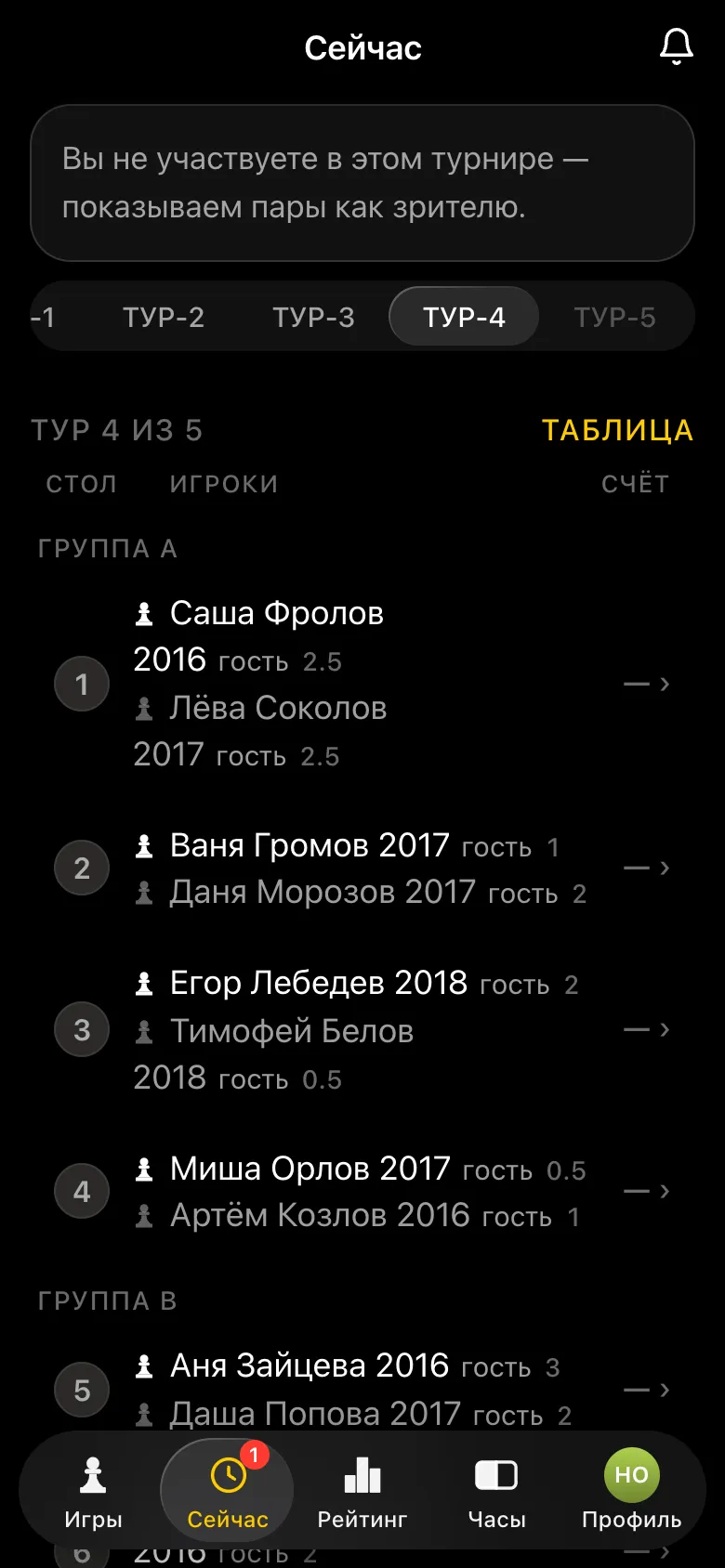
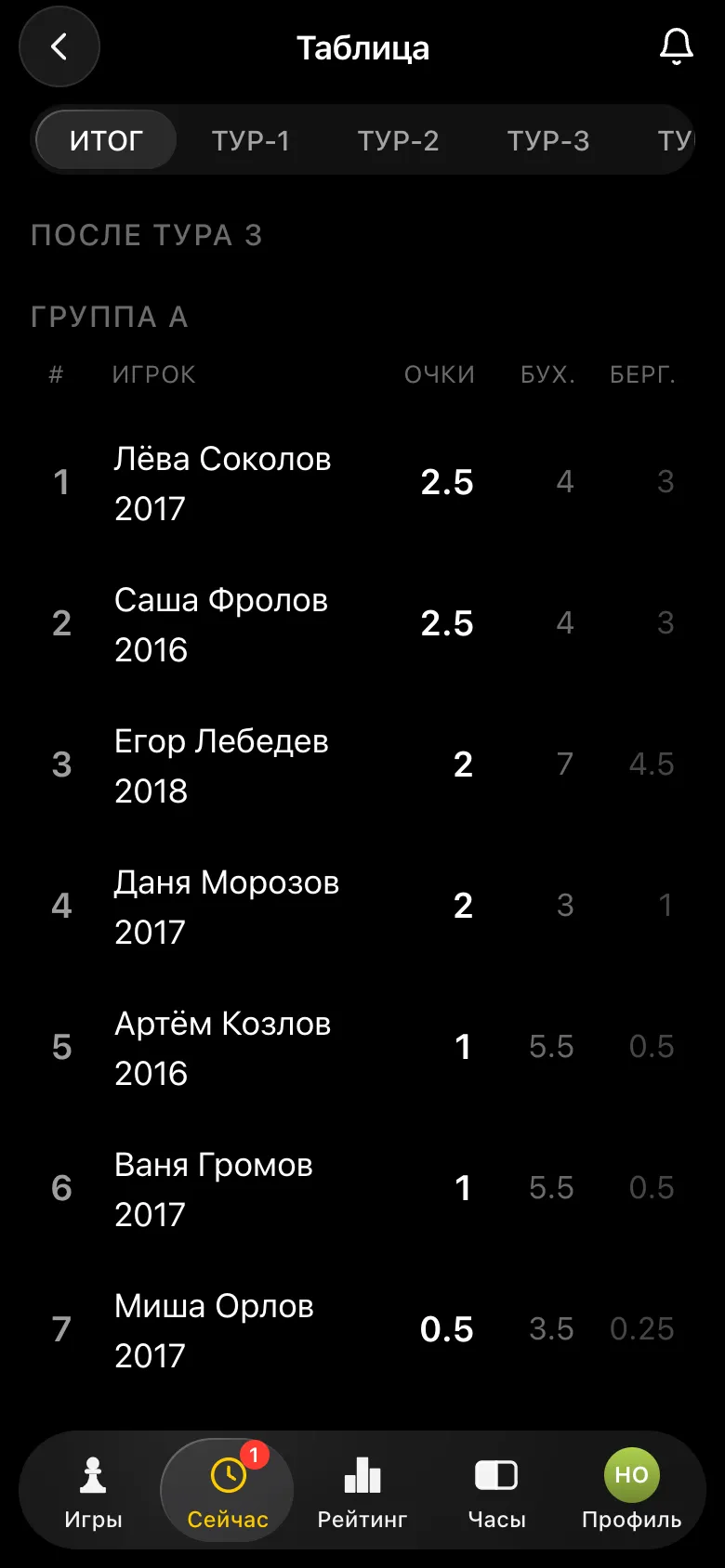
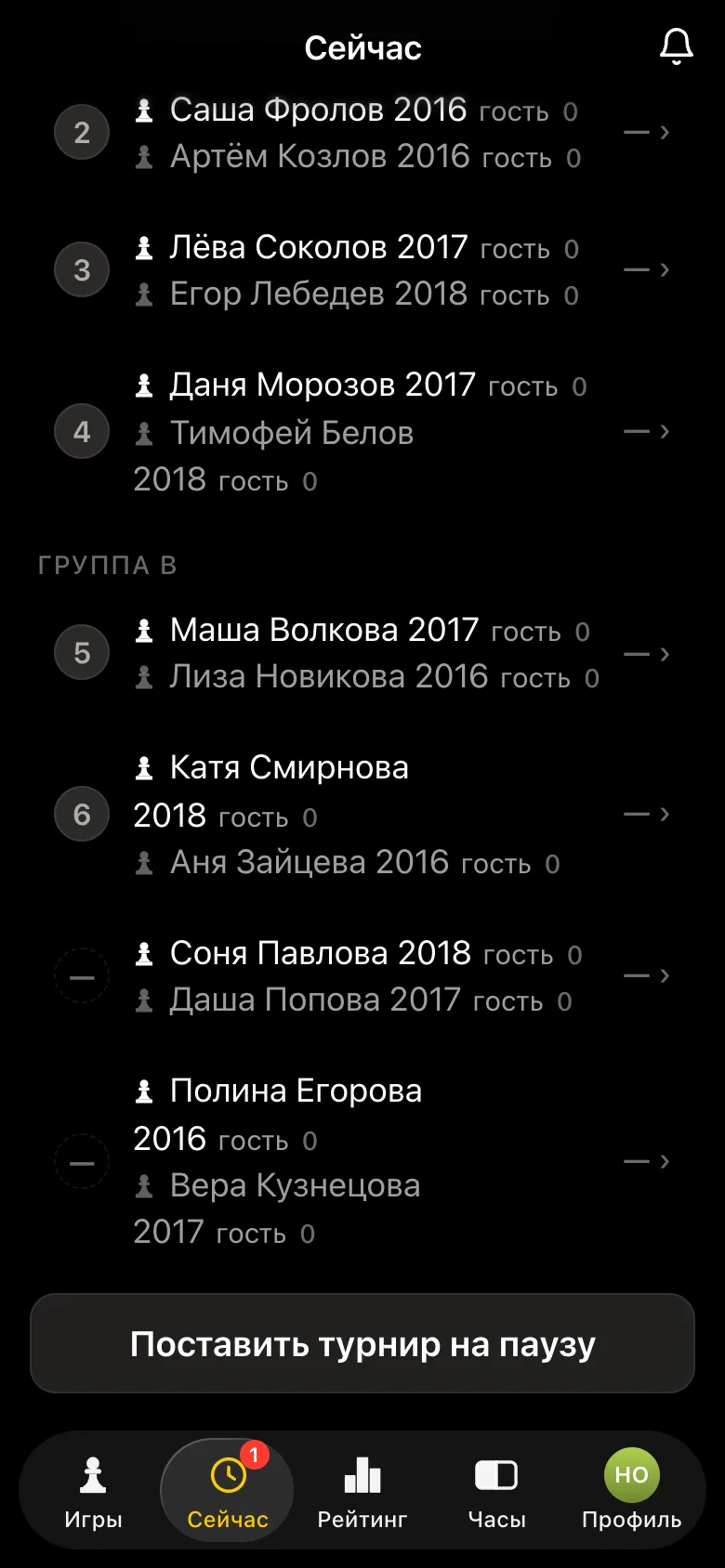
When a table frees up, a waiting pair sits down at it straight away - in the demo tournament above, two group B pairs took tables 1 and 2 as soon as the boys there had finished. Added boards in the middle of a round - the waiting pairs sit down straight away too. Need a break - Pause the tournament. Add a late child on the roster screen: they join the Swiss from the next round.
On the tournament card there is Show the tournament on a screen. Copy the link and open it in a browser on the computer connected to the projector or TV. The screen shows the current round's pairings and the standings, and while the tournament is running the page updates by itself - parents don't need to look into the playing hall.
For kids' and school tournaments turn on No photos on the screen: the tables will show only names, without the circles with faces.
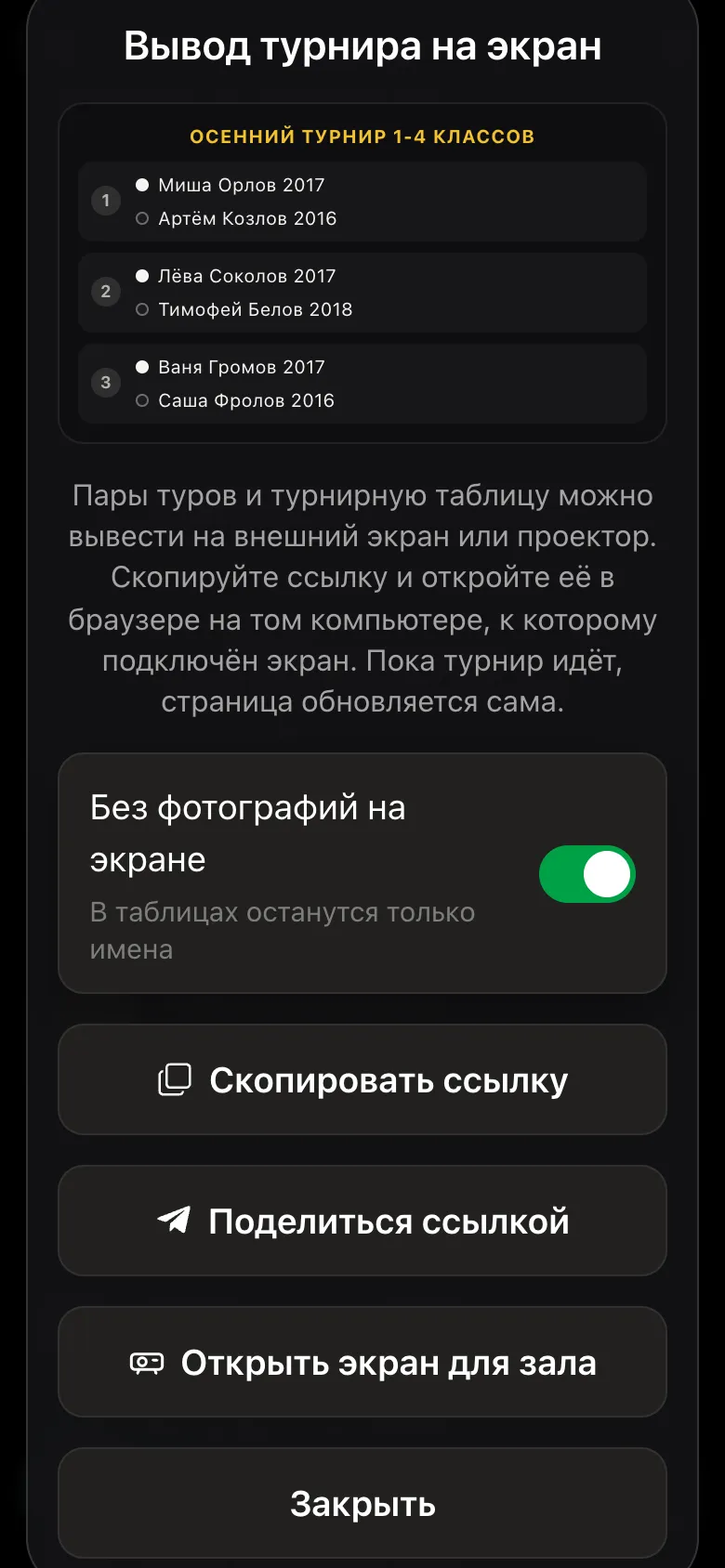
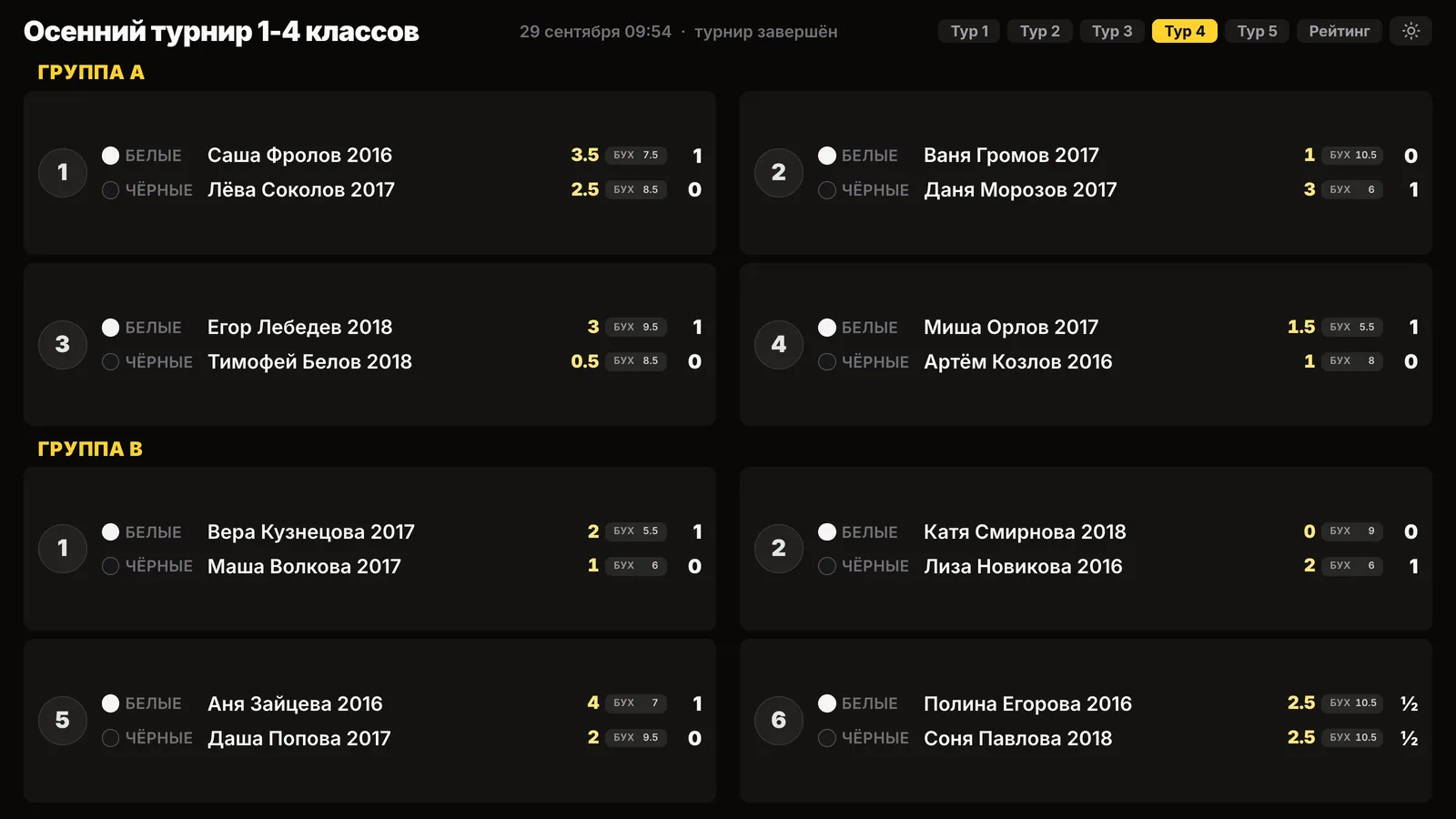
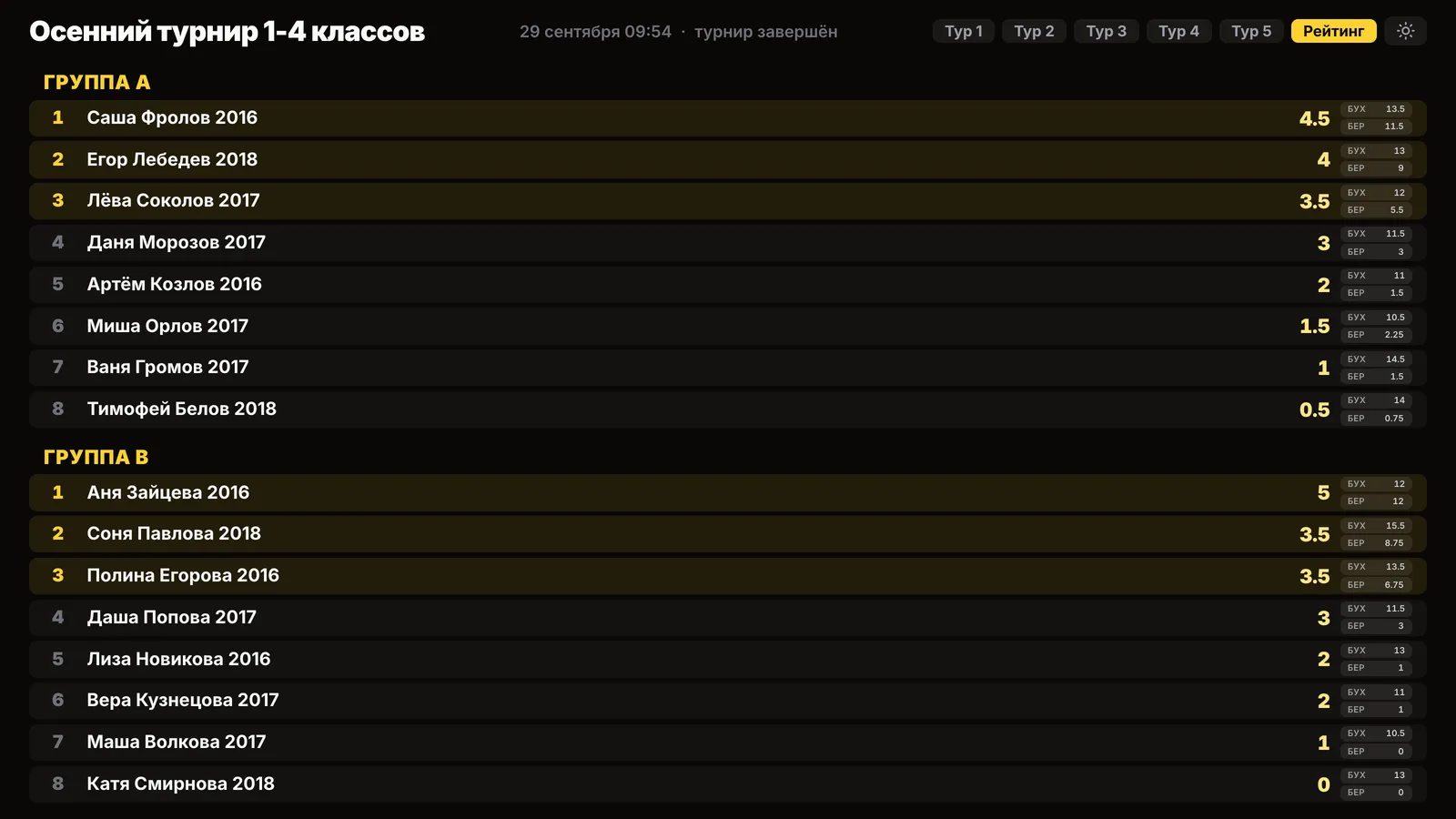
For a tournament with groups, the screen splits everything by group: the round's pairings come in blocks, Group A and Group B, and in the final standings each group has its own places. Table numbers run on across groups - just as in the hall.
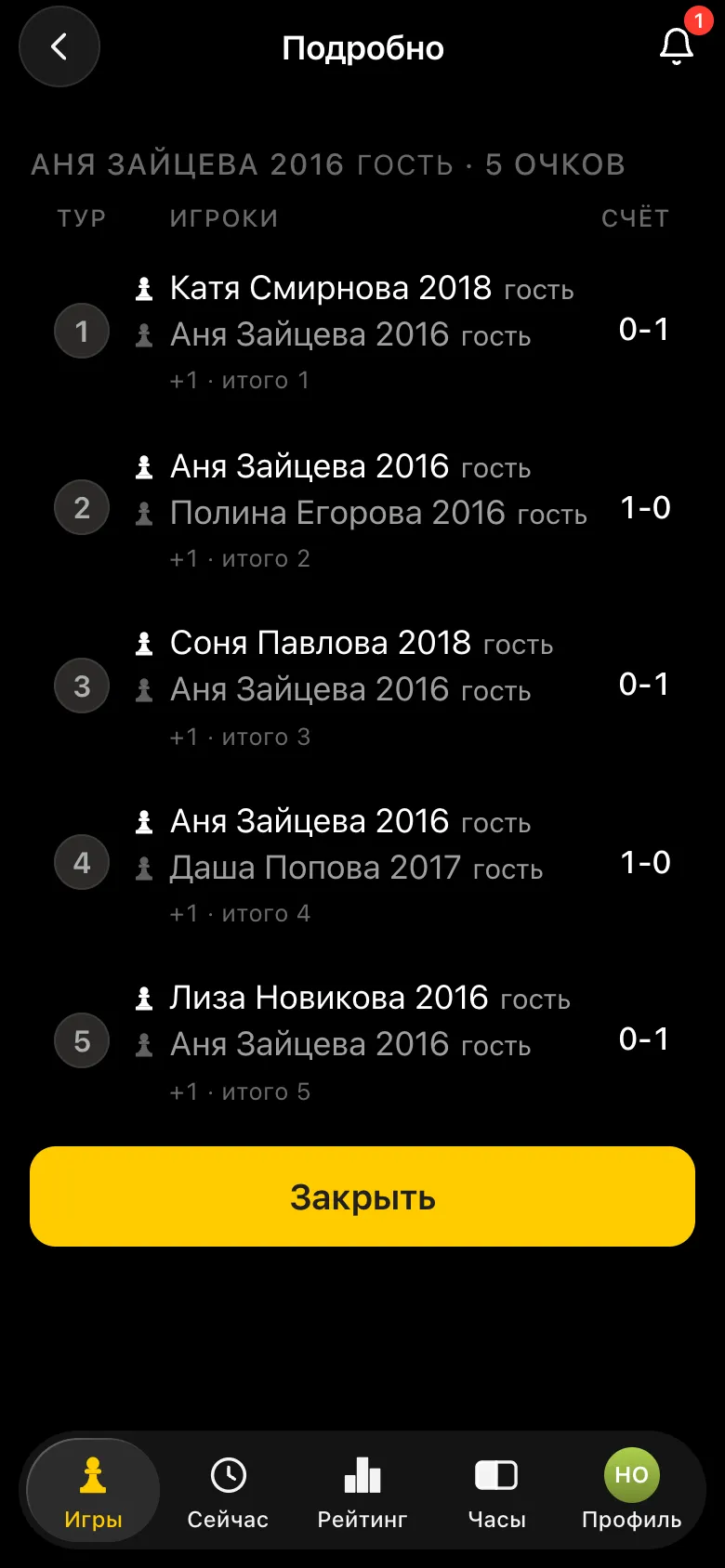
After the last round the tournament finishes by itself. The card shows Final standings, Export PDF report and Export TRF report. In the standings, places go by points and, on a tie, by the Buchholz score and Berger. Tap a row to see the child's path round by round: whom they played, with which colour and with what result.
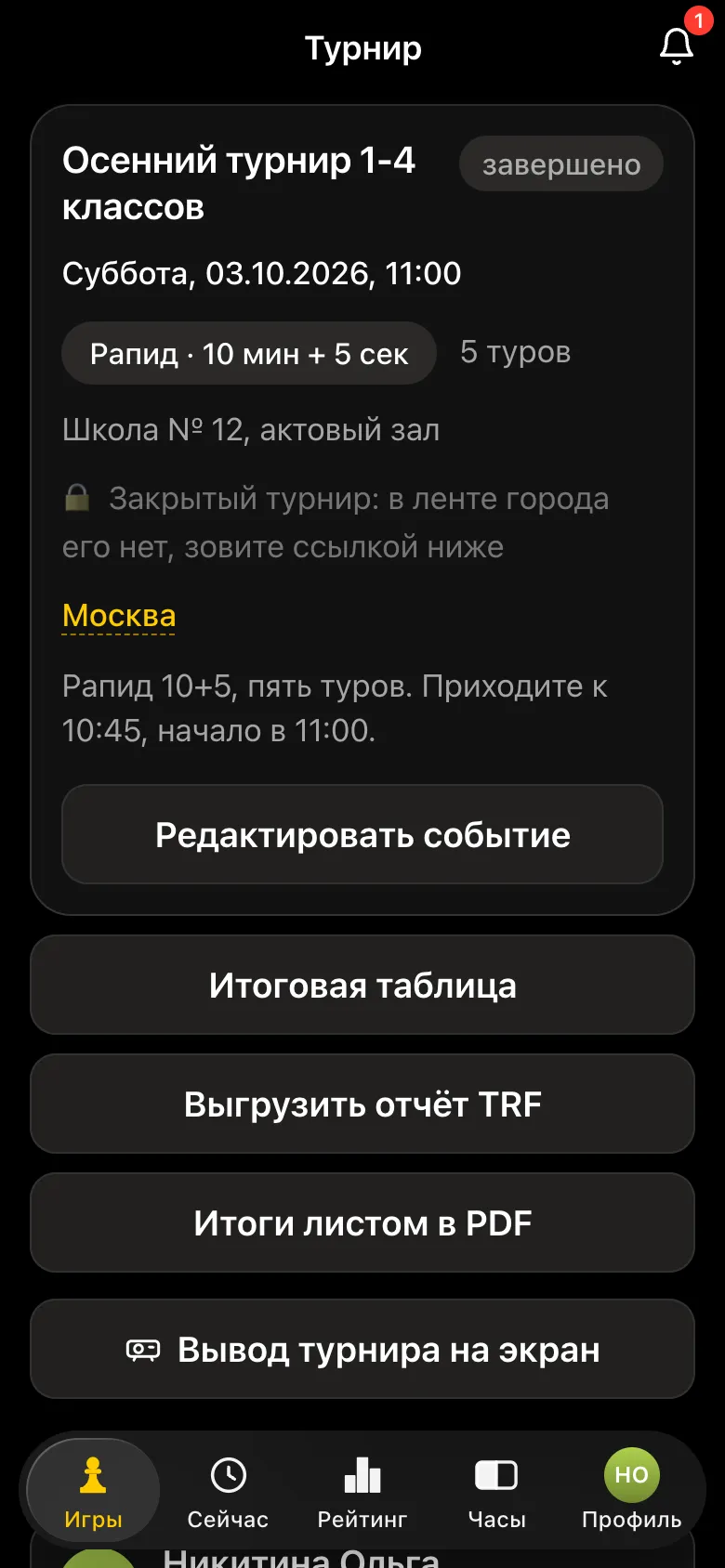
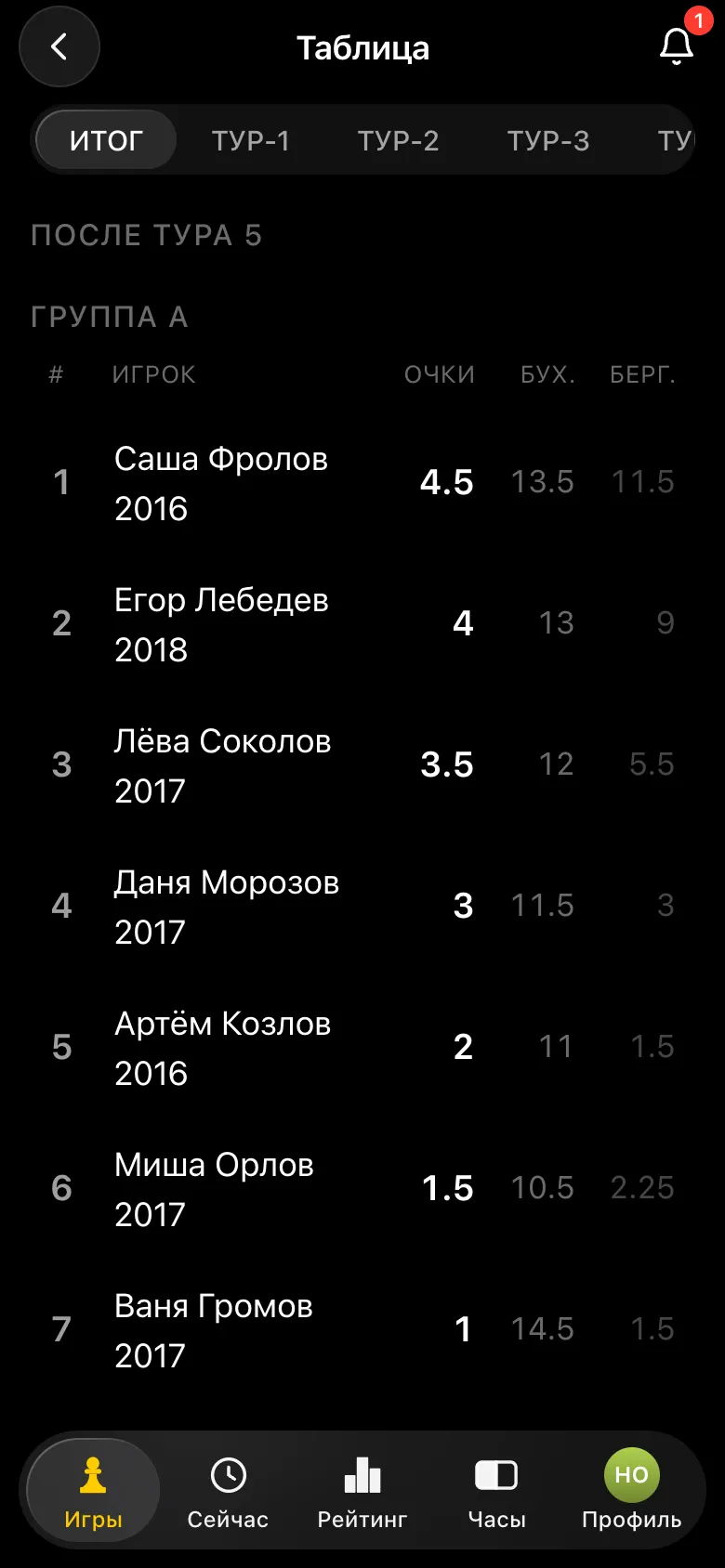
The Export PDF report button sends an A4 sheet to the chat: places, points, Buchholz, Berger, the number of wins, draws and losses, and on the following pages all the pairings round by round. The sheet can be printed for the noticeboard and is handy for filling in certificates. The sheet's language is the language of whoever tapped the button; the app works in 16 languages.
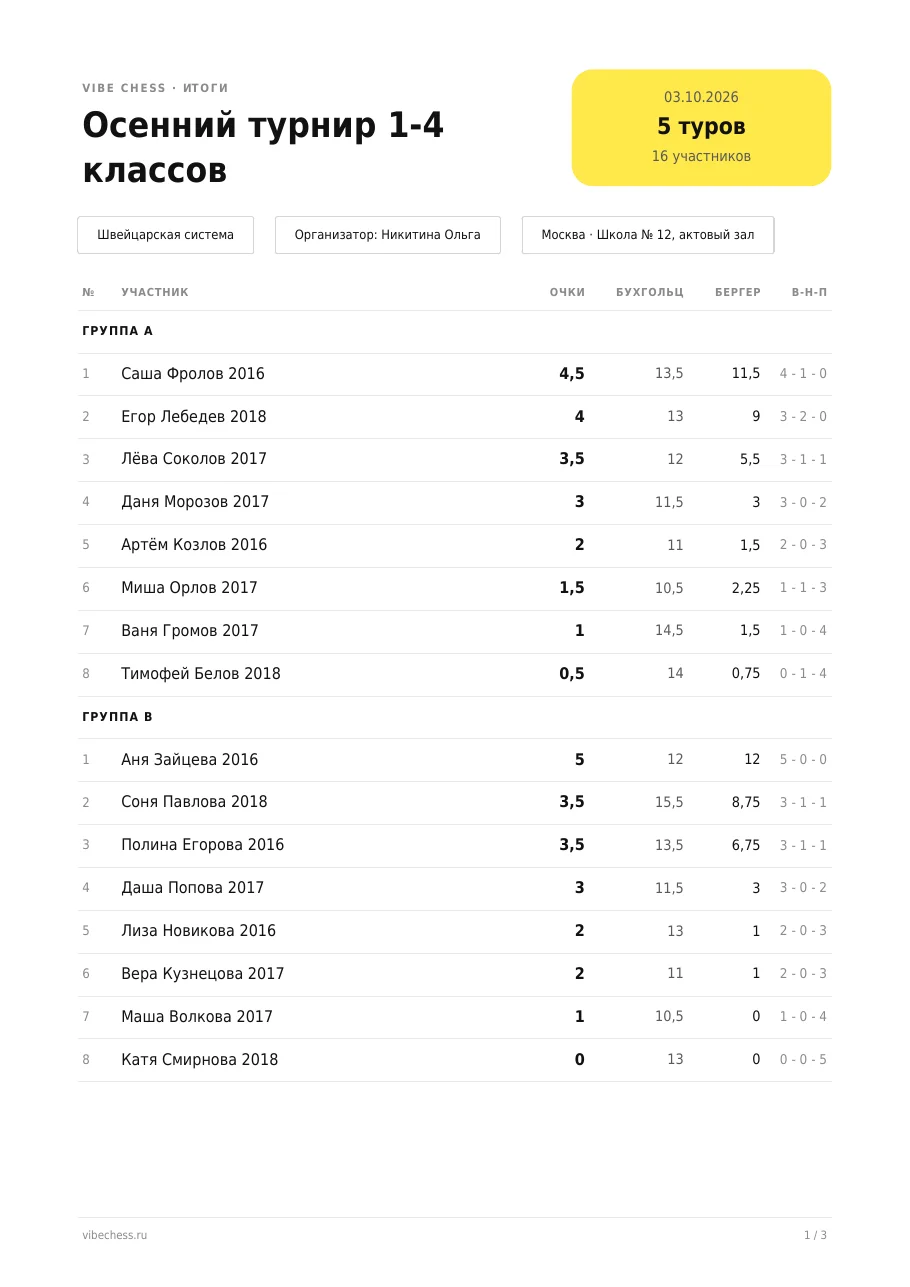
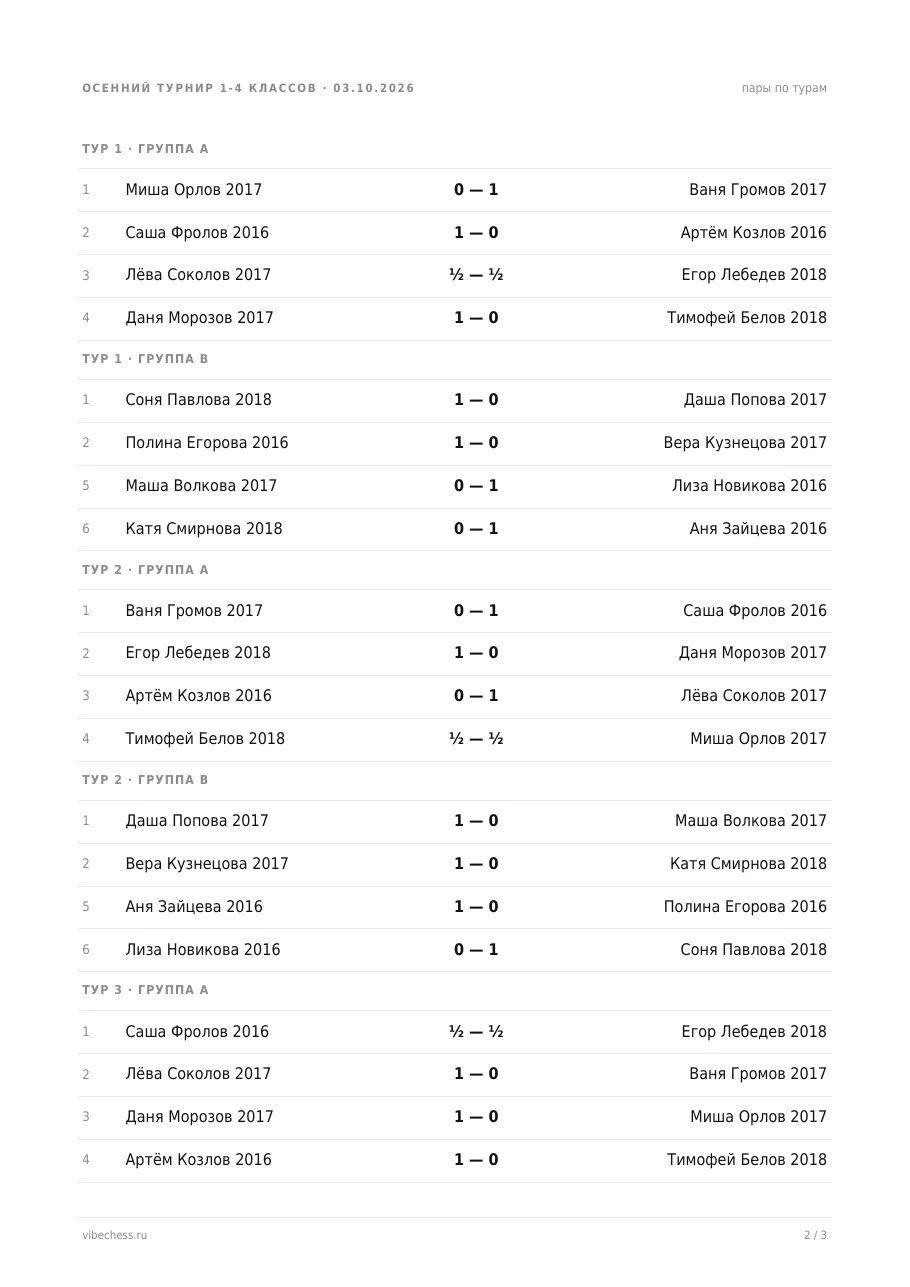
Export TRF report sends a file in the standard format accepted by tournament rating software and federations. For a tournament with groups there is a separate report for each group: the places within groups are separate, and for the federation these are different tournaments. The bot sends the results to every participant who has an account.
When there are six to eight children, a round robin is better: everyone plays everyone, and the app works out the number of rounds itself. A Swiss with such a field ends badly: with six players and five rounds it stalls early in roughly a third of cases - the opponents someone hasn't played yet run out. A round robin never allows this.
The roster for such a tournament is put together in a minute from My guests: the children you have added before don't need typing in again.
Yes, that is how it is usually done. The children are added as guests by name, and the organiser enters the results. The children's coach whose experience is described in this article had only three participants with an account of their own, and entered 346 of the 349 results personally.
Nothing. Tournaments, pairings, the hall screen, the results sheet and the TRF report are free. There is nothing to install: the app opens in Telegram through the @vibechessbot bot, and on a computer at playvibechess.com/app.
A guest you have added once goes into the My guests list. At the next tournament you pick them from the list, and while you type a name the app itself points out that such a guest already exists.
Yes, that is what groups inside a tournament are for. Split the roster into group A and group B: pairs are made only within a group, each group has its own standings and its own winner, and the rounds run at the same time.
Enter how many boards you have. The extra pairs wait in a queue and sit down at a table as soon as it is free. If more boards become available in the middle of a round, the waiting pairs sit down straight away.
In a Swiss that is already running - yes: add them on the roster screen, and they will play from the next round. In a tournament with groups, a latecomer can be moved to the right group until they have played their first game.
Open Show the tournament on a screen, turn on No photos on the screen and open the link on the computer connected to the projector. The screen will show the pairings and standings with names only.
Guests play unrated. The Vibe Chess rating is calculated for players with an account of their own. For rating by a federation there is the TRF report.
There are no club or arbiter roles in the app: the create button is available to everyone. You can announce a tournament today and run it this weekend.
The bot is constantly improved based on real tournaments. If you need a feature that isn't there yet, message the developers right inside the bot with the /support command. Many features appeared exactly because organizers asked for them, and useful ideas get added quickly.
The format of a kids' tournament without the app - how to organise a children's chess tournament. A tournament at school - a step-by-step guide for teachers. A school championship for all year groups, where older pupils record their own results - a school tournament in the app. For students with their own phones - a student tournament in the app. A club - tournaments in a chess club. The youngest - a tournament for preschoolers. Detailed guides to the systems in the app - the Swiss system and round robin by Berger tables. The general guide - organising a chess tournament.

At the board since childhood: hazy about his rating, precise about every rook he has blundered. Counts an evening as a good one if the opponent stayed to talk afterwards instead of rushing off to check with an engine. Message →