Unlike schoolchildren, every student has a phone with Telegram. So most of the tournament work can be handed to the players, and the organiser - usually someone from the chess society who plays as well - only starts the rounds and keeps an eye on things.
The organiser shows a QR code or drops a link into the course chat. A student opens it in Telegram - and they are in.
When a game ends, each player taps "I won", "Draw" or "I lost" on their own phone. Nobody has to walk round the tables.
As soon as the last result is in, the app announces the next round and pairs everyone up.
The Swiss pairings come from the bbpPairings engine (Dutch system): by score, with alternating colours, no rematches, and nobody gets a bye twice.
Everyone with an account has a Vibe Chess rating, and after each game they see how much they gained or lost.
Your own league with a separate rating, divisions and a season table: stages all term, a champion at the end.
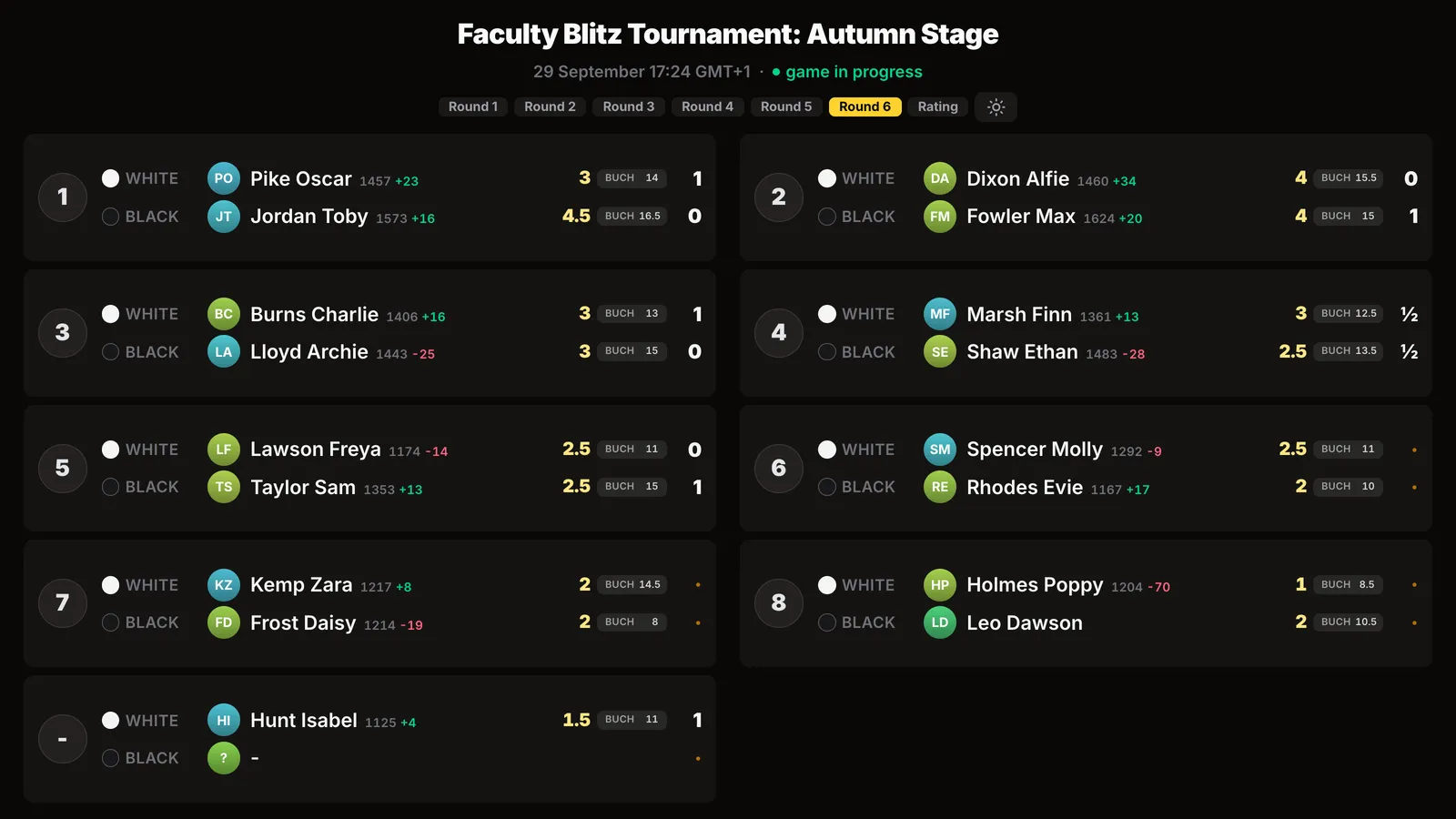
Pairings and standings on the projector update by themselves, with the rating change next to every name.
Someone without Telegram is added by the organiser as a guest, by name - and plays like everyone else.
An A4 results sheet in PDF for the chess society noticeboard and a TRF file for the federation - one tap each.
Everything runs inside Telegram through @vibechessbot, and on a laptop through the web version. Nothing to install or pay for.
Open the Vibe Chess bot and its app button - or the web version on a laptop. On the Games tab tap "Create your own game" and pick "Swiss-system tournament": for a student evening of 12-30 people it is the main format. For a small group of up to ten, a round robin works - see Berger tables.
Venue - a lecture room or the students' union, date and time, time control. For an evening after lectures 5+3 blitz is the best fit: seven rounds take about two hours. How many rounds suit your line-up is covered in how many rounds in a Swiss system.
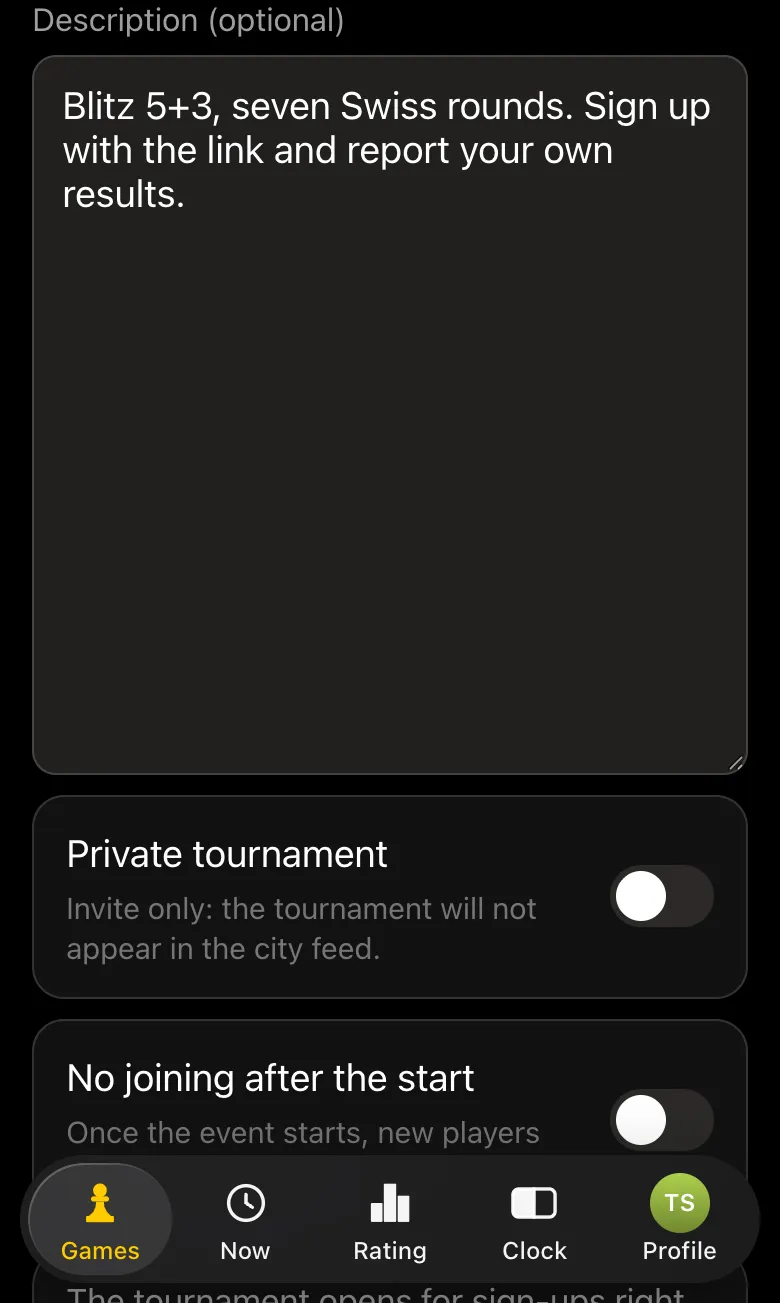
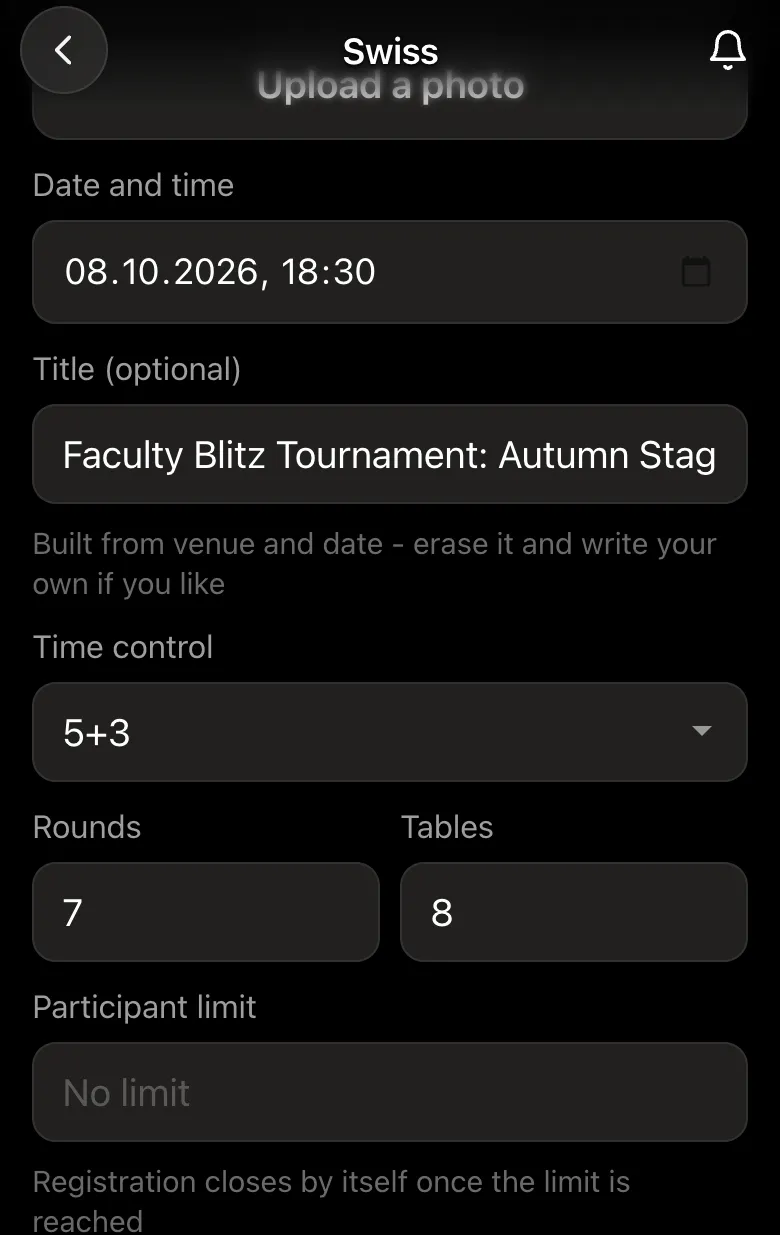
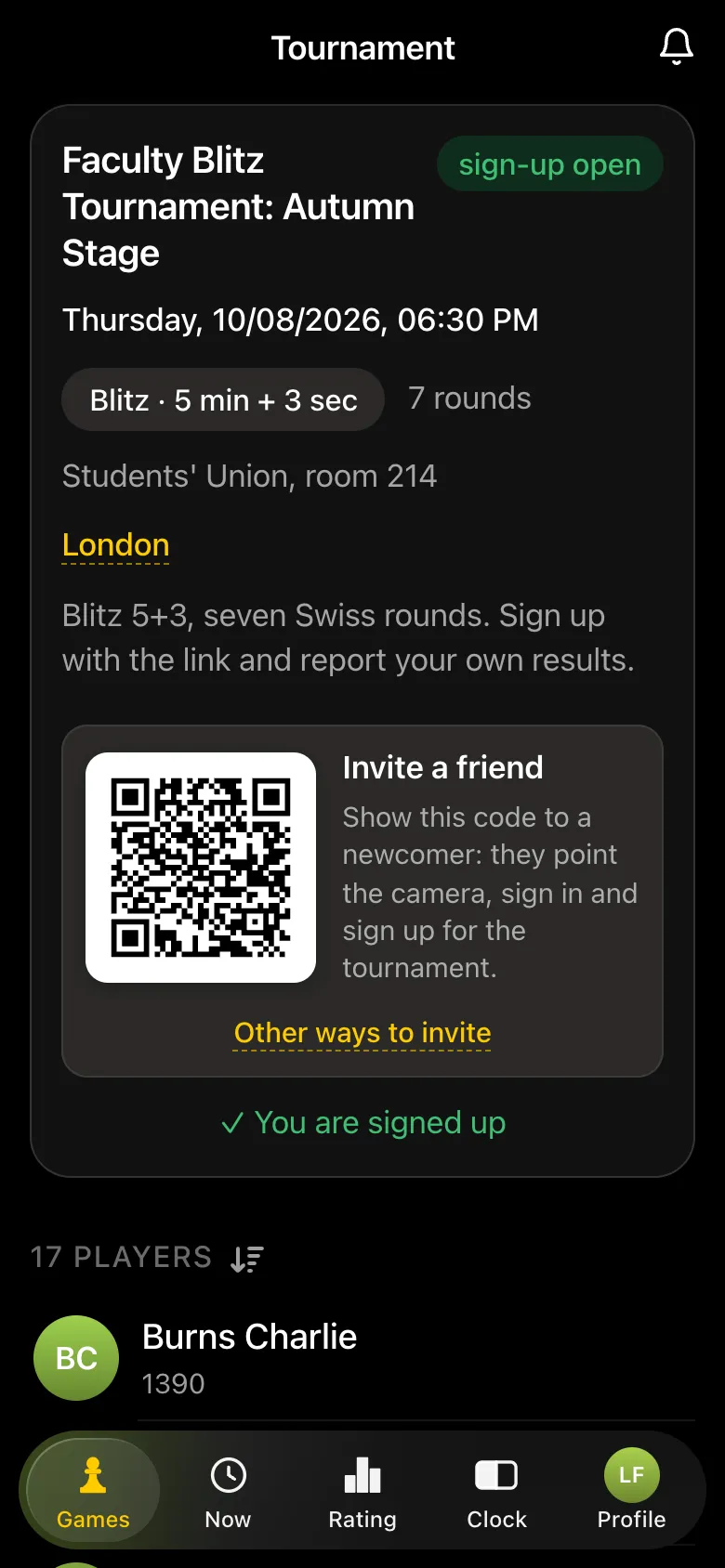
If the tournament is only for your course or faculty, switch on "Private tournament": it will not appear in the city feed, and the only way in is your link.
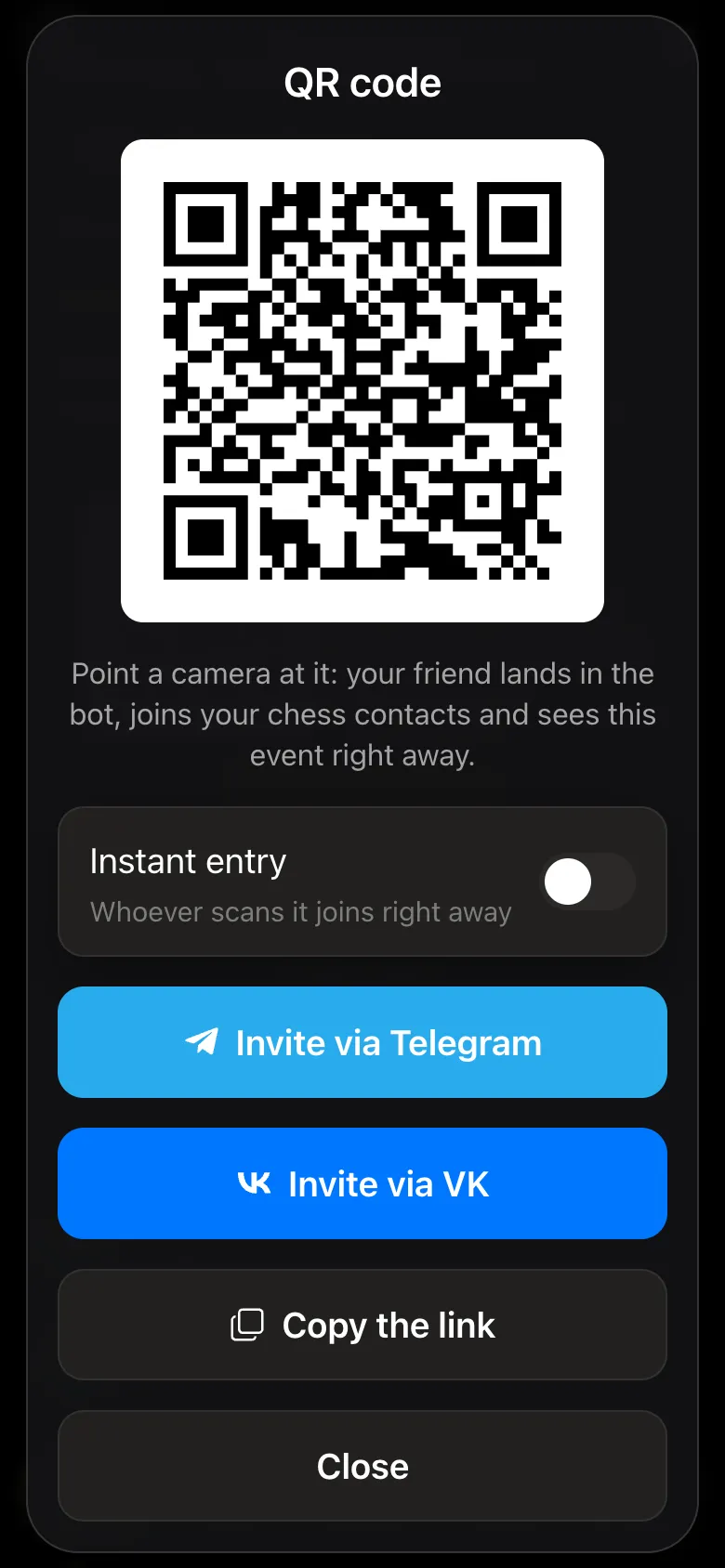
The tournament card has an "Invite a friend" block with a QR code right away. Put it on the projector or print it on a poster: a student points the camera, lands in the bot and sees the tournament. "Other ways to invite" offers "Invite via Telegram", "Invite via VK" and "Copy the link" for the course chat.
The "Instant entry" switch makes it even simpler: whoever scans the code is in the line-up at once, without a separate sign-up tap. Handy when people are already standing in the room.
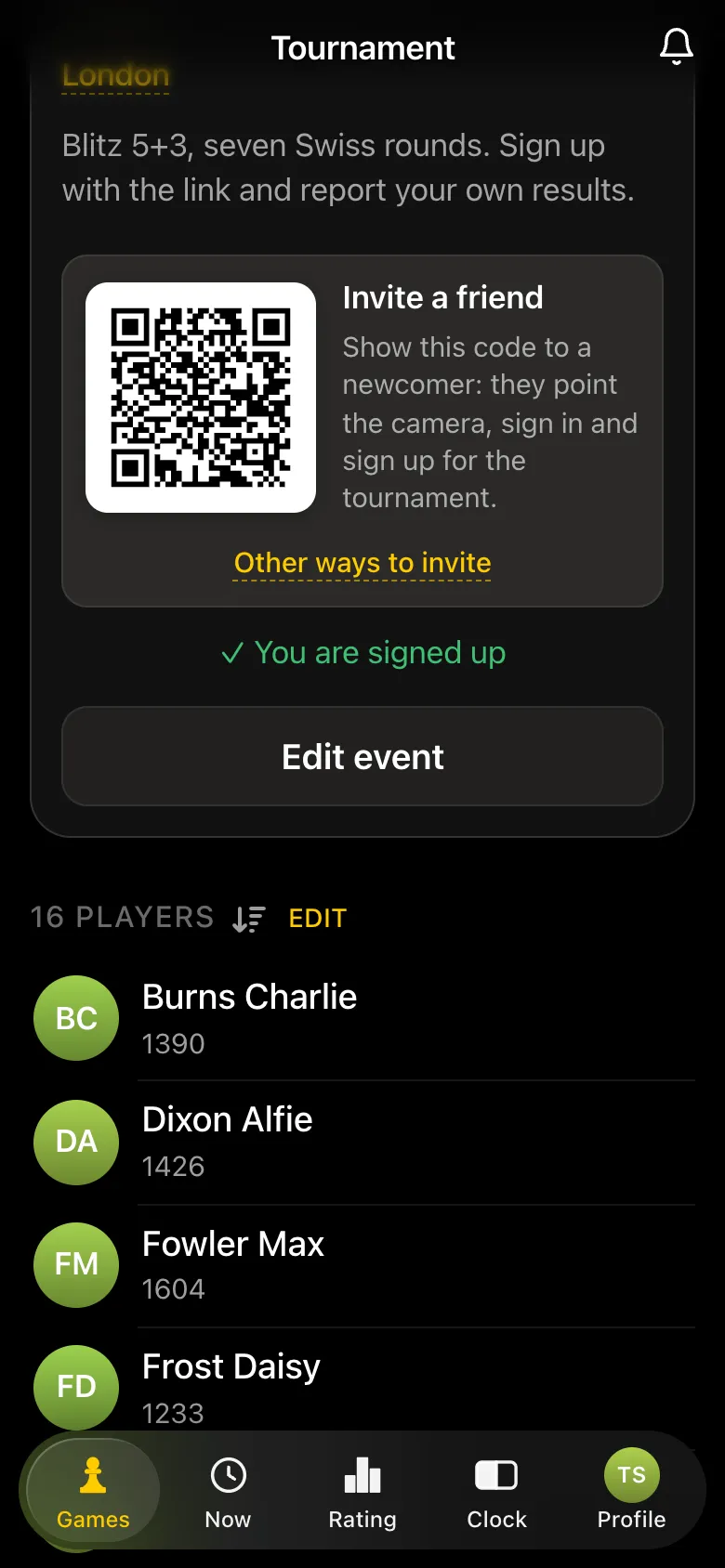
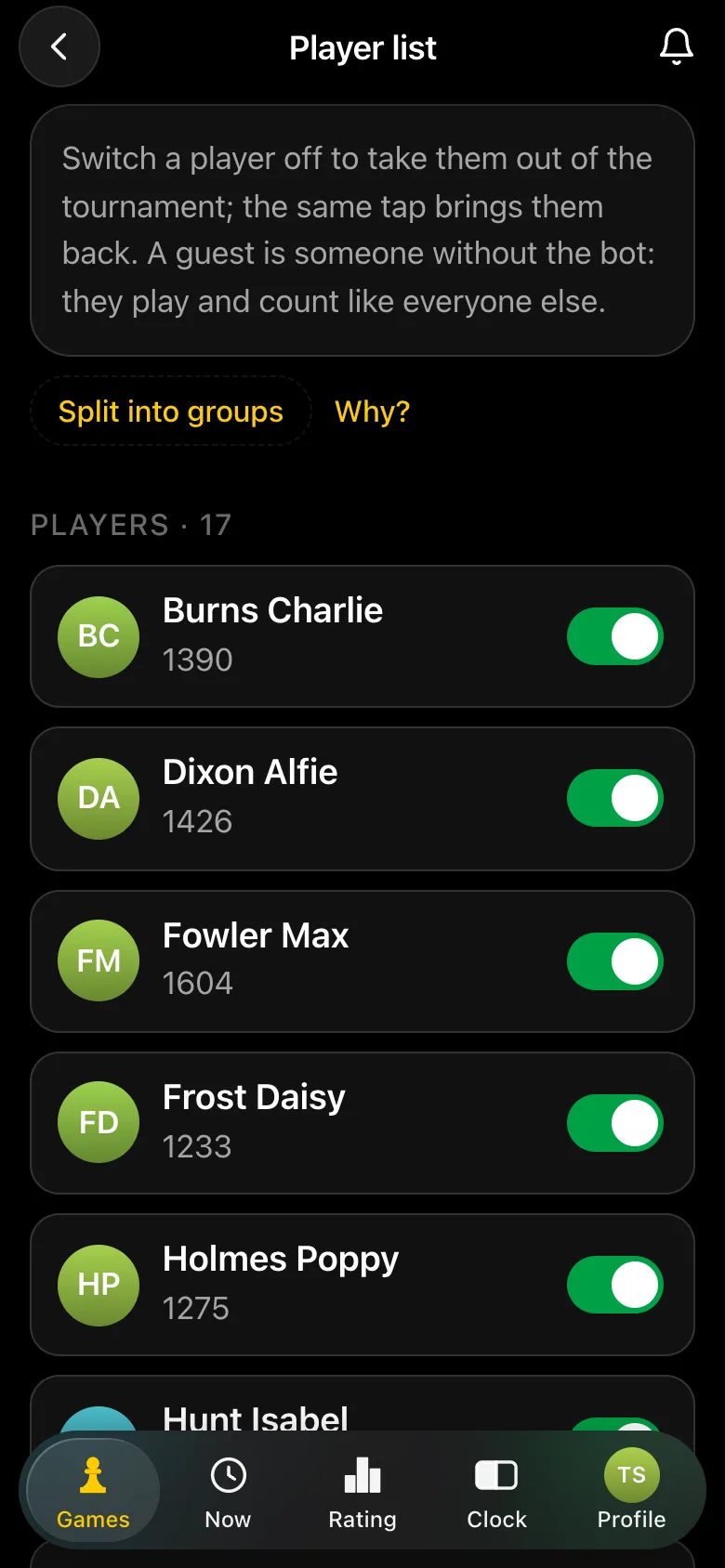
Anyone who would rather not use Telegram is added by the organiser as a guest, by name, on the player list screen - they play like everyone else, only the organiser enters their results, and a guest has no rating.
Once everyone has arrived, the organiser closes registration, checks the number of tables and starts the tournament. Round one is announced at once: every player sees their table, colour and opponent on their phone. With an odd number of players one of them gets a bye worth a point - and will not get a second one.
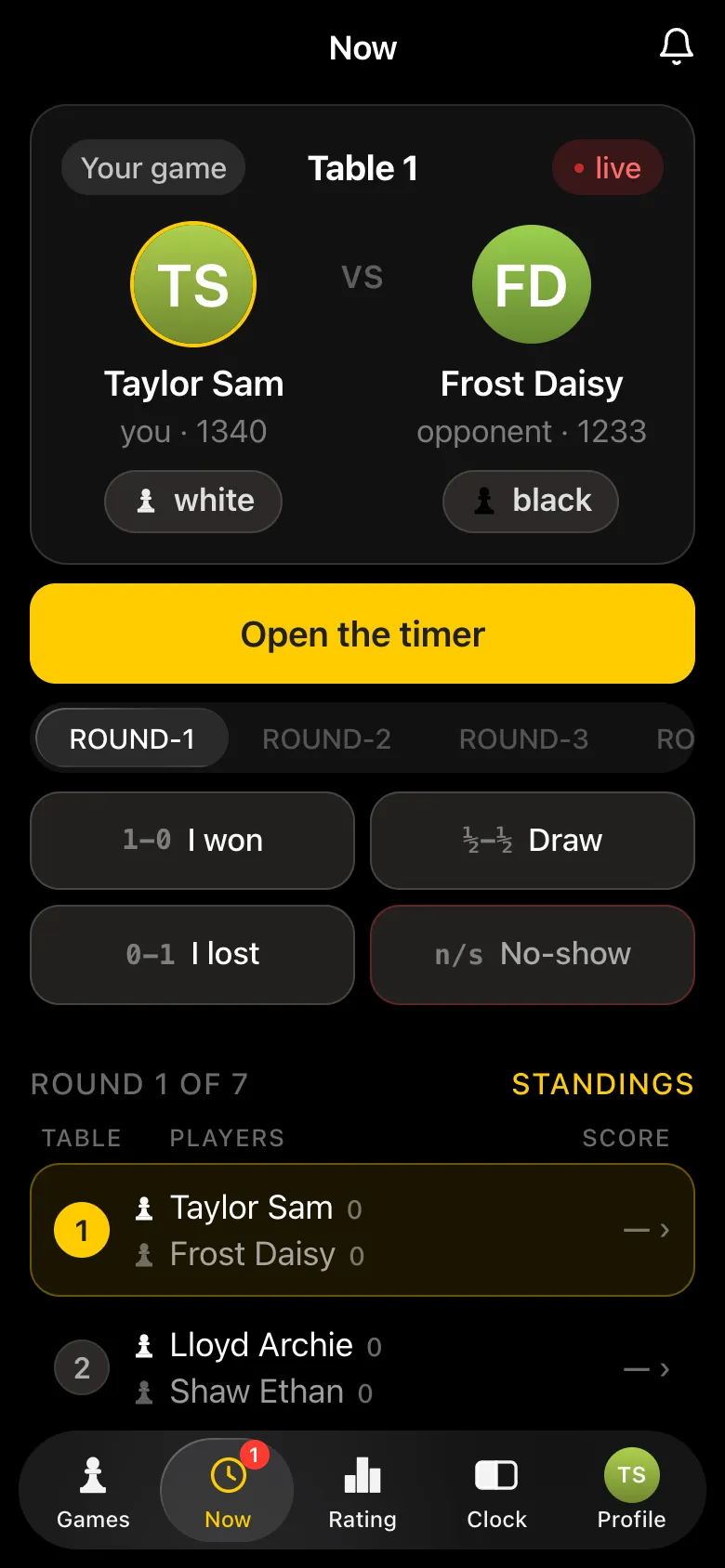
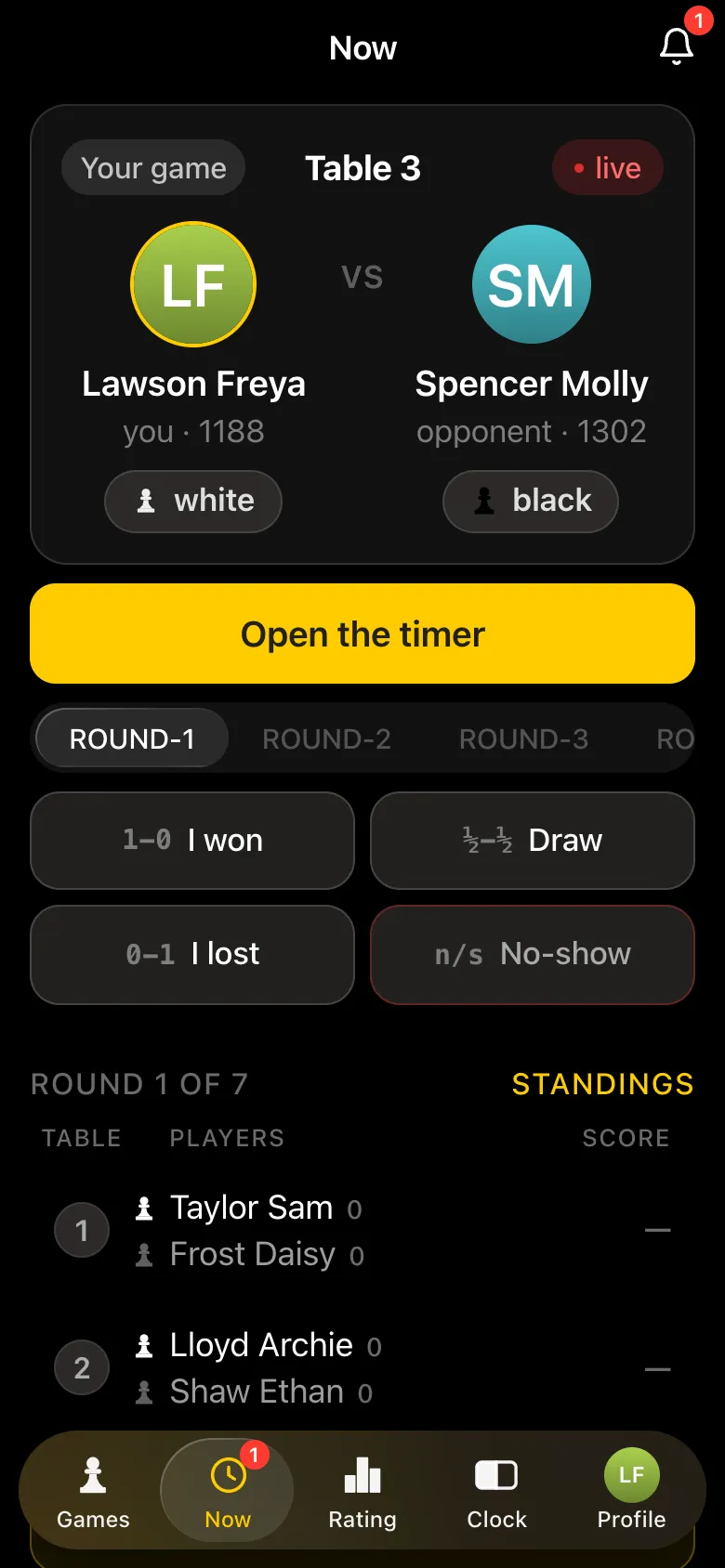
Not enough chess clocks? "Open the timer" turns a phone into a clock for the right time control. The site has a clock of its own too - the online chess clock.
When the game ends, one of the players taps "I won", "Draw", "I lost" or "No-show". The opponent sees the entry and has 15 seconds to tap "I disagree, dispute it". If they agree, they do nothing: the result is accepted automatically. A dispute clears the entry, and the two sort it out at the board and report again.
Your own loss is accepted at once - there is nothing to dispute. Games against a guest are accepted at once too, with no window. The organiser can set or correct the result of any table, and their word is final.
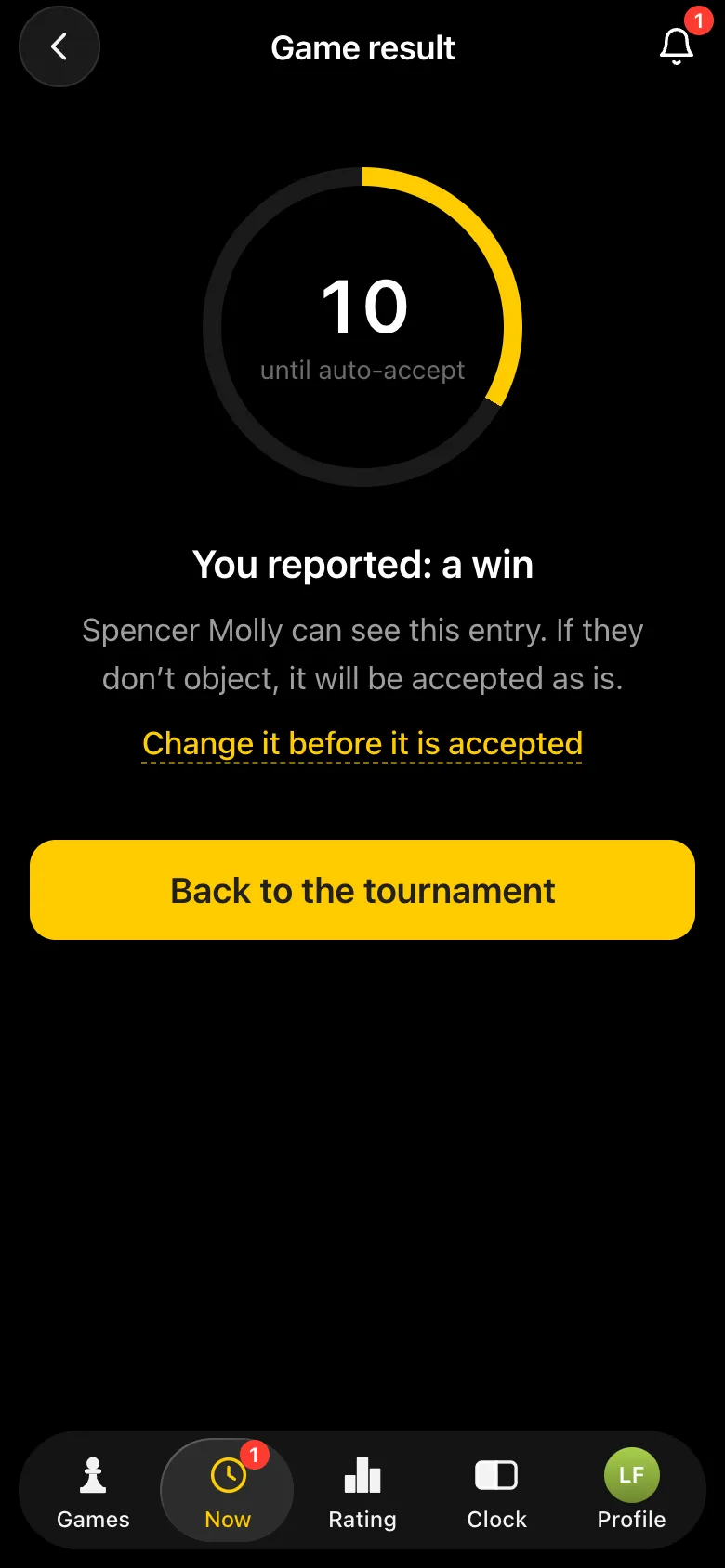
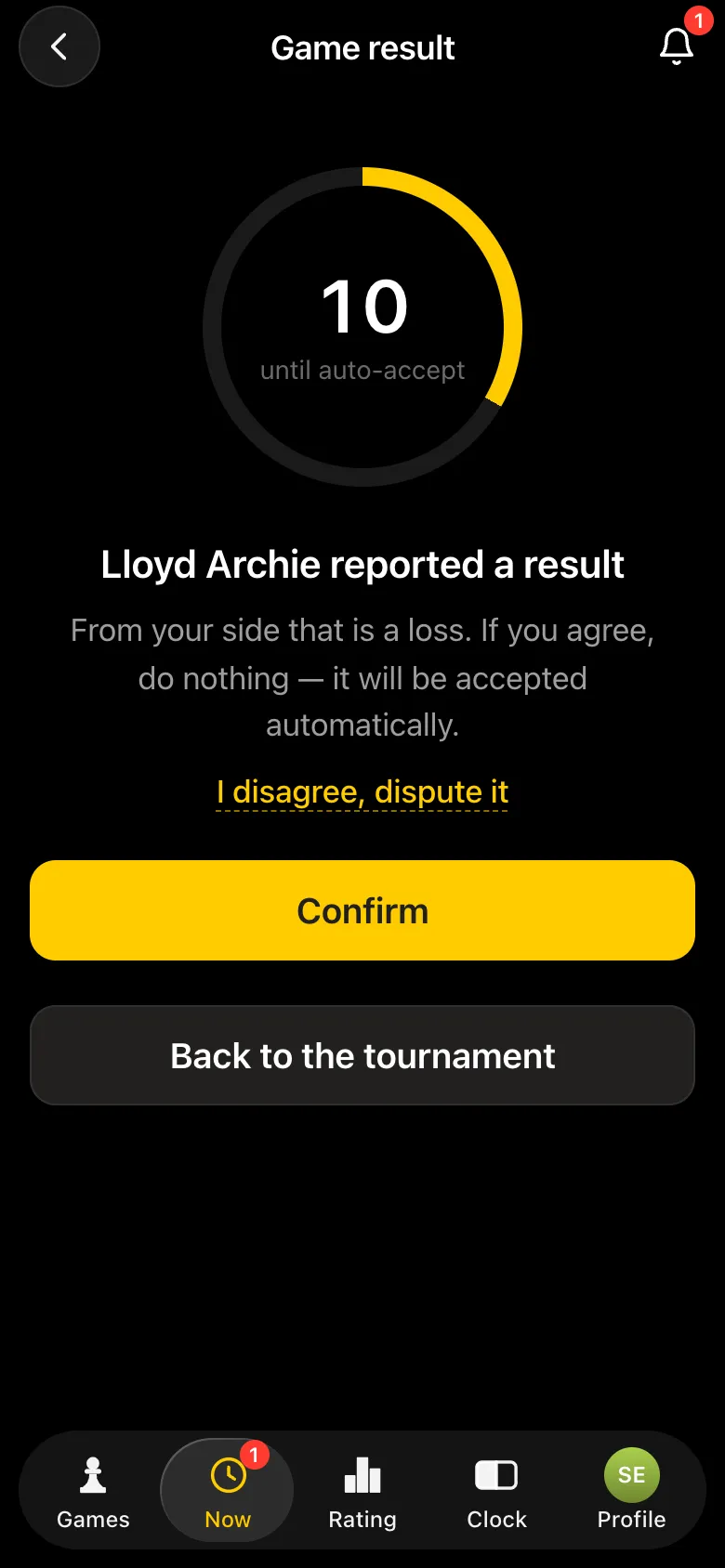
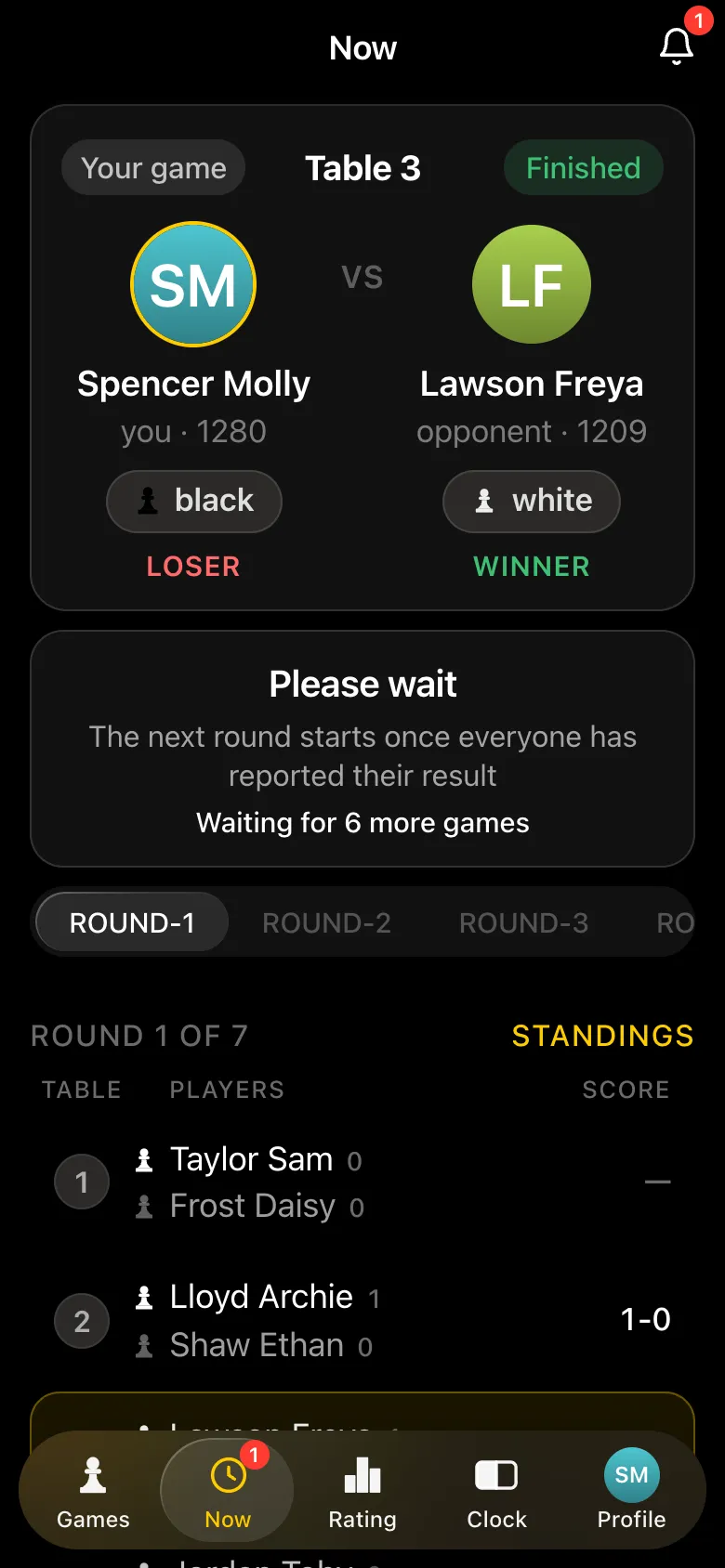
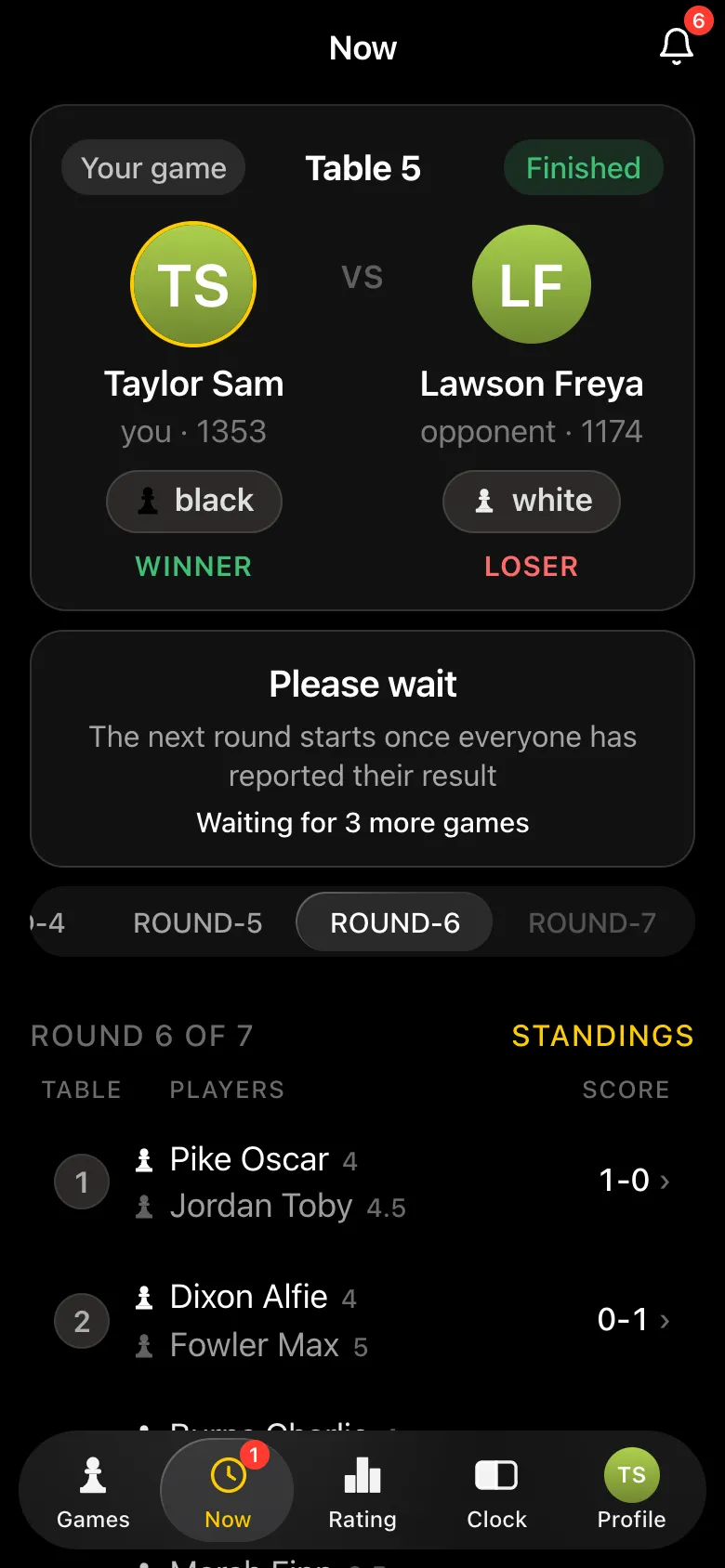
When the last result of a round is in, the app announces the next one by itself. The organiser only has to watch their own screen: how many games are still going, which tables have finished. Need a break? The tournament can be paused.
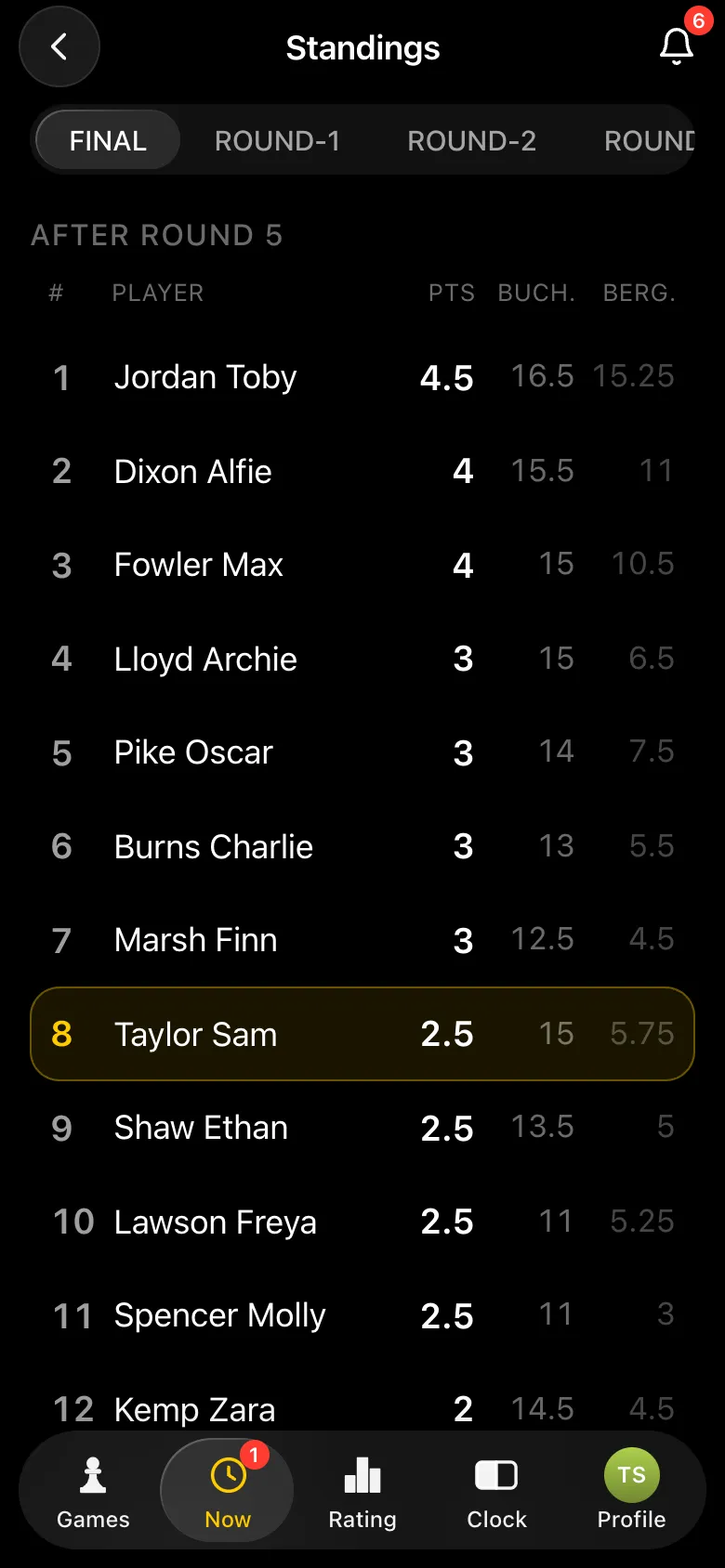
The tournament card has "Show the tournament on a screen". Copy the link and open it on the laptop by the projector: the screen shows the current round's pairings, then the final standings, and while the tournament is on the page updates by itself. Students with an account have their rating and its change over the tournament next to their name - which is what the room watches most.
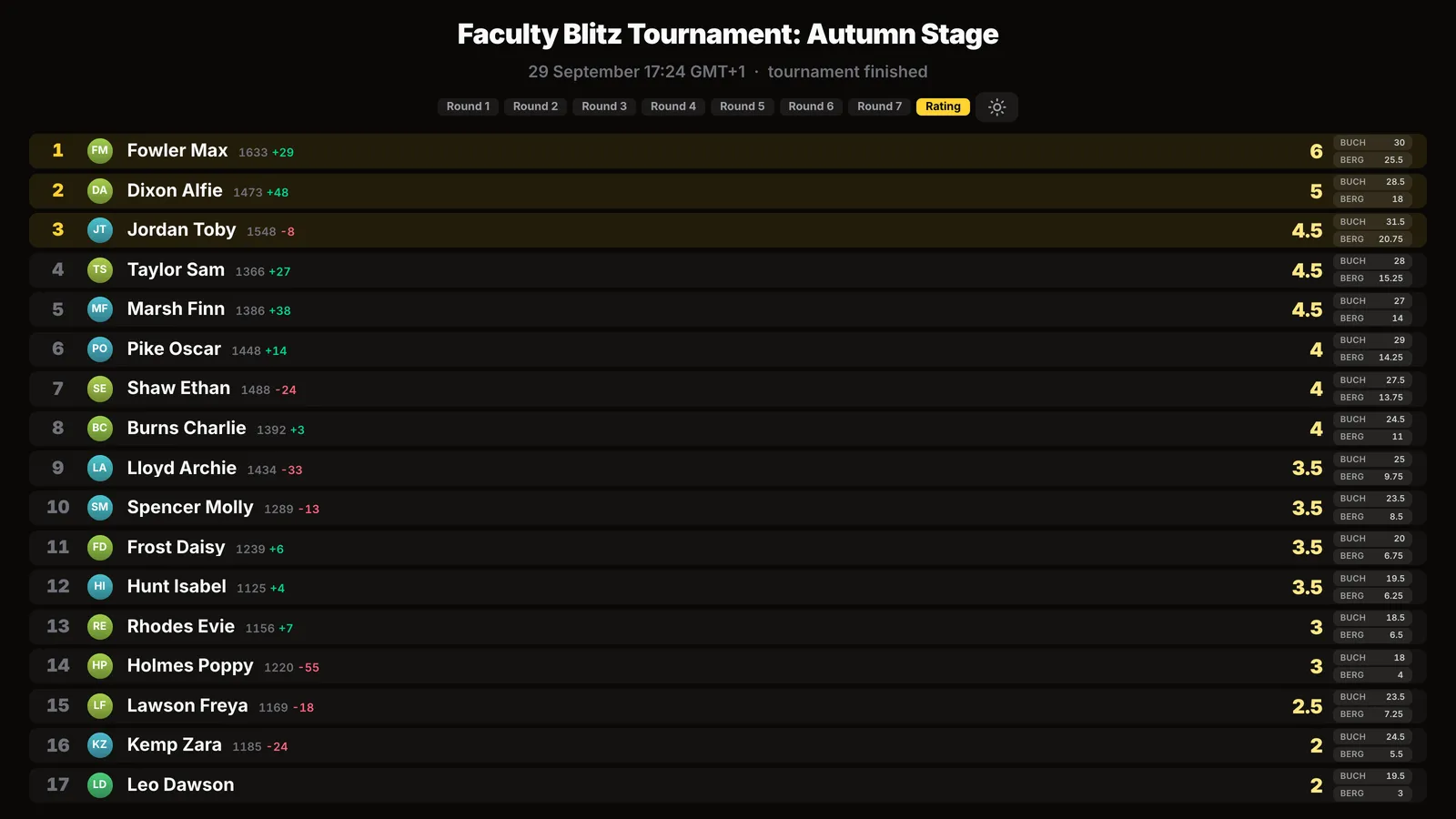
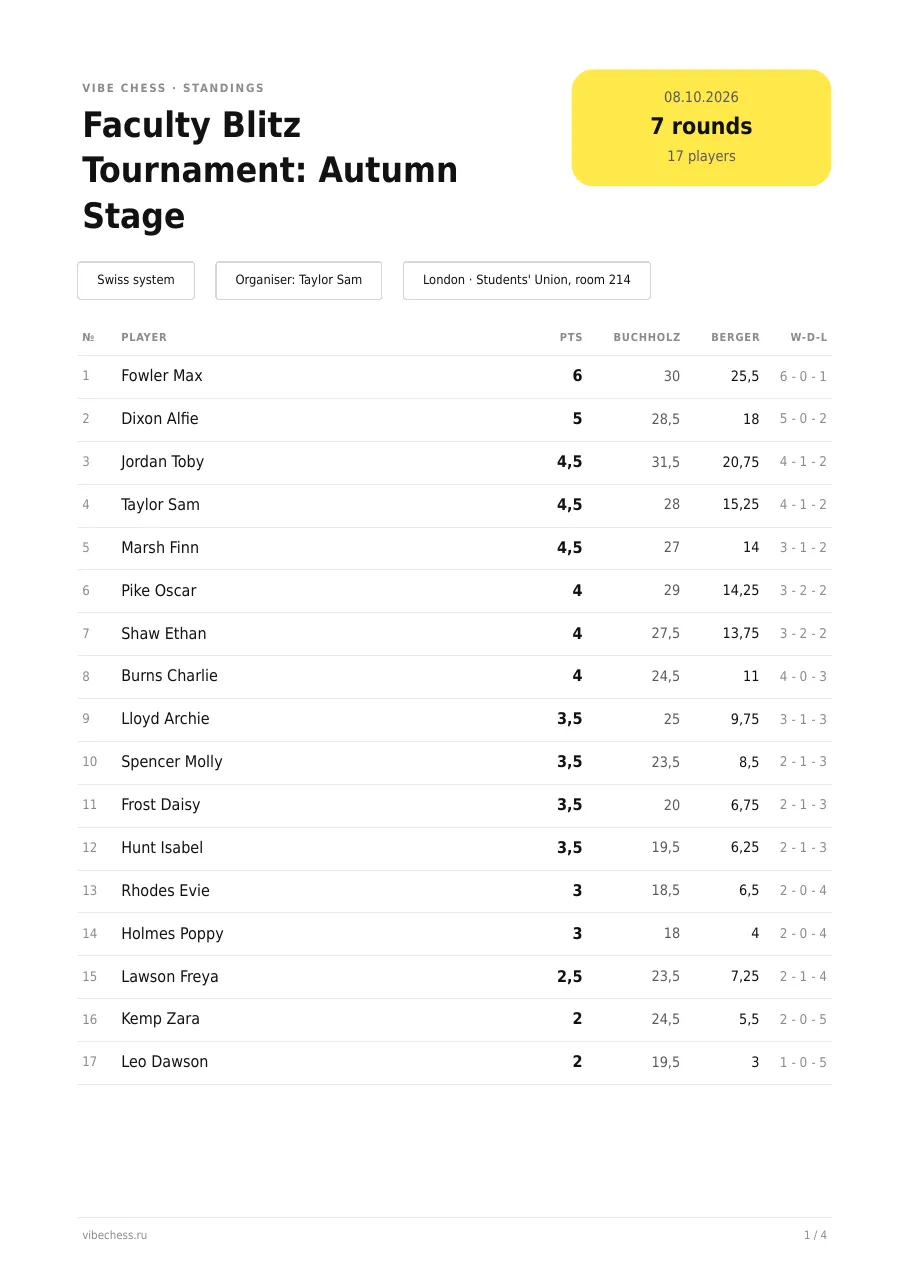
After the last round the tournament finishes on its own. The card now has "Final standings", "Standings as a PDF sheet" and "Export TRF report". Ties on points are broken by the Buchholz score and Berger. The bot sends the results to every player with an account.
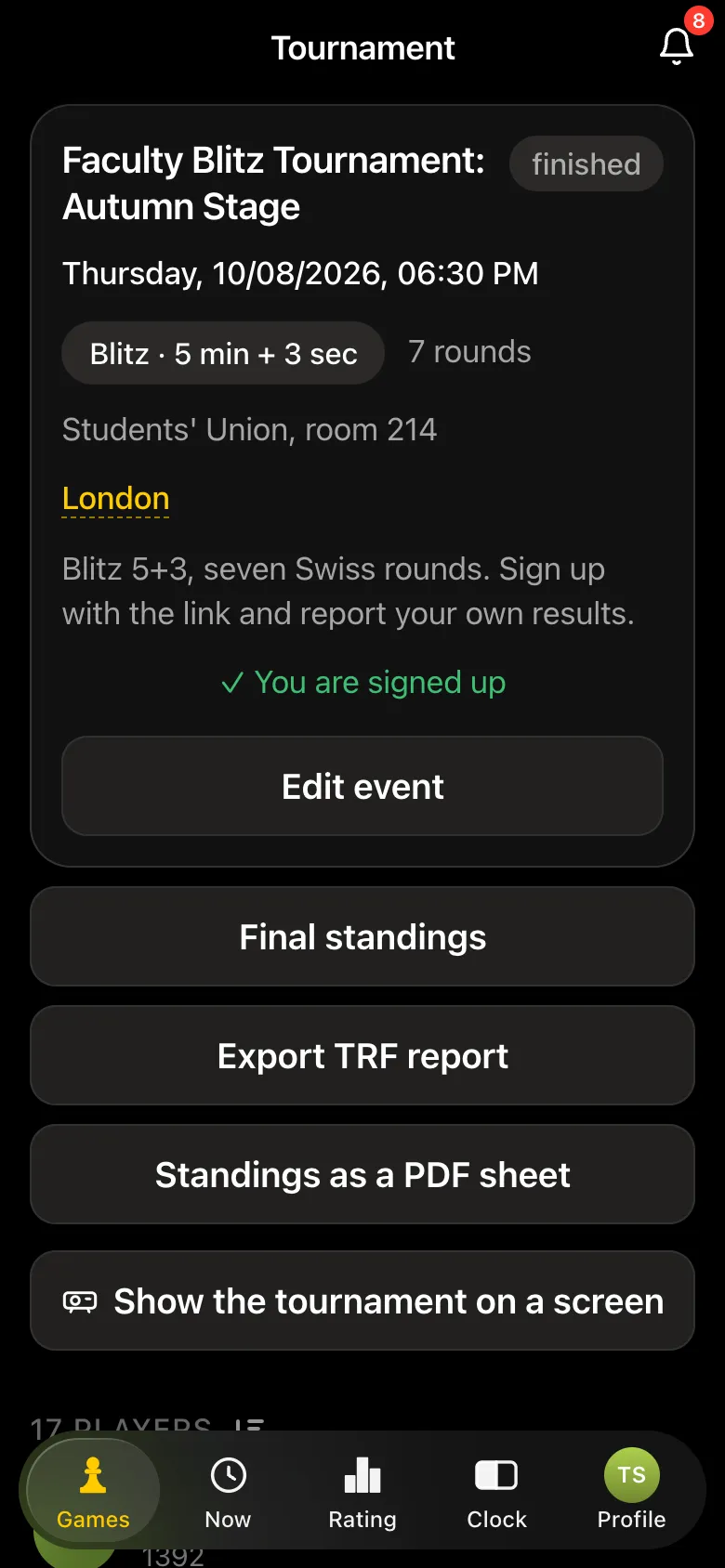
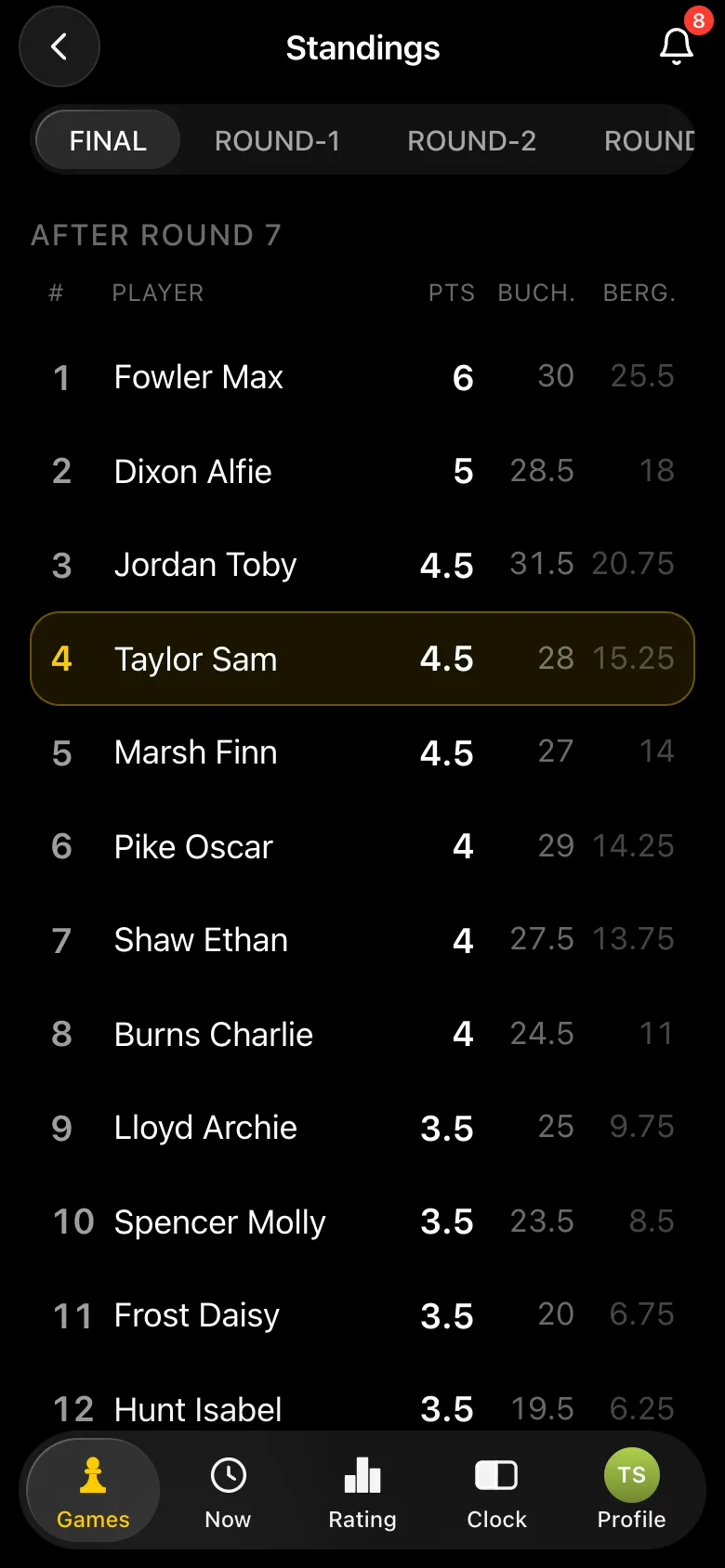
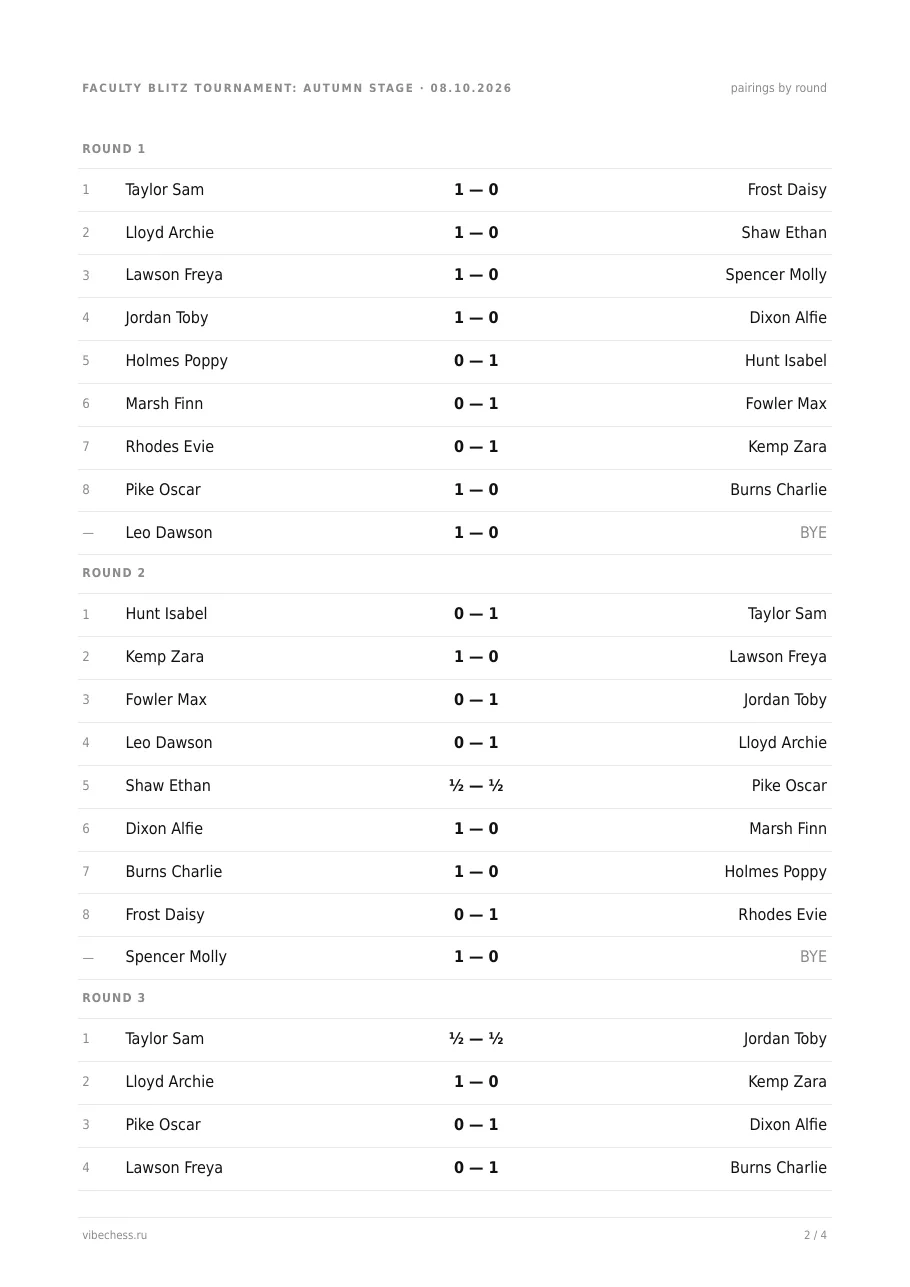
"Standings as a PDF sheet" sends an A4 sheet to the chat: places, points, Buchholz, Berger, wins, draws and losses, followed by the pairings and results of every round. It goes on the chess society noticeboard and into the faculty's social feed. "Export TRF report" sends a file in the standard format used by arbiter software and federations.
One tournament is one evening. To keep chess going at the university all term, set up a league: Profile - Leagues - Create a league. A league has its own rating - only league tournaments move it, the main Vibe Chess rating is untouched - and a season table with points for places: 25 for first, 20 for second, 16 for third and so on down. On top of that you can award points just for taking part, so turning up pays off for everyone, not only the strong players.
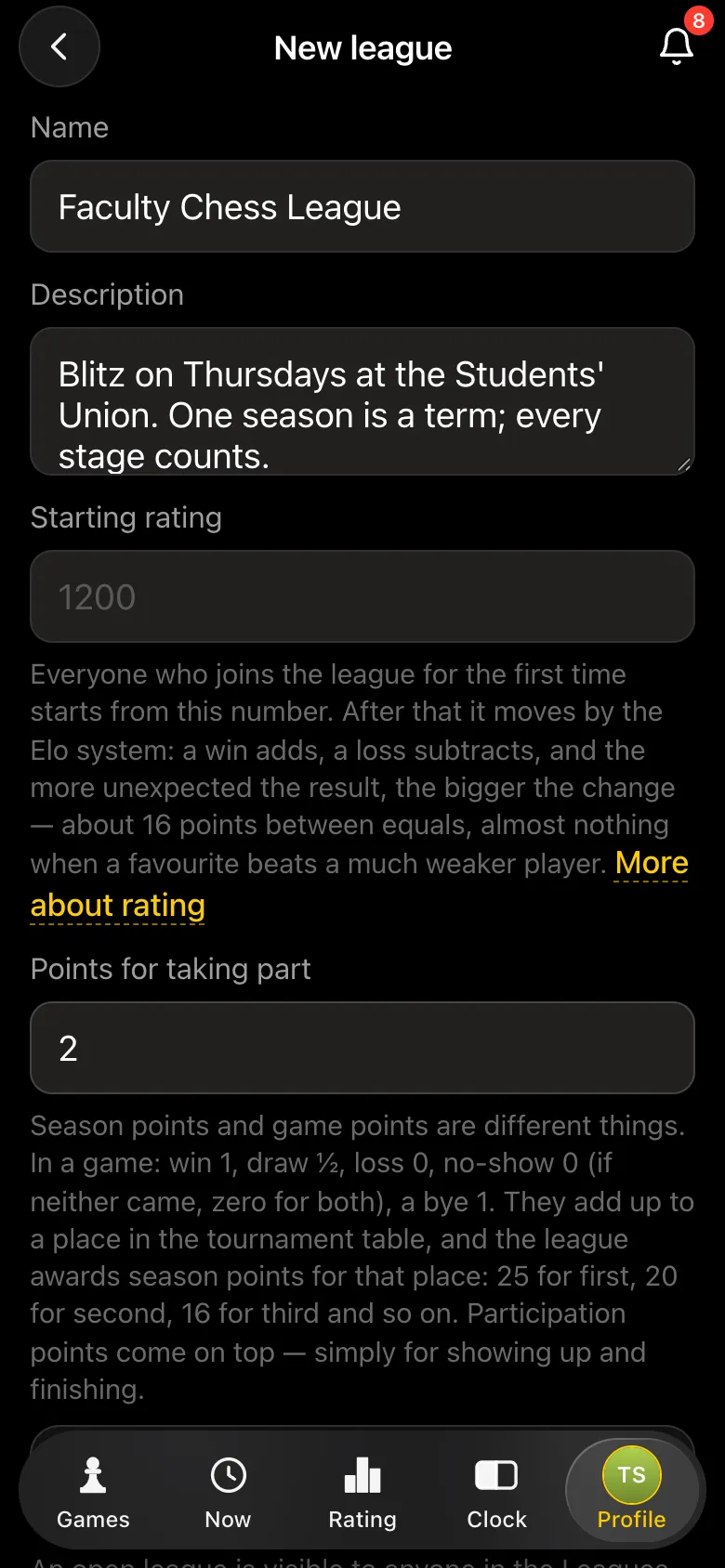
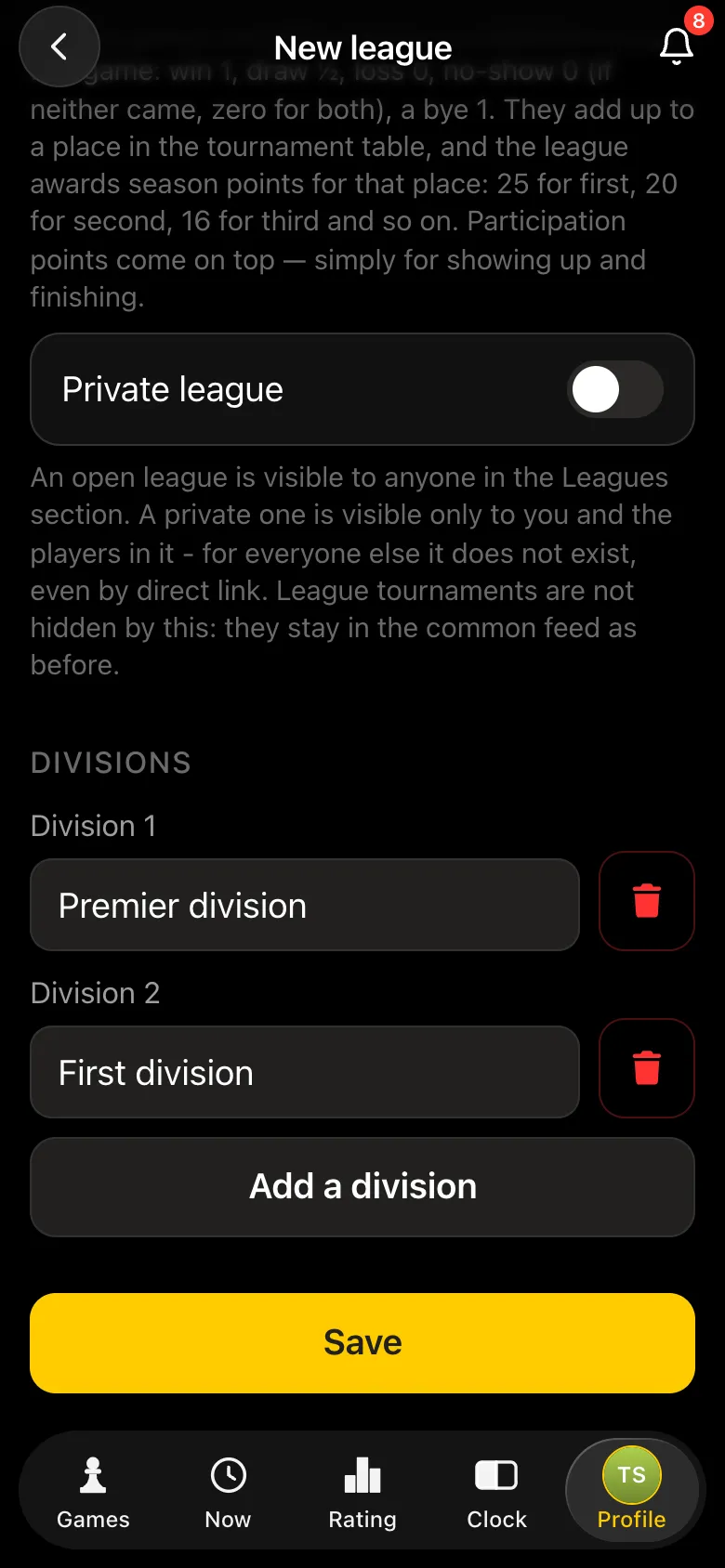
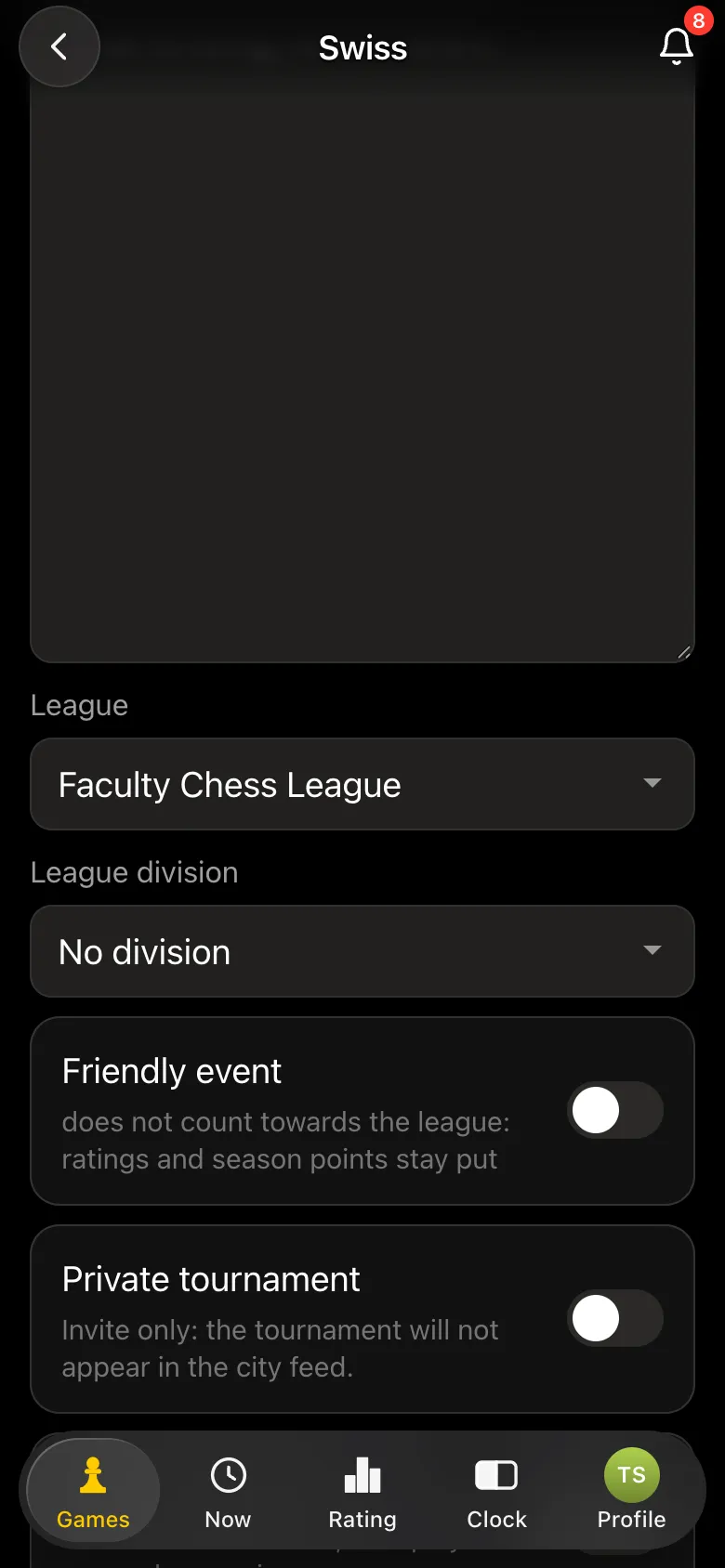
Players are split into divisions - say, a premier one for the stronger players and a first one for everyone else - and each division has its own table. A league can be private: then only the organiser and its players can see it. A league tournament is created like any other, you just pick your league in the "League" field; and for practice that should not count there is "Friendly event", which changes neither the league rating nor the season points. The season table lives on the Rating tab under "By league", with a drop-down for the division.
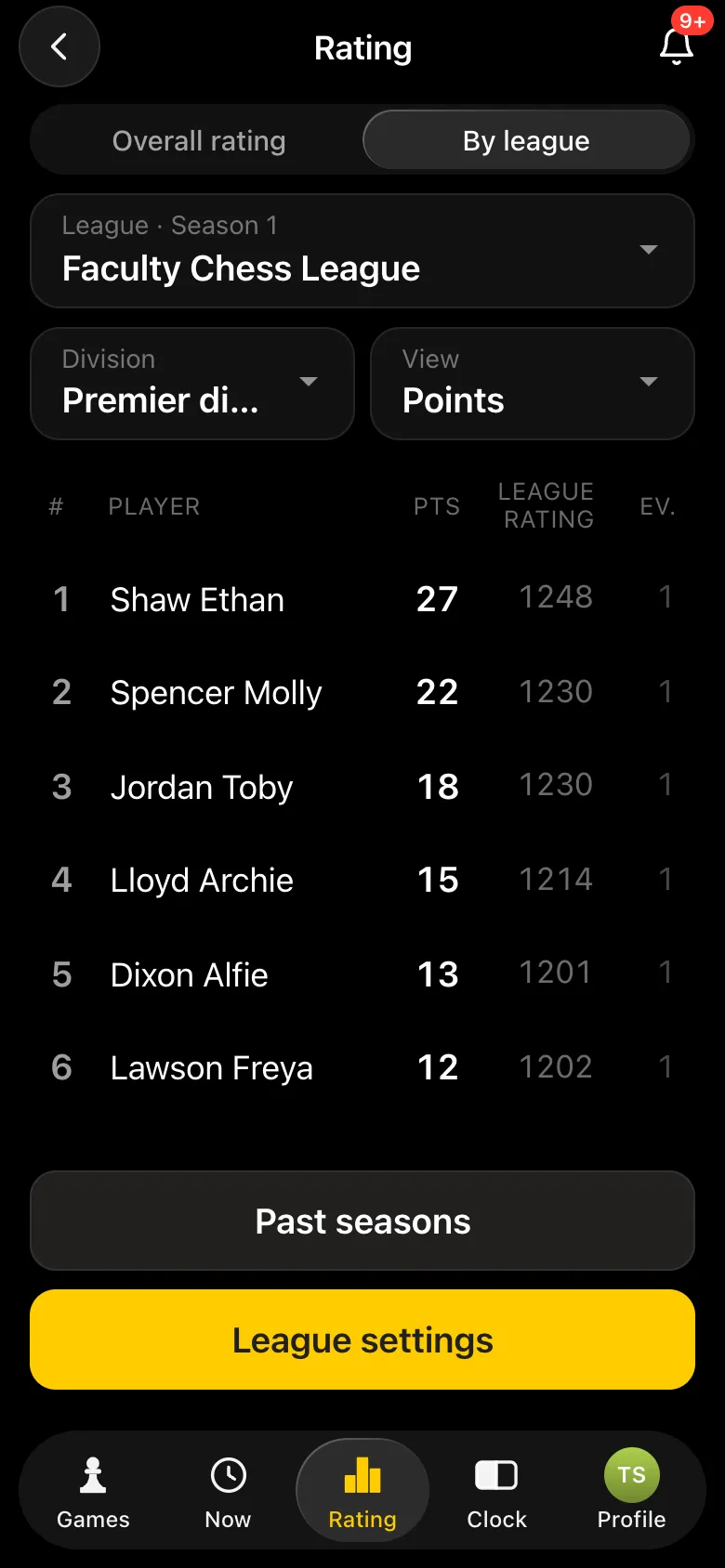
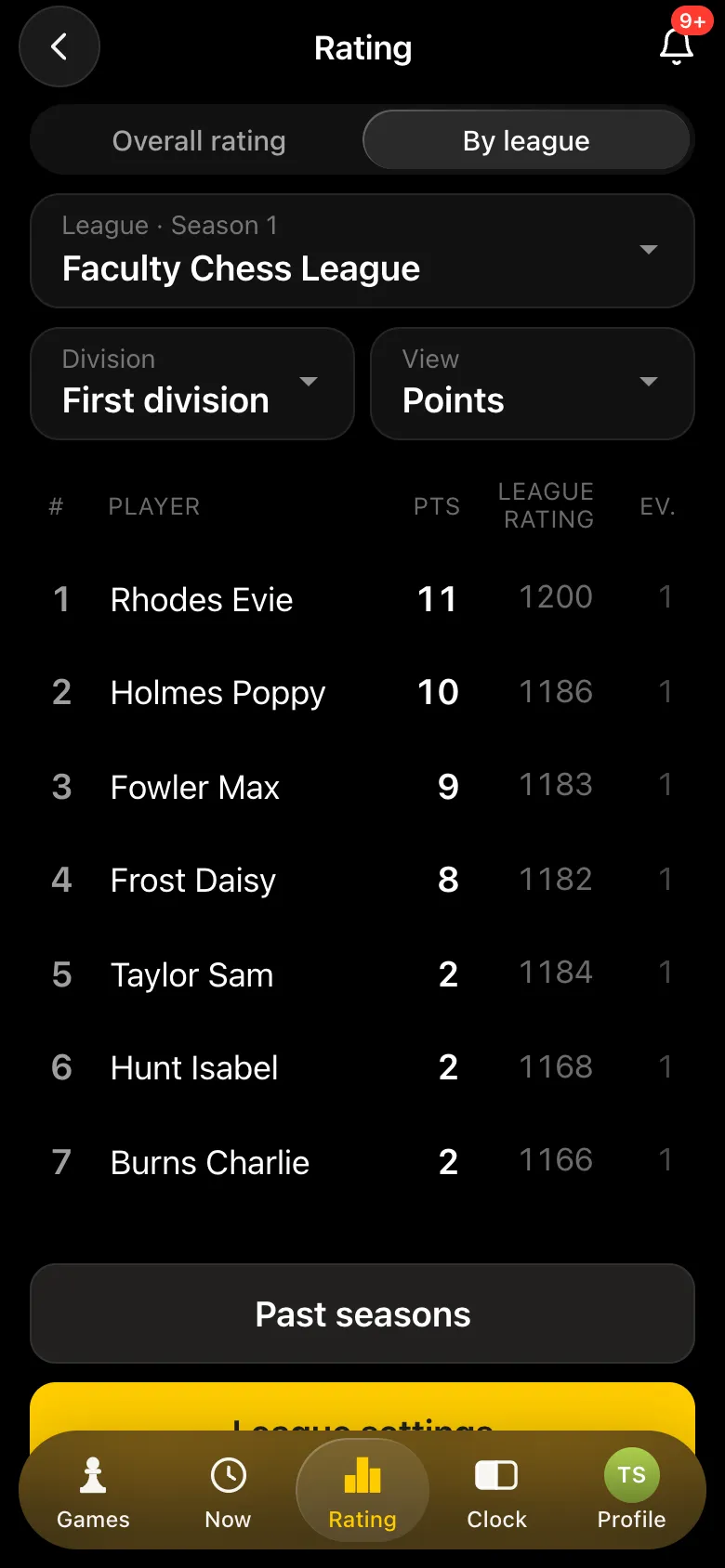
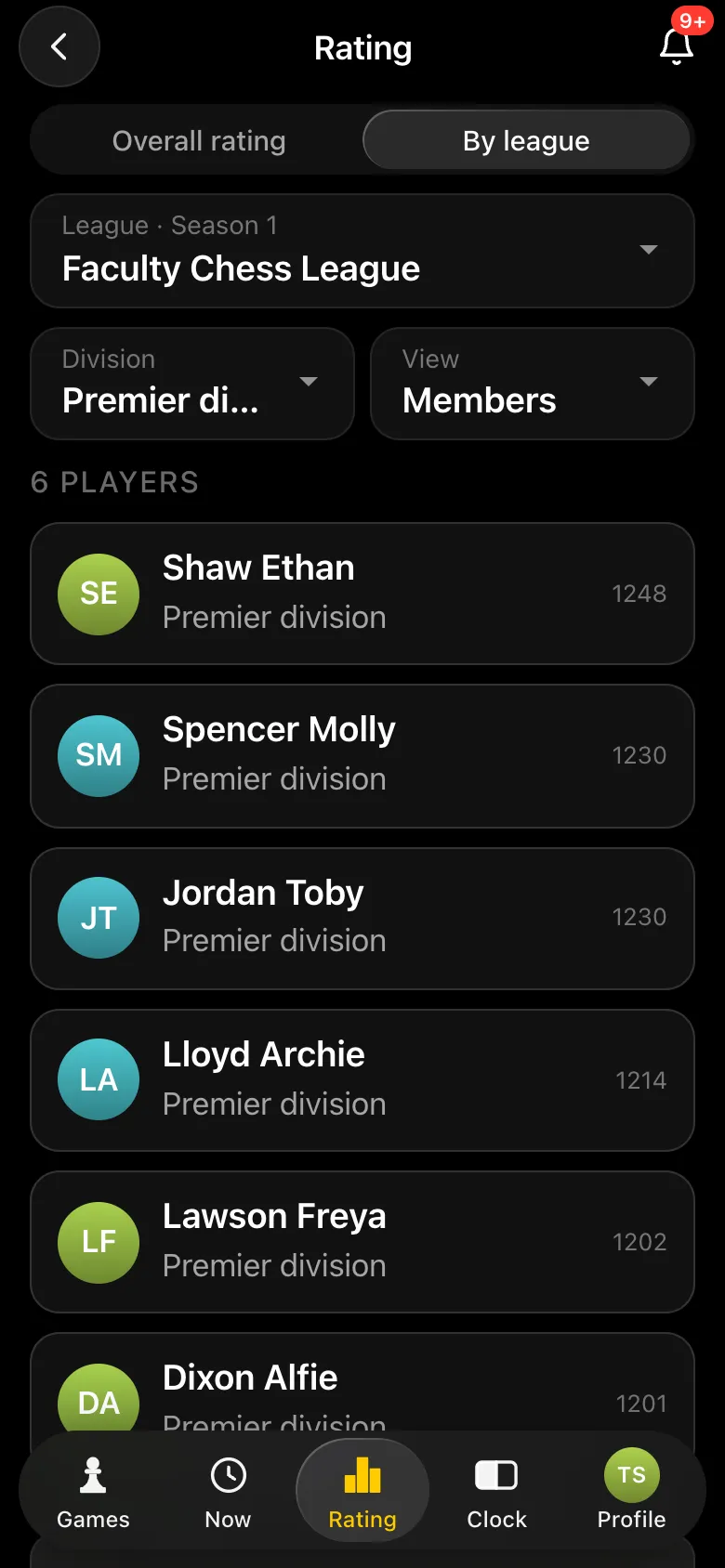
Company leagues work the same way - see corporate chess tournament in the app.
No. The app opens inside Telegram through the @vibechessbot bot, and on a laptop at playvibechess.com/app. Nothing to install, and it is all free.
With the QR code on the tournament card or with the link the organiser sends to the course chat. With Instant entry switched on, whoever scans the code is in the line-up at once.
The players themselves: after the game one of them taps I won, Draw, I lost or No-show. The opponent sees the entry and has 15 seconds to dispute it, otherwise the result is accepted automatically. The organiser can set or correct the result of any table.
They tap I disagree, dispute it - the entry is cleared, and the two report the result again after sorting it out at the board. If they cannot agree, the organiser sets the result.
Yes, the organiser adds them as a guest by name. A guest plays like everyone else, but the organiser enters their results, and a guest has no rating.
In the app: Profile - Leagues - Create a league. A league has its own rating, divisions and a season table with points for places. League tournaments are created like any others, with your league selected.
The league rating is separate: only tournaments of that league move it. The main Vibe Chess rating lives its own life.
Yes: Show the tournament on a screen on the tournament card gives you a link. Open it in the browser of the laptop by the projector - pairings, standings and rating changes update by themselves.
The Vibe Chess app opens from a link and needs no installation. Setting up a tournament takes a minute: pick the system, set the date, the venue and the time control - the app handles the rest.
The bot is constantly improved based on real tournaments. If you need a feature that isn't there yet, message the developers right inside the bot with the /support command. Many features appeared exactly because organizers asked for them, and useful ideas get added quickly.
Format and organisation with no app involved - student chess tournament and tournament at a university. The evening format - a blitz tournament in an evening. A guide for players - how to take part in a tournament. A tournament for employees - corporate tournament in the app. For newcomers - beginners' tournament in the app. A championship for a whole school - school tournament in the app. The system in detail - Swiss tournament in the app.

At the board since childhood: hazy about his rating, precise about every rook he has blundered. Counts an evening as a good one if the opponent stayed to talk afterwards instead of rushing off to check with an engine. Message →