A school always has a mixed line-up: older pupils have phones with Telegram, younger ones either do not or are not allowed to use them in lessons. The app works with both at once - the older pupils do their part themselves, and the teacher looks after the younger ones.
Sixth-formers sign up with a QR code and report their own results. The teacher does not have to walk round the tables.
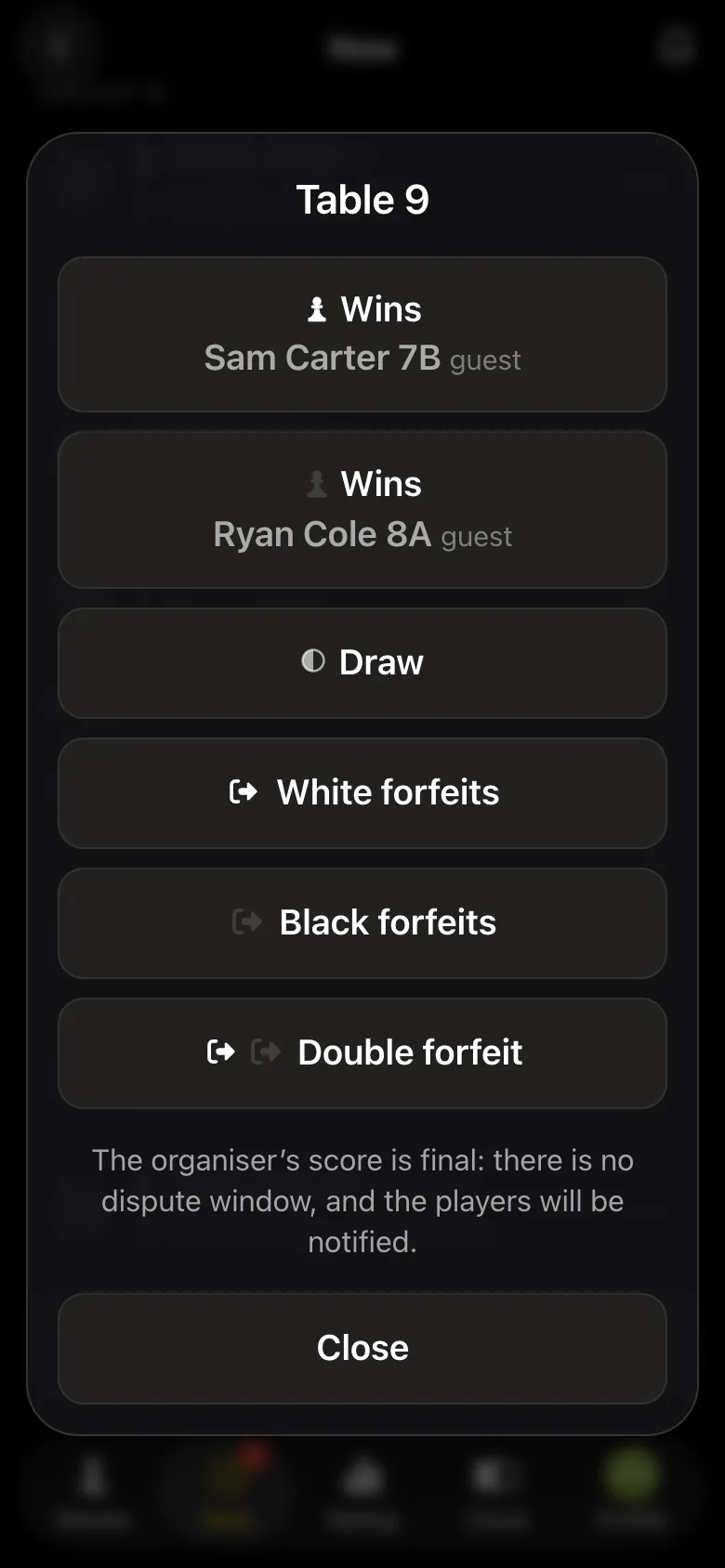
The teacher adds Year 7 pupils by name, with their form: "Sam Carter 7B". Their results are entered by the teacher, in one tap.
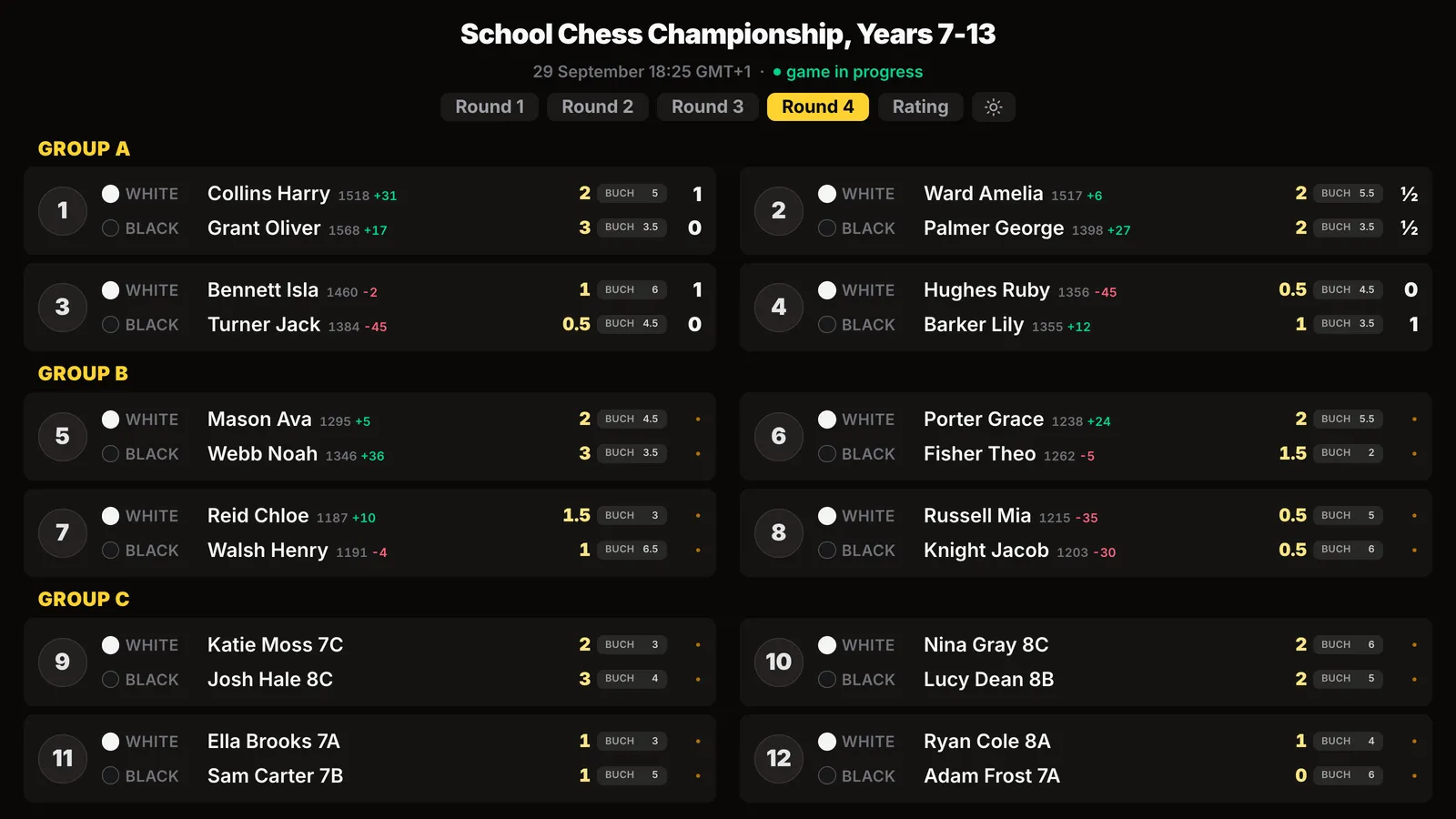
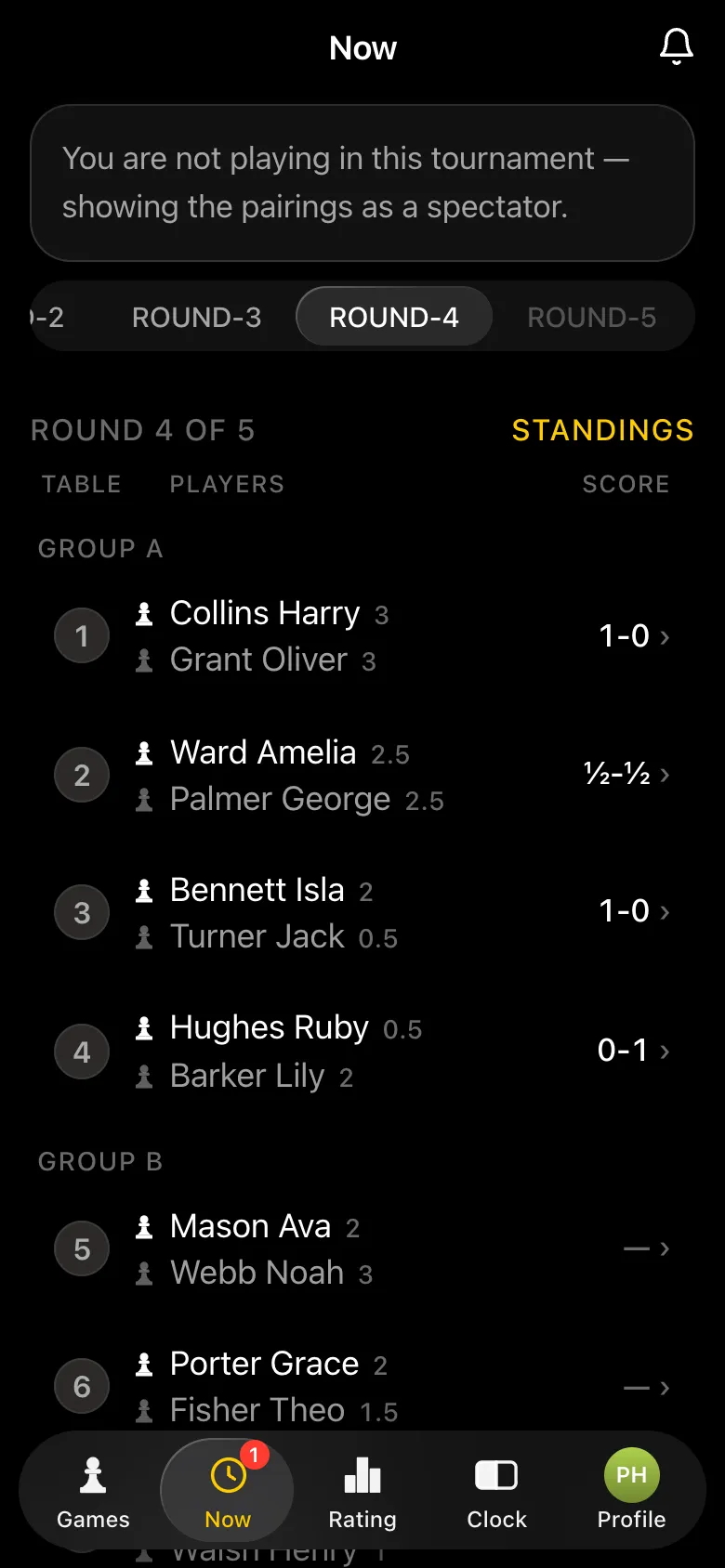
Groups inside the tournament: Years 7-8, 9-10 and 11-13. Each group has its own pairings, its own standings and its own prize winners.
All groups play at the same time: one button, one screen, one results sheet - not three separate tournaments.
It is not in the city feed: the only way in is the link the teacher gives to their pupils.
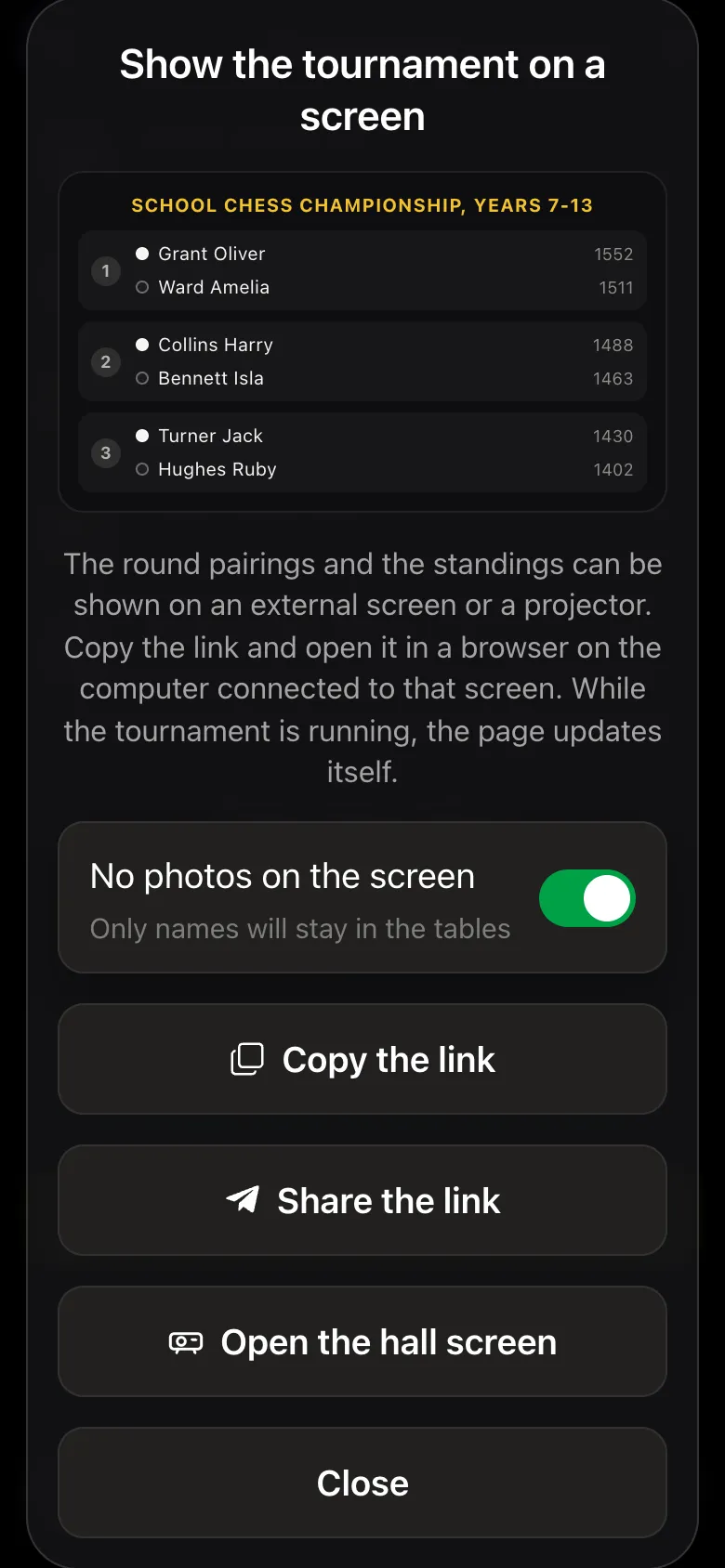
The "No photos on the screen" switch leaves only names on the hall projector - which matters at a school event.
Swiss pairings come from the bbpPairings engine, round robins from Berger tables. Colours and rematches are taken care of automatically.
An A4 results sheet in PDF with places for every year group - for the noticeboard, certificates and the report to the head.
A school chess club league with divisions for juniors and seniors and a season table that runs until the summer.
Everything runs through the Telegram bot @vibechessbot, and on the classroom computer through the web version.
Open the Vibe Chess bot and its app button, or the web version on the classroom computer. Games - "Create your own game" - "Swiss-system tournament". Venue - the school and the hall or classroom, a date after lessons, 10+5 rapid and five rounds: a game takes 15-25 minutes, and the whole tournament fits into two and a half hours. The number of tables is the number of boards with clocks the school has.
Switch on "Private tournament": it will not be in the city feed, and the only way in is your link. A QR code appears on the tournament card straight away - put it on the classroom screen or send the link to the year group chat, and the older pupils will sign up on their own.
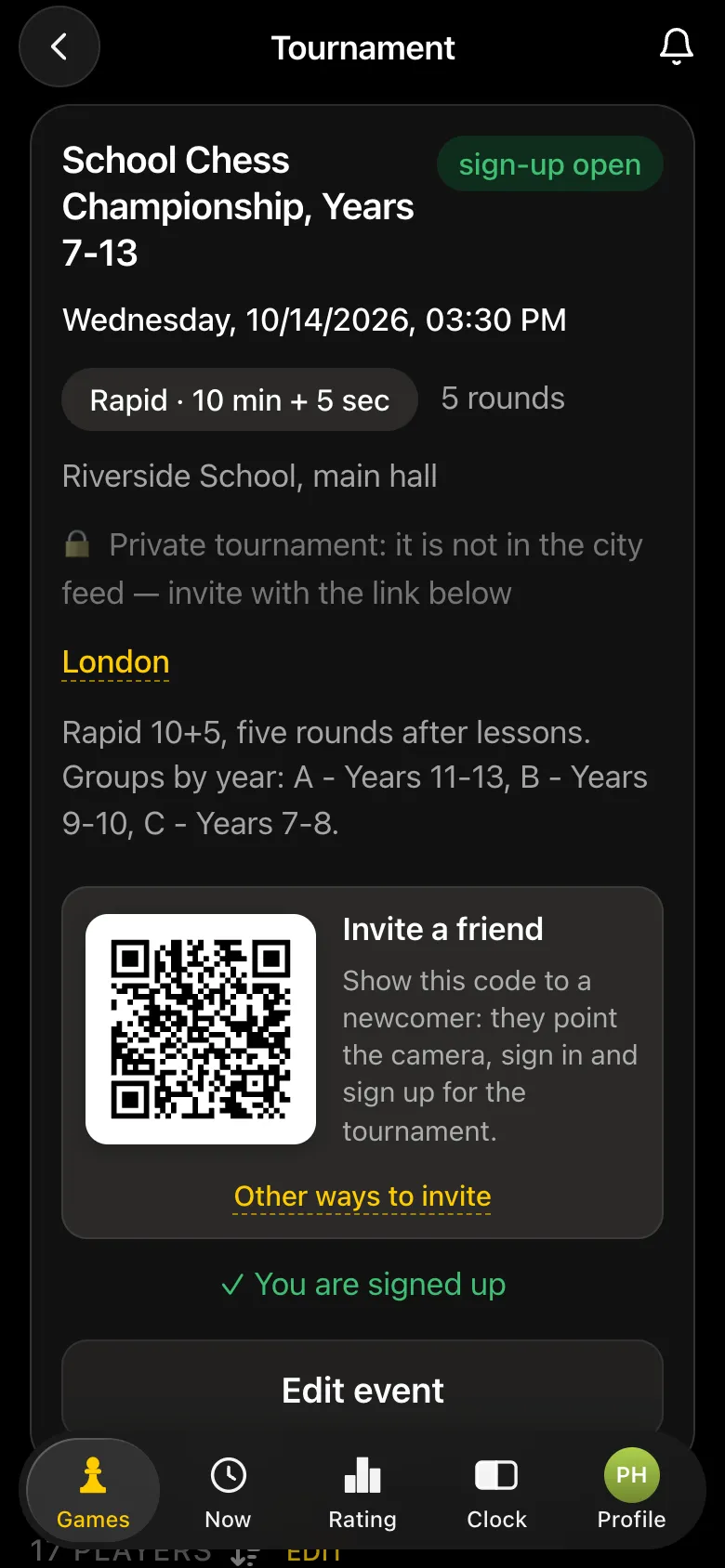
On the player list screen the teacher adds pupils without a phone by typing a guest name - best with the form: "Sam Carter 7B". A guest plays like everyone else and appears in the pairings, the standings and the results; only their result is entered by the teacher. Pupils who have played for you before do not need typing again: they stay in the organiser's guest list.
If the teacher is not playing, they switch themselves off next to their own name: they stay the organiser but are left out of the pairings.
A Year 7 pupil against a sixth-former is no fun for either of them. Tap "Split into groups", then "Add group" - you get groups A, B and C. Tap the letter next to a pupil and choose their group: A for Years 11-13, B for Years 9-10, C for Years 7-8. Pairings are made only inside a group, each group has its own standings and prize winners, and the rounds run in all groups at the same time.
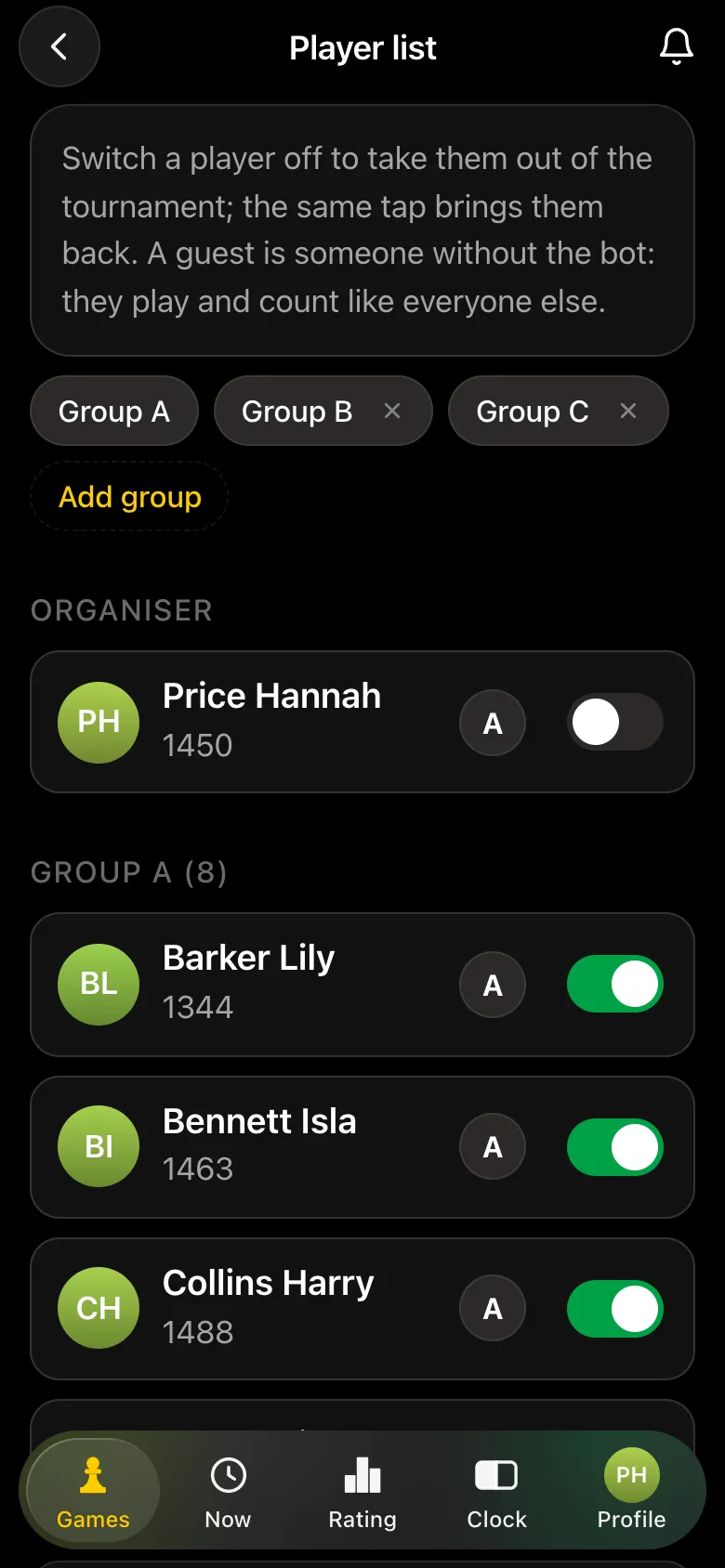
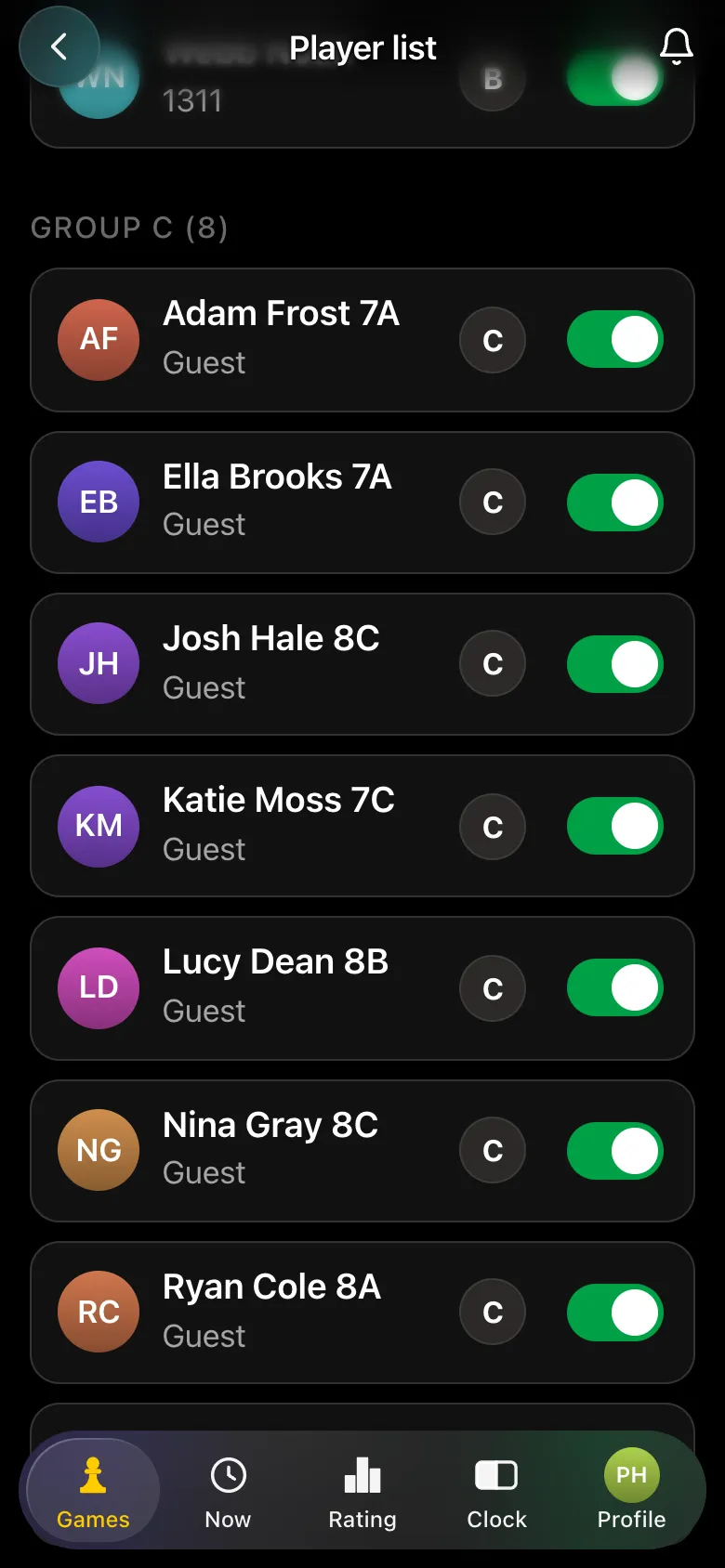
A group needs at least two players. Groups can be changed until the start; after it, only a latecomer can be moved, and only before their first game. For a group of eight, five rounds is just right: if you ask for more, the app warns before the start that a Swiss tournament may run out of pairings early.
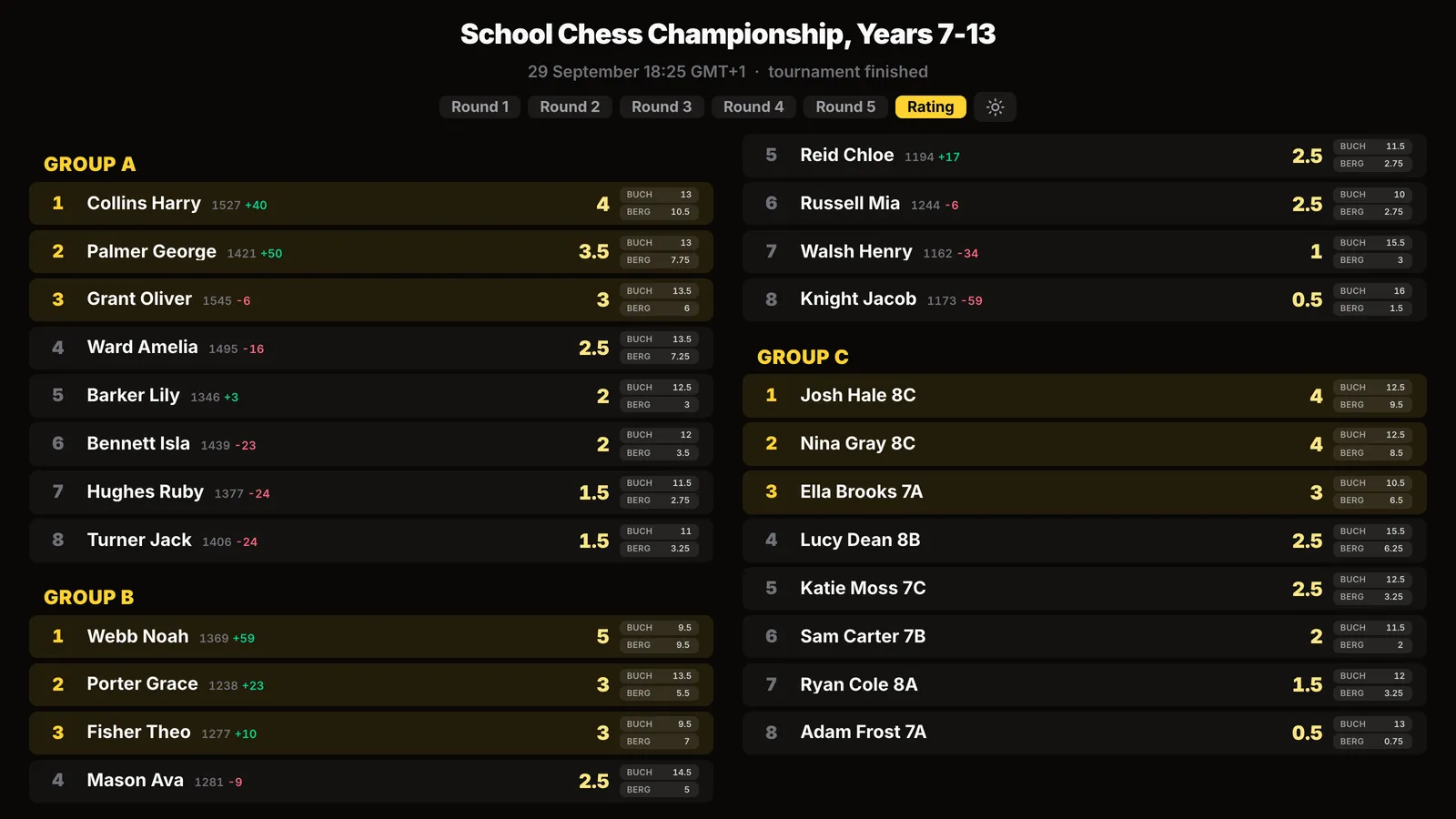
On the tournament card tap "Show the tournament on a screen" and switch on "No photos on the screen": only names stay on the projector, without the circles with faces. At a school event with minors it is worth doing every time. Open the link on the computer connected to the projector or TV - the page updates by itself.
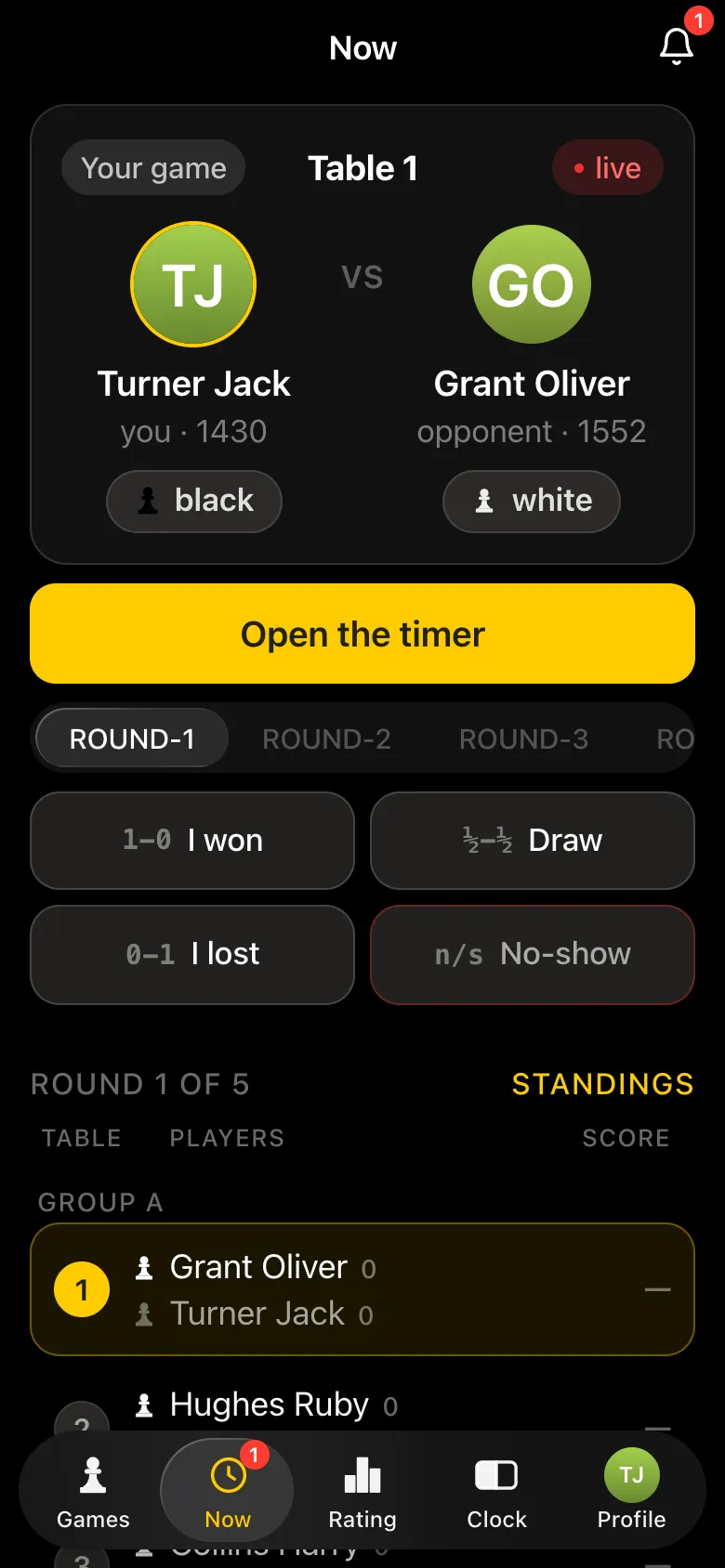
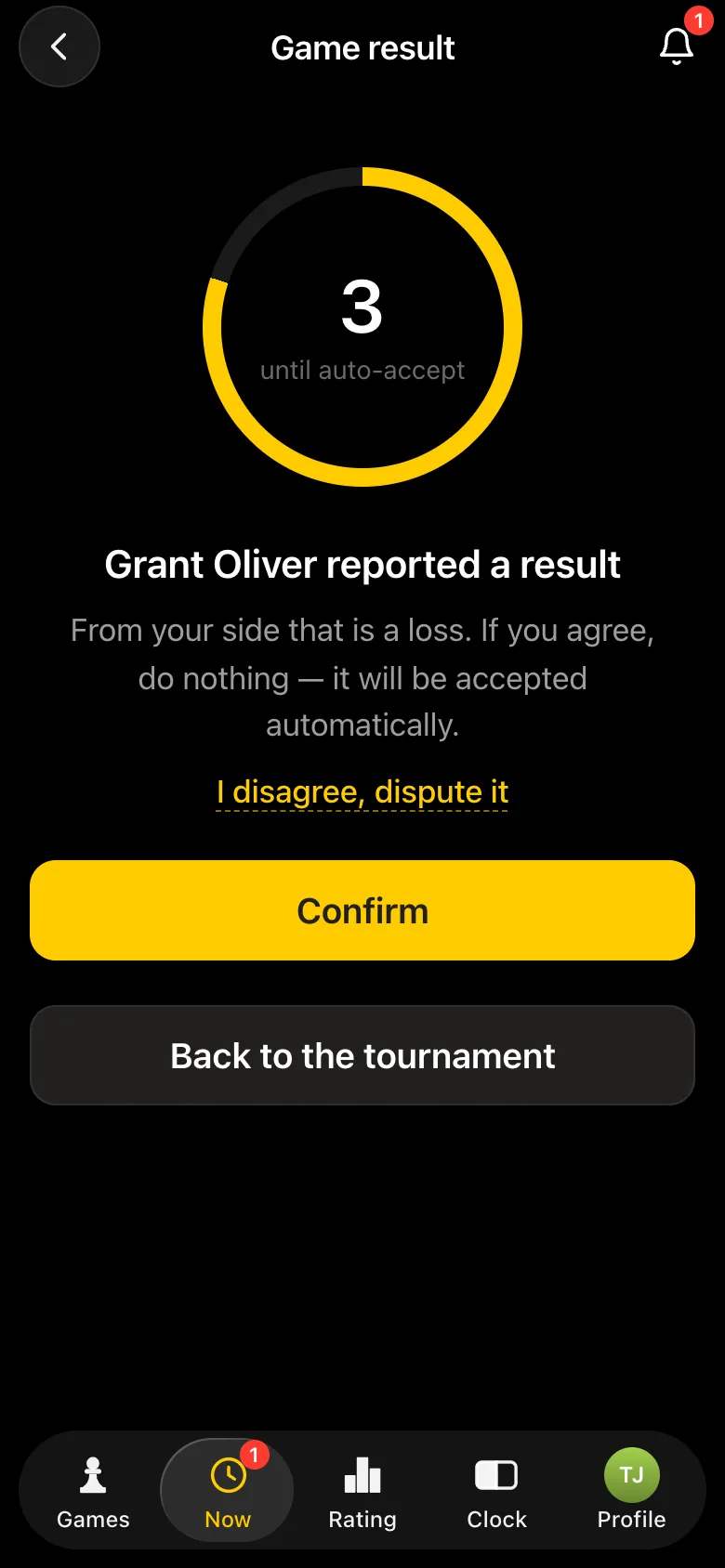
After "Start the tournament" each older pupil sees their game on their phone: table, colour, opponent and a timer button. When the game ends, one of them taps "I won", "Draw", "I lost" or "No-show". The opponent sees the entry and has 15 seconds to tap "I disagree, dispute it"; otherwise the result is accepted automatically.
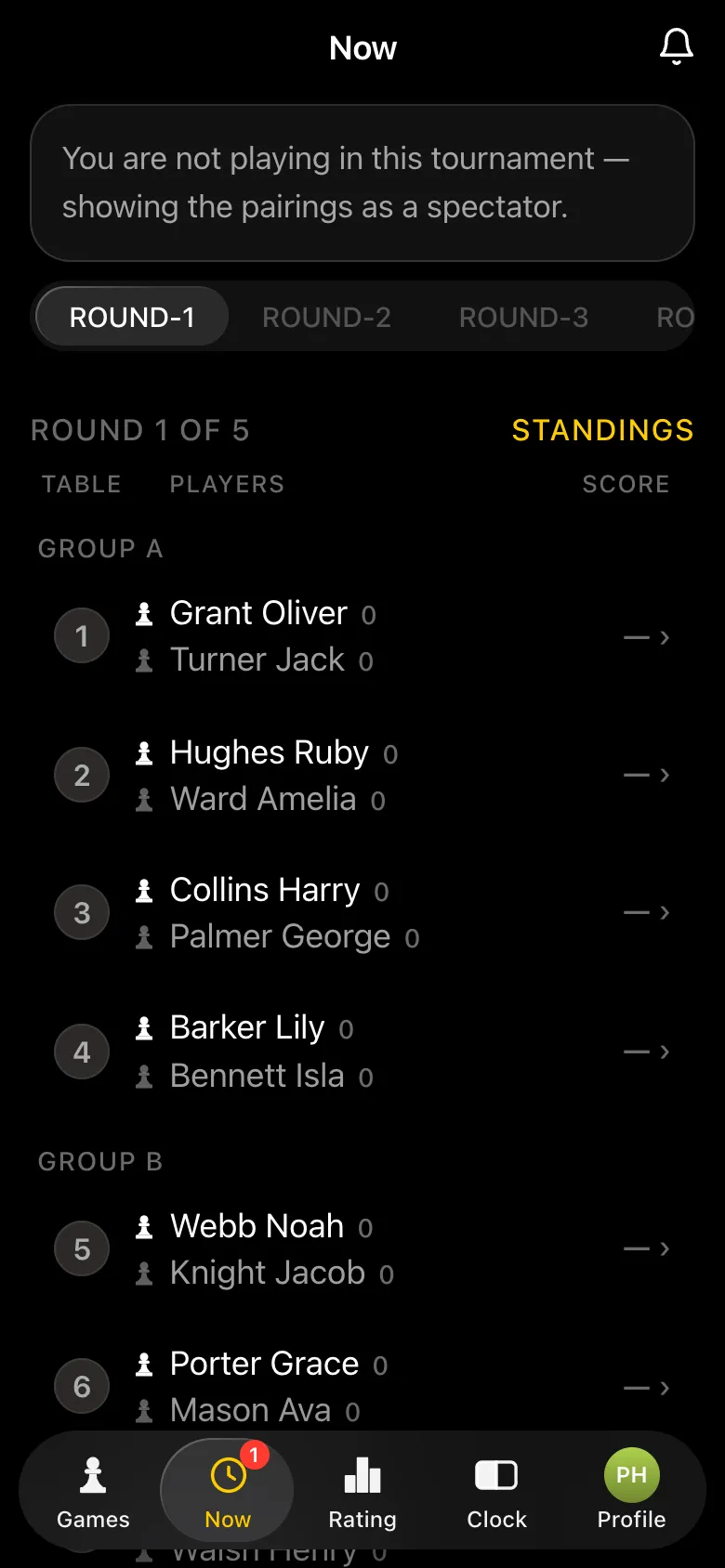
For the younger pupils the teacher enters the result: taps the table in the pairings list and picks the outcome. The teacher's word is final, with no dispute window. When the last result of a round is in across all groups, the next round starts by itself. Need a break? "Pause the tournament".
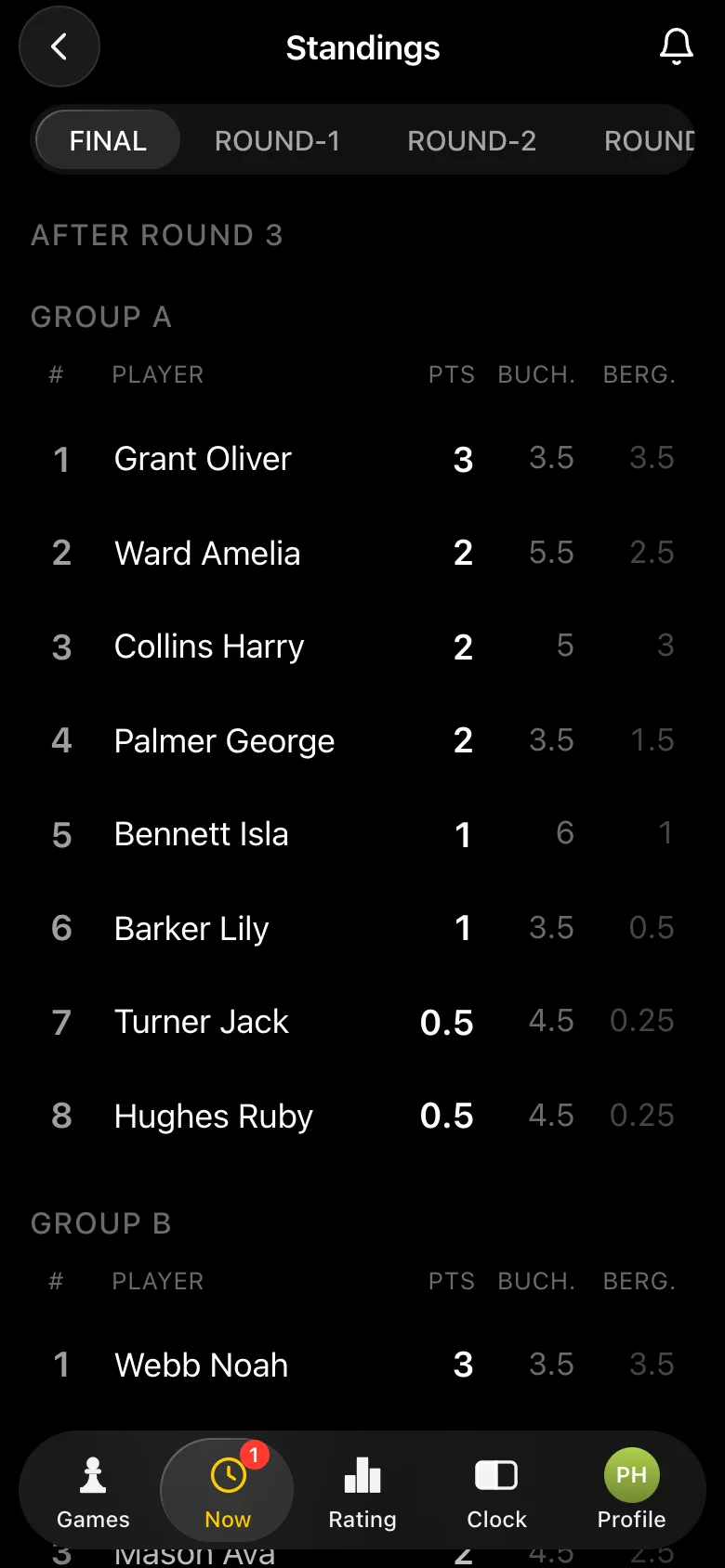
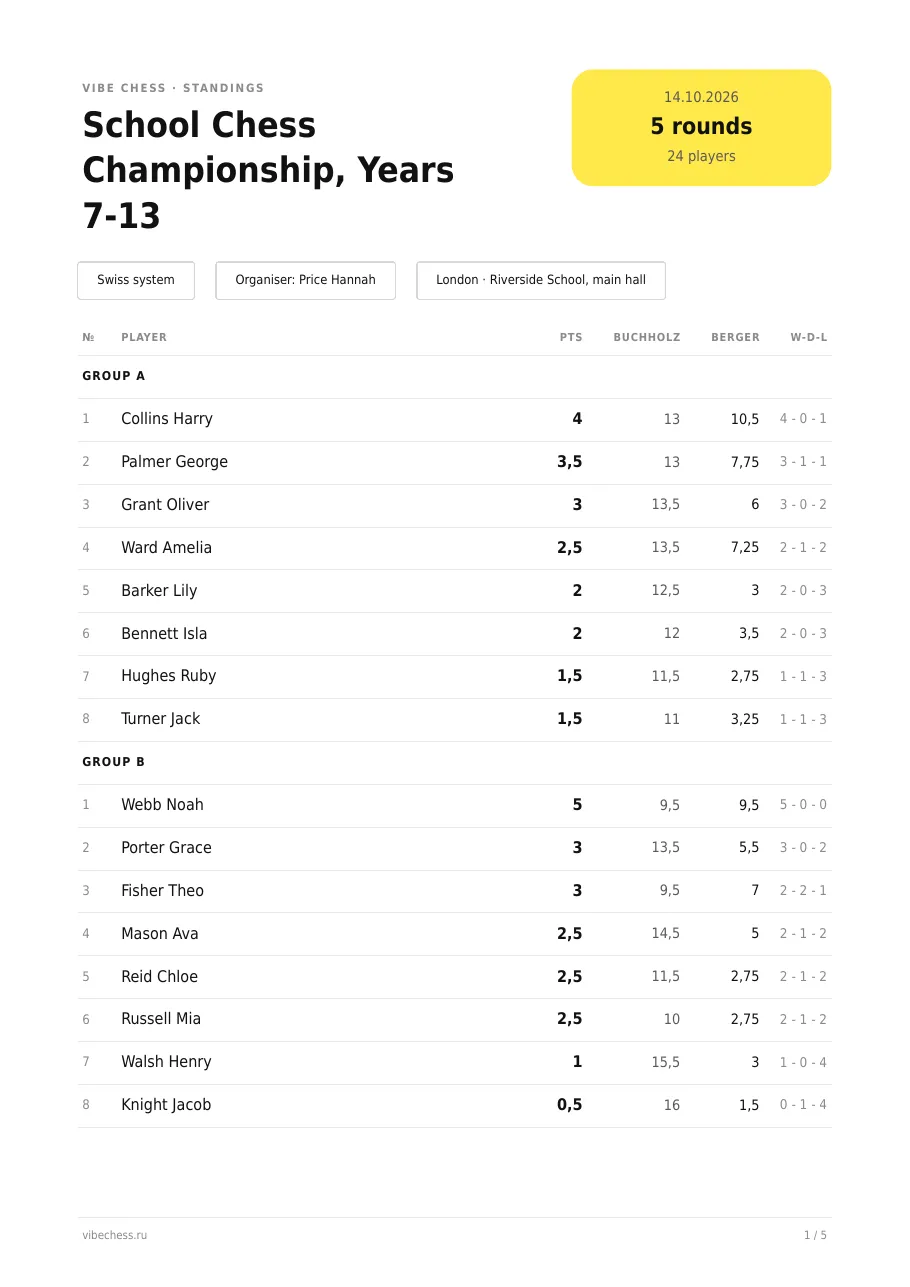
After the last round the tournament finishes on its own. In "Final standings" places are worked out separately in each group, and ties on points are broken by the Buchholz score and Berger. So every year group has its own winner and prize winners - enough certificates for all three.
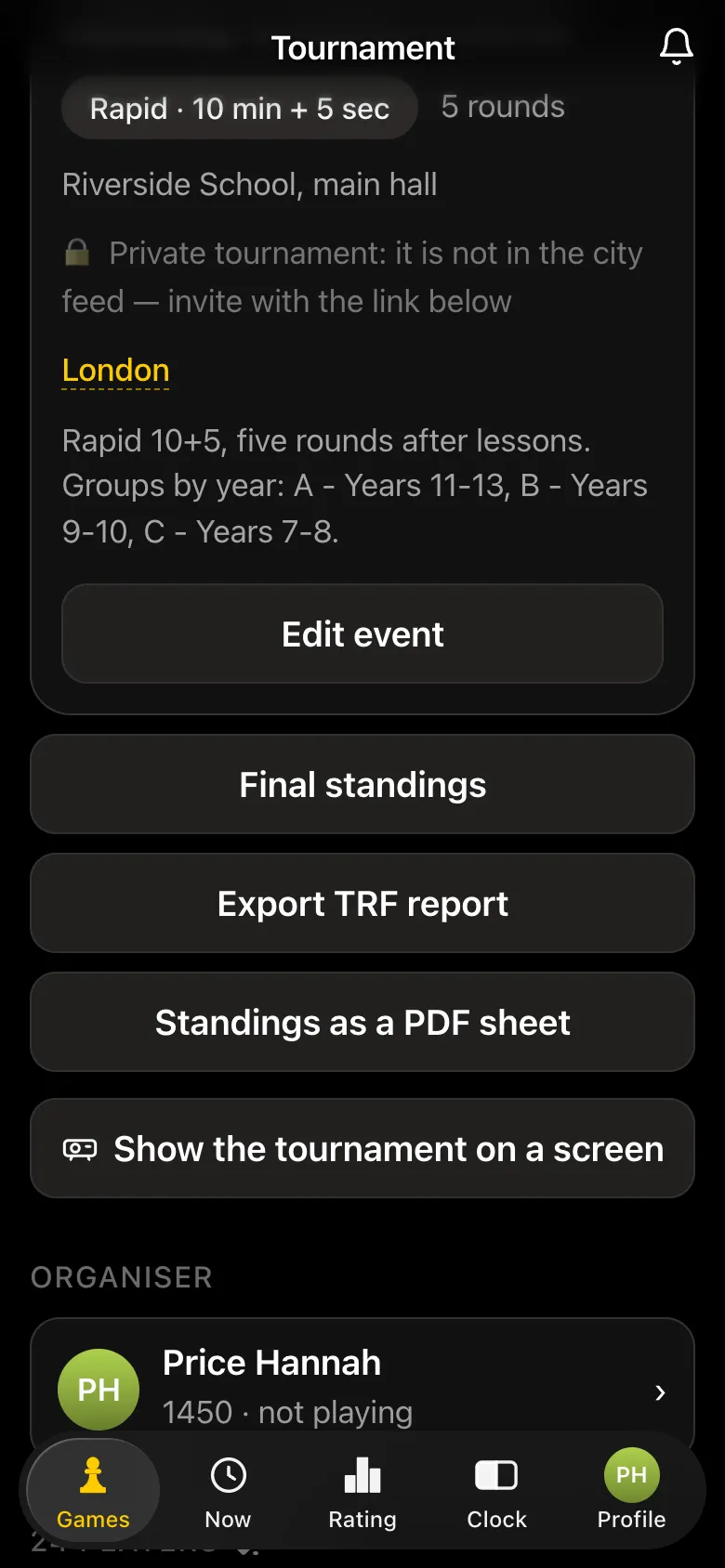
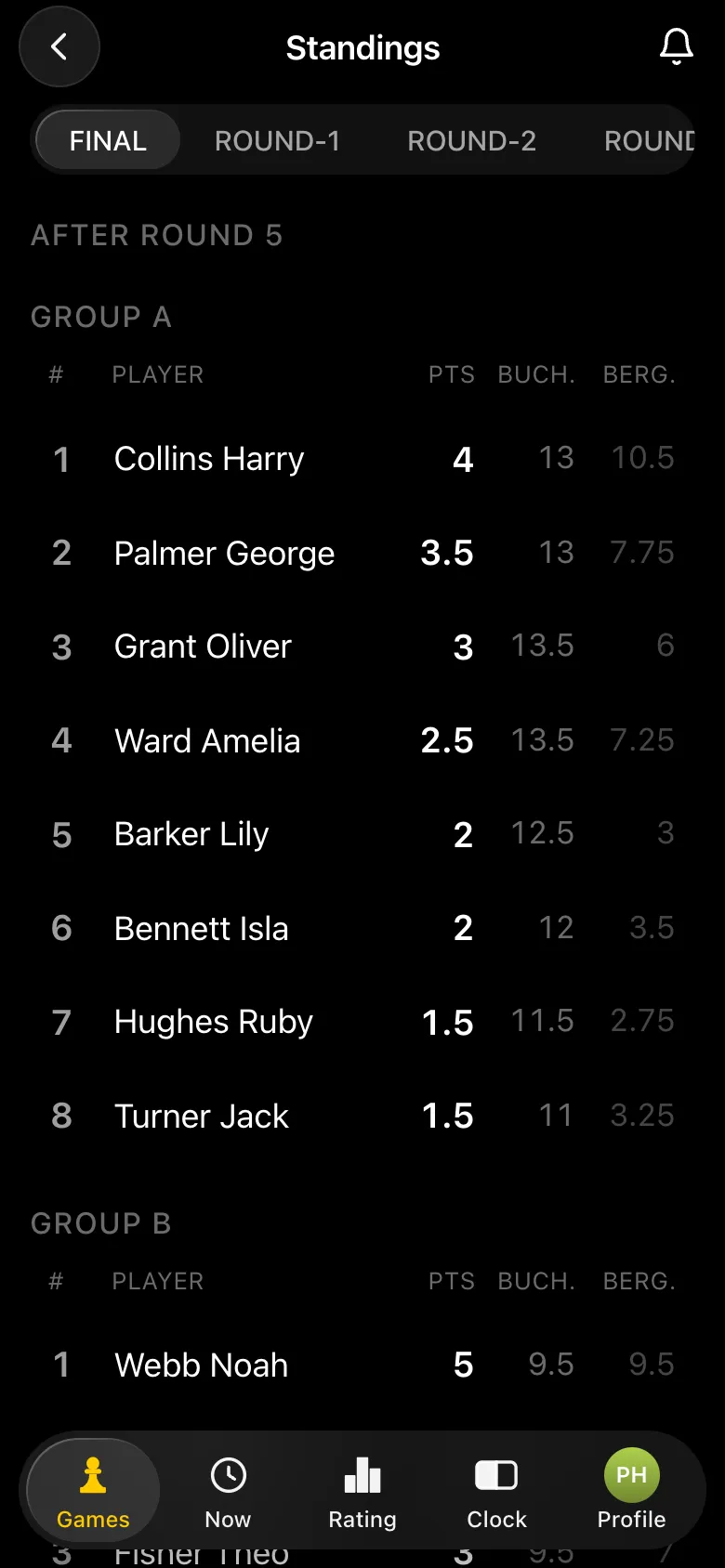
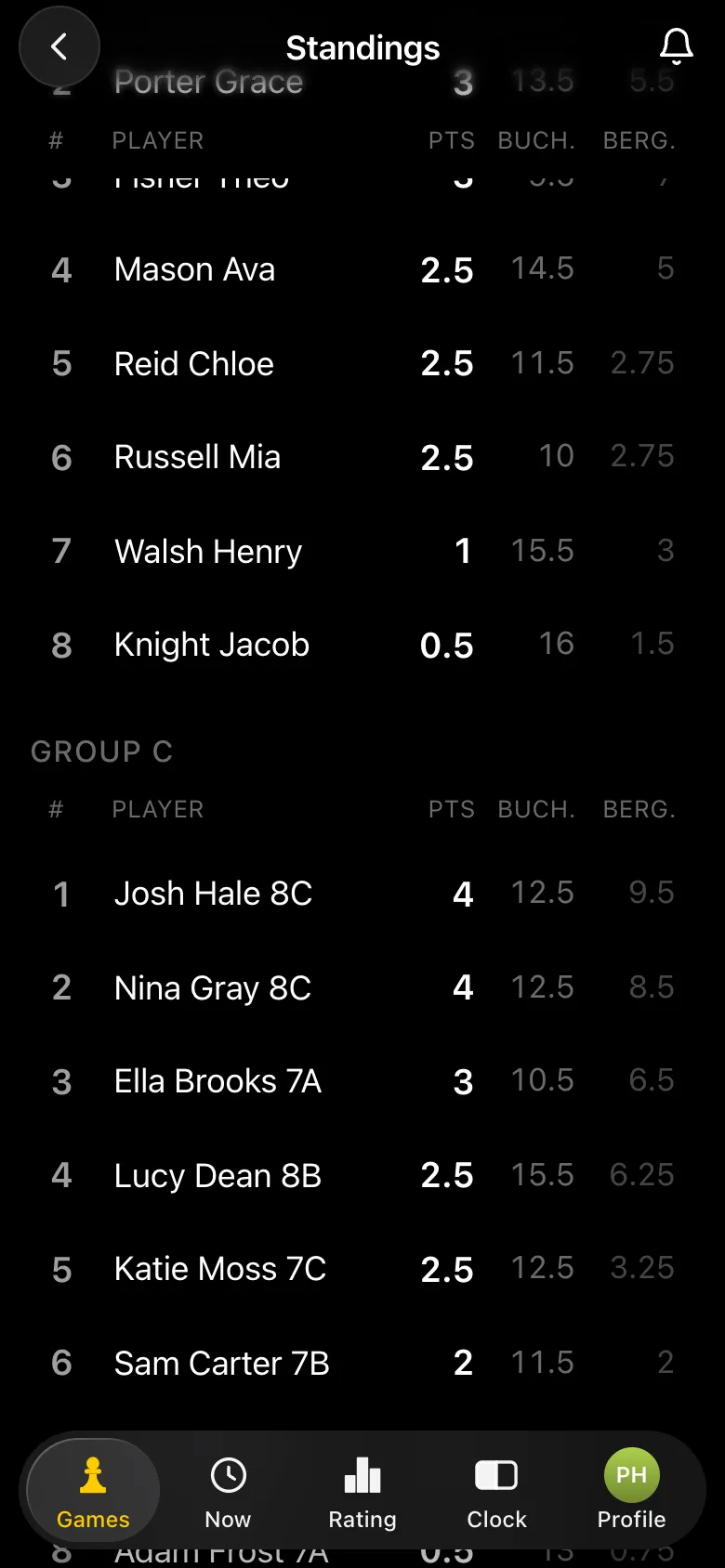
"Standings as a PDF sheet" sends an A4 sheet to the chat: places for every group, points, tie-breaks, and after that the pairings of every round. Certificates are signed from it, it goes on the noticeboard and into the report for the school leadership. The final standings are on the projector too - for the prize-giving.
One tournament is a celebration, but a chess club lives all year. Set up a league: Profile - Leagues - Create a league. A league has its own rating - only league tournaments move it - a season table with points for places, and points just for taking part, so coming to stages pays off for everyone. Juniors and seniors are split by divisions, and each division has its own table.
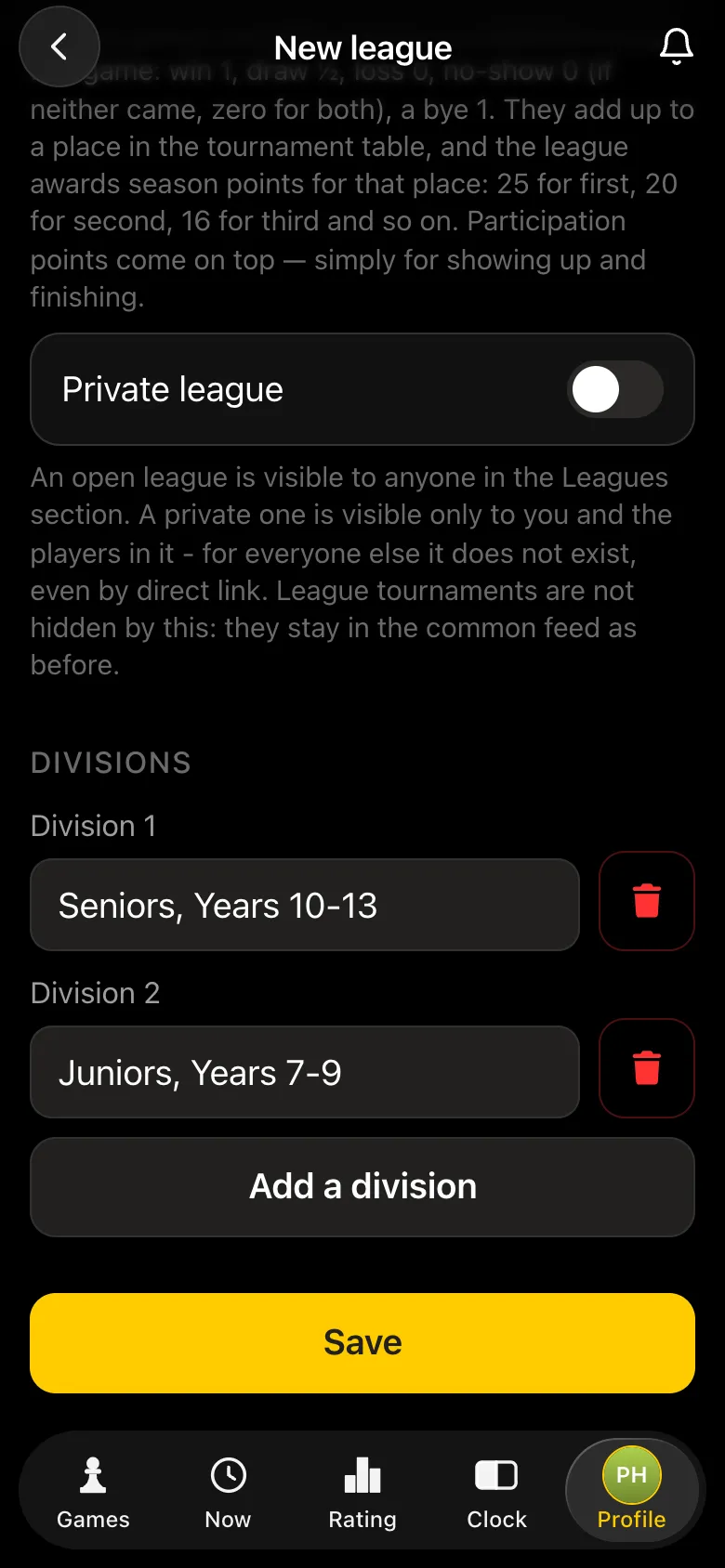
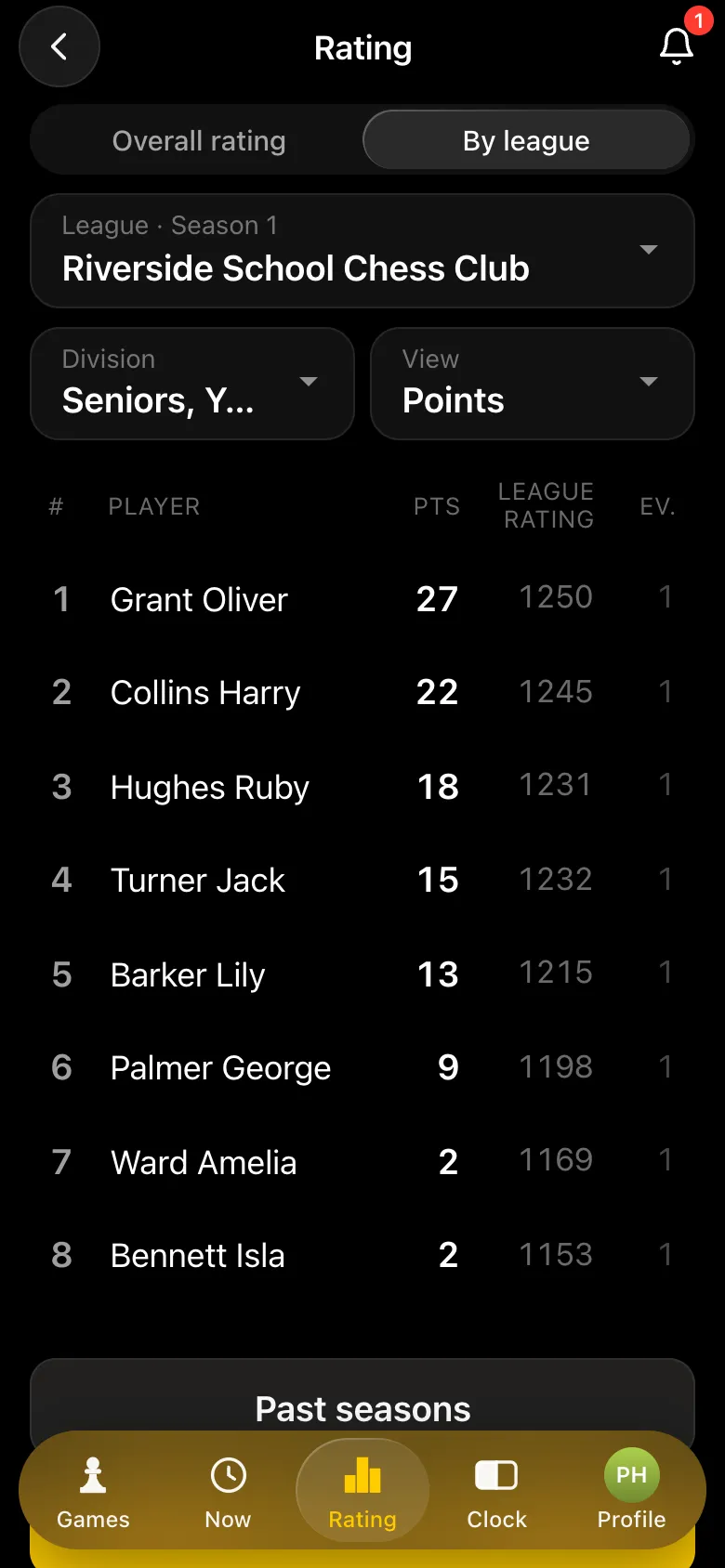
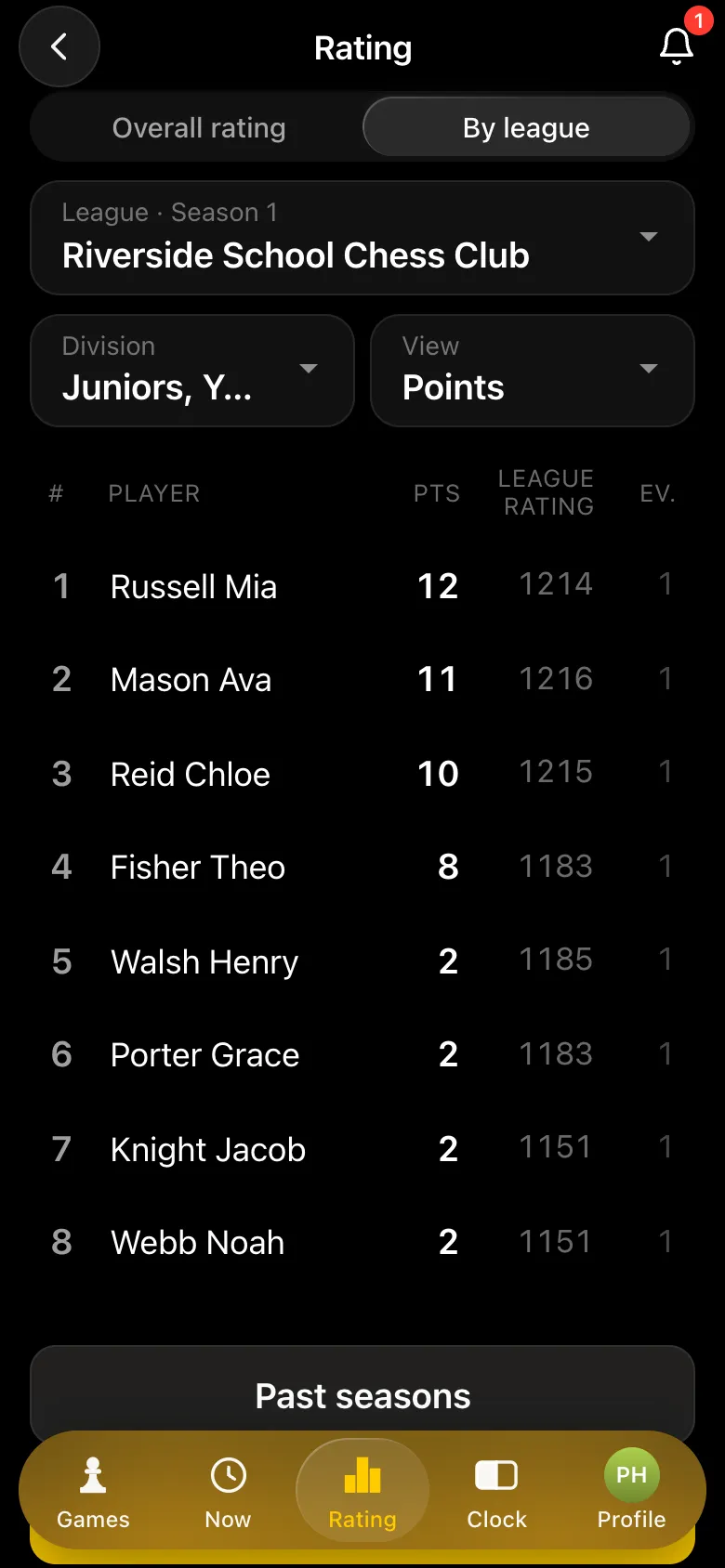
A league tournament is created like any other, you just pick your league in the "League" field. One limitation: a tournament with groups cannot be attached to a league - so in the league juniors and seniors are split by divisions, not groups. And the league is for pupils with their own account: guests play unrated. The season table lives on the Rating tab under "By league". Company leagues work the same way - see corporate chess tournament in the app.
Yes. The teacher adds younger pupils as guests by name and enters their results - one tap on the table. Older pupils with phones still sign up and report their results themselves.
Split the tournament into groups by year: for example, A for Years 11-13, B for Years 9-10, C for Years 7-8. Pairings are made only inside a group, and each group has its own standings and prize winners.
No, if you switch on Private tournament: it is not in the city feed, and the only way in is the teacher's link.
Yes: in the Show the tournament on a screen window switch on No photos on the screen. Only names stay on the projector.
Nothing. Tournaments, pairings, the screen, the PDF results sheet and the league are free. The app runs in Telegram through the @vibechessbot bot, and on a computer at playvibechess.com/app.
Older pupils with their own account report the result themselves, and the opponent can dispute it within 15 seconds. The teacher enters results for guests, and the teacher's word is final.
Set up a league: Profile - Leagues - Create a league. A league has its own rating, divisions for juniors and seniors and a season table until the summer. League tournaments are created like any others, with your league selected and without groups.
The Vibe Chess app opens from a link and needs no installation. Setting up a tournament takes a minute: pick the system, set the date, the venue and the time control - the app handles the rest.
for a large field: opponents are matched by score, you choose the number of rounds
for a small circle: everyone plays everyone, the round count follows from the field
no rounds, no pairings: players sign up and pick opponents at the table
The bot is constantly improved based on real tournaments. If you need a feature that isn't there yet, message the developers right inside the bot with the /support command. Many features appeared exactly because organizers asked for them, and useful ideas get added quickly.
With no app involved - a tournament at school, a classroom tournament, tournaments in a chess club, a summer camp tournament. The same app for other audiences - student, corporate and beginners' tournaments. Chess for a whole camp session - summer camp tournament in the app.

At the board since childhood: hazy about his rating, precise about every rook he has blundered. Counts an evening as a good one if the opponent stayed to talk afterwards instead of rushing off to check with an engine. Message →